

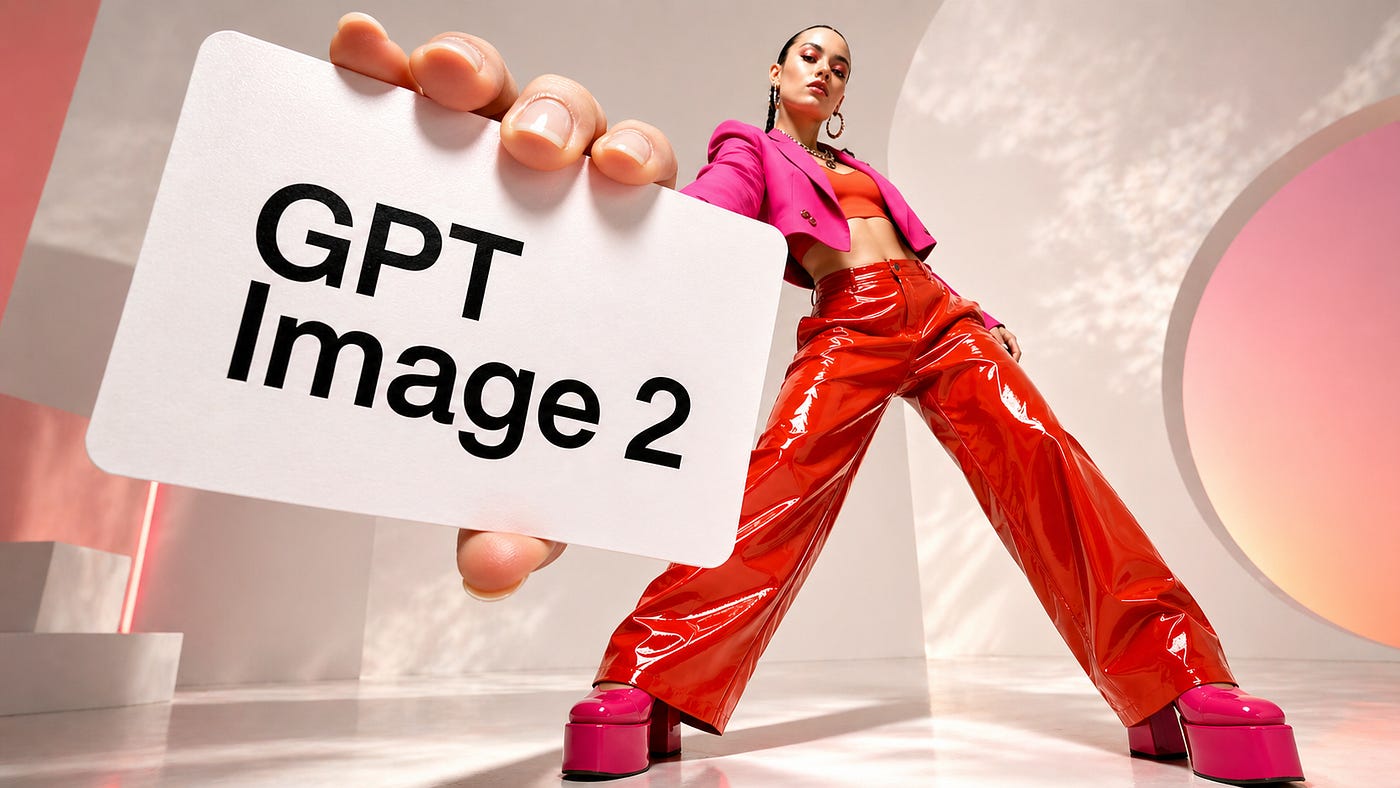
I am not a marketing expert, and I do not own a large brand with a full creative team behind it. But I can tell when a marketing asset works. It makes you stop, understand the product, and feel something about the brand. That is harder to create than it looks.
That is where AI is becoming useful, with tools like invideo agent helping brands test campaign ideas, product shots, ad layouts, and creative directions faster.
I am not saying AI should replace designers, photographers, editors, or creative teams. But GPT Image 2 gives brands a faster way to explore visual ideas, compare different styles, and create useful campaign assets.
In this guide, I’ll show several ways brands can use GPT Image 2 for marketing. I’ll focus mostly on images, but I’ll also include one example where a GPT Image 2 output is turned into a short video using Seedance 2.0.
Here are the examples we will cover:
UGC-style campaign images
Product ad concepts
Brand-specific images
Virtual try-on for garment products
Image-to-video campaign assets
Let’s get started.
What’s new in GPT Image 2
GPT Image 2 was a surprise for many people because there was not much noise around it before its release. OpenAI announced it almost out of nowhere, and the model turned out to be much better than expected.
The biggest update is control. GPT Image 2 is not only better at producing clean images. It is better at following the purpose of the image. That makes it more useful for campaign work where the output needs to match a product, format, layout, audience, and message.
It also handles text inside images better. Brands can use it for posters, thumbnails, ad mockups, product graphics, social posts, and localized creatives without fixing every word manually after generation.
The editing is also more practical. You can upload a product photo or existing creative, then change the background, lighting, layout, format, or campaign style while keeping the main subject intact.
For brands, the main advantage is speed. GPT Image 2 helps teams test more campaign ideas, create platform-specific versions, and move from concept to usable creative faster.
1. Creating UGC-style campaign images
UGC-style content is great because it feels more natural than a traditional ad. People are used to seeing creators talk about products on TikTok, Instagram Reels, YouTube Shorts, and other social platforms.
To create a UGC-style image with your product, head over to Topview and open the image generator tool. Upload or drop the image of your product.
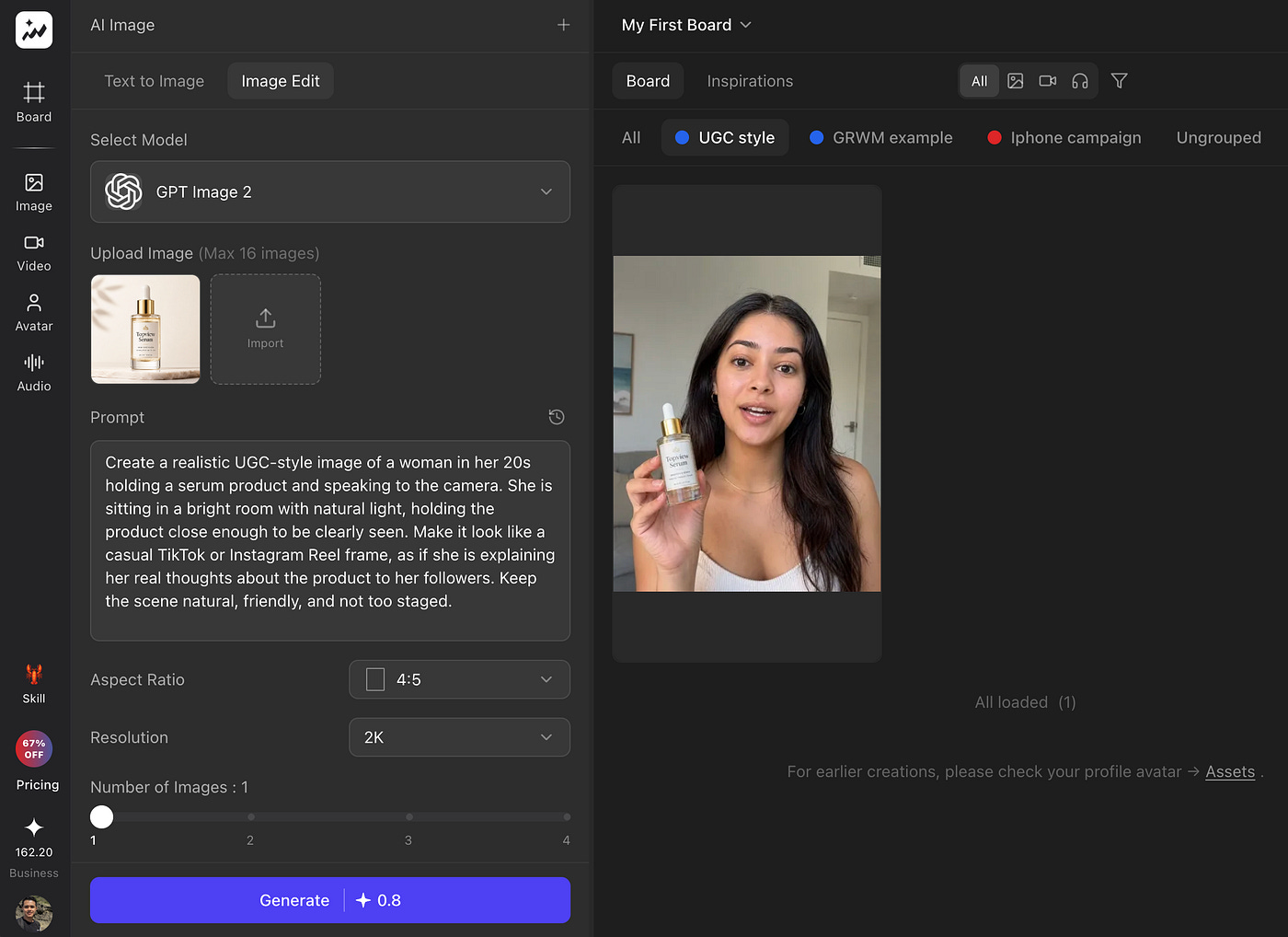
Make sure you are in the Image edit tab with the GPT Image 2 model selected. Then, in the prompt section, use something like this:
Prompt: Create a realistic UGC-style image of a woman in her 20s holding a serum product and speaking to the camera. She is sitting in a bright room with natural light, holding the product close enough to be clearly seen. Make it look like a casual TikTok or Instagram Reel frame, as if she is explaining her real thoughts about the product to her followers. Keep the scene natural, friendly, and not too staged.
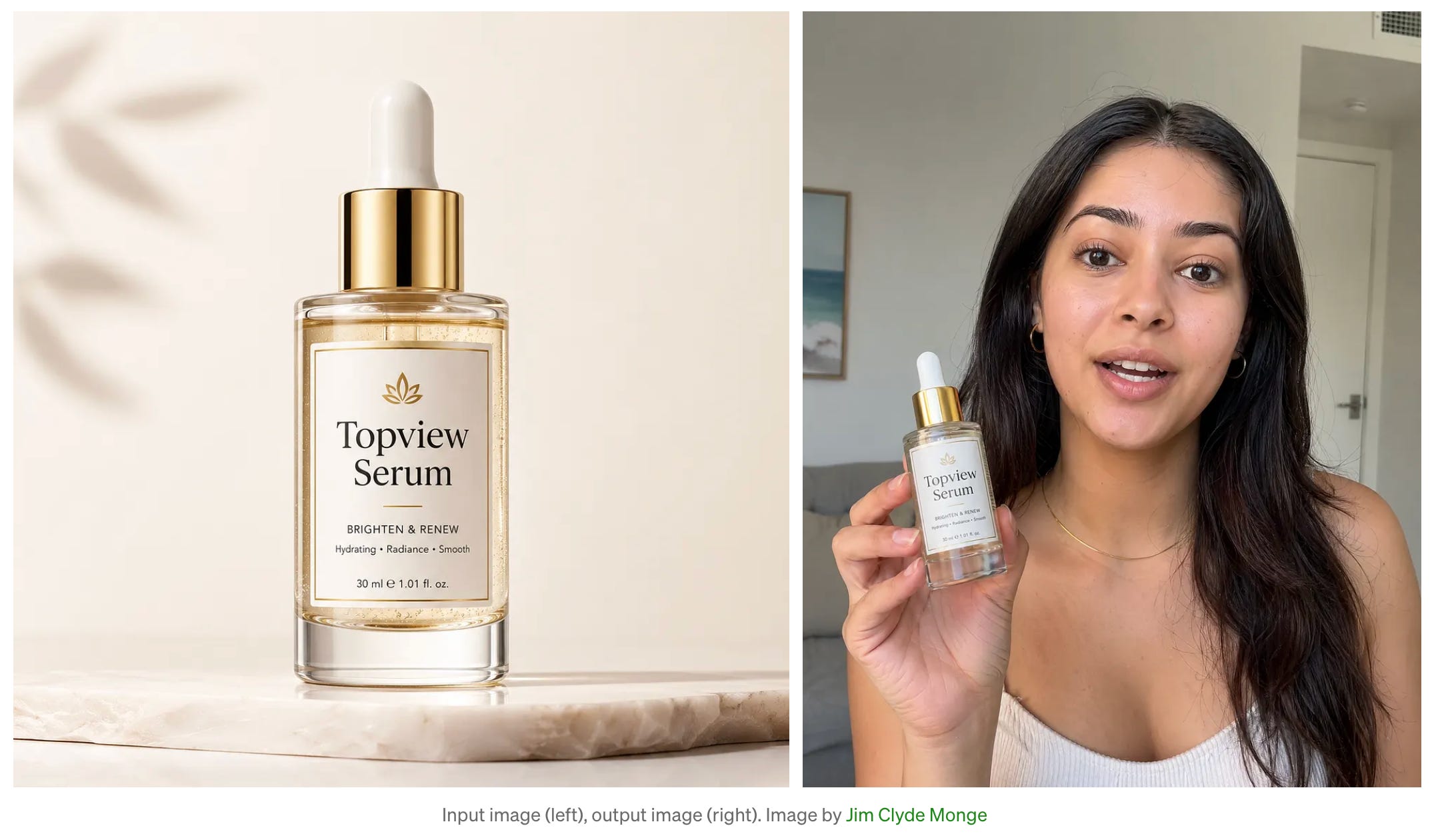
Here’s what the side-by-side comparison of the product image and the AI-generated UGC style output:
If you don’t want the model to be random, Topview has hundreds of available templates to choose from.
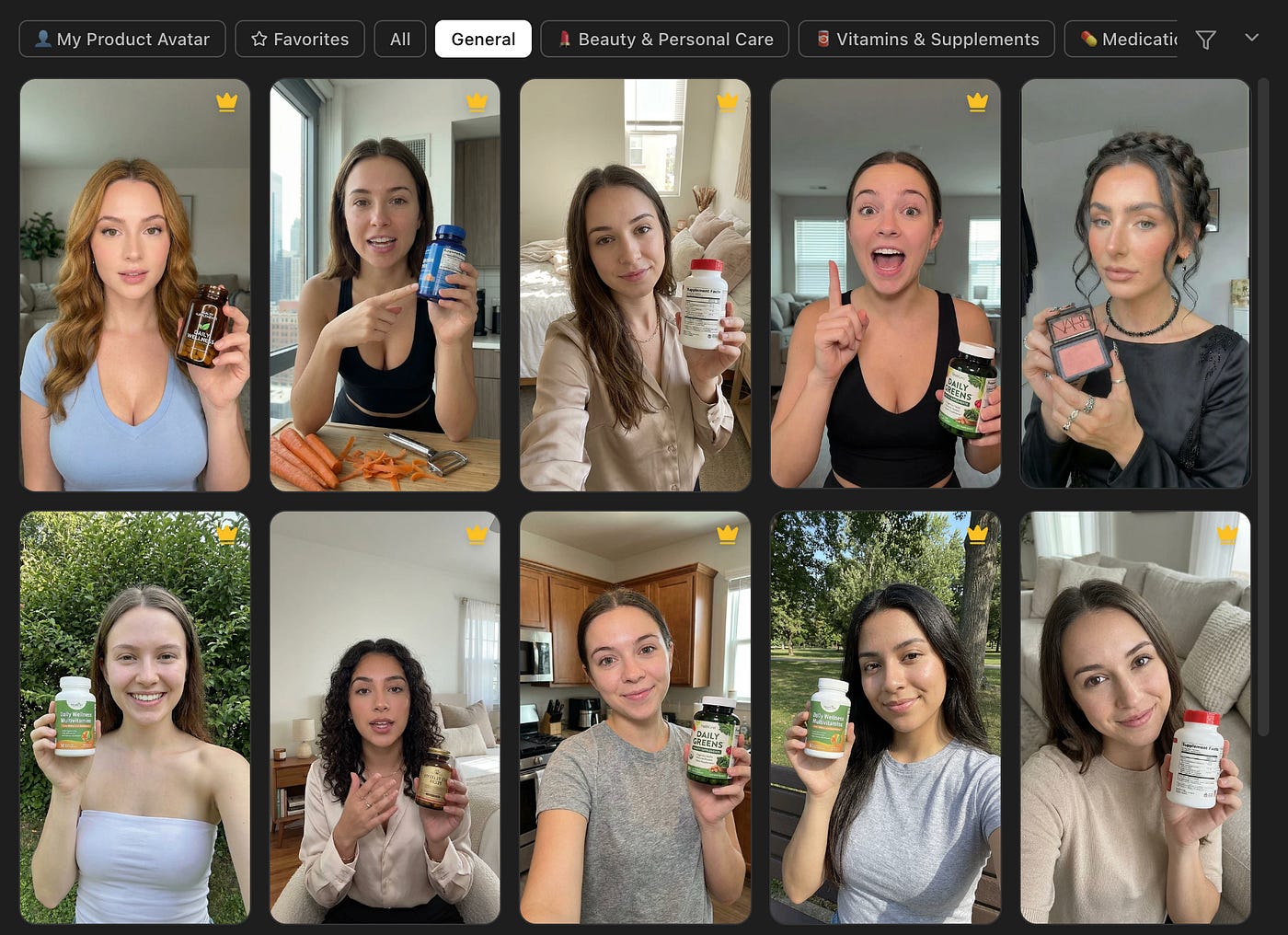
Here, the model already understands the format. It knows what a UGC-style frame should look like. It understands that the product needs to be visible. It understands that the person should look like she is speaking to a camera. It also understands that the scene should feel casual and not overly staged.
For marketers, this can help in several ways.
You can use it to build ad concepts before hiring a creator. You can test different influencer styles. You can create thumbnails for campaign planning. You can show a client what a creator-style ad might look like before producing the actual video. You can also create multiple variations for different audiences.
Another cool thing that you can do is create a GRWM (get ready with me) type of video. To do that, open the image editing tab in Topview and upload both the top and bottom garments.
These are the sample images that I will be using as an example:
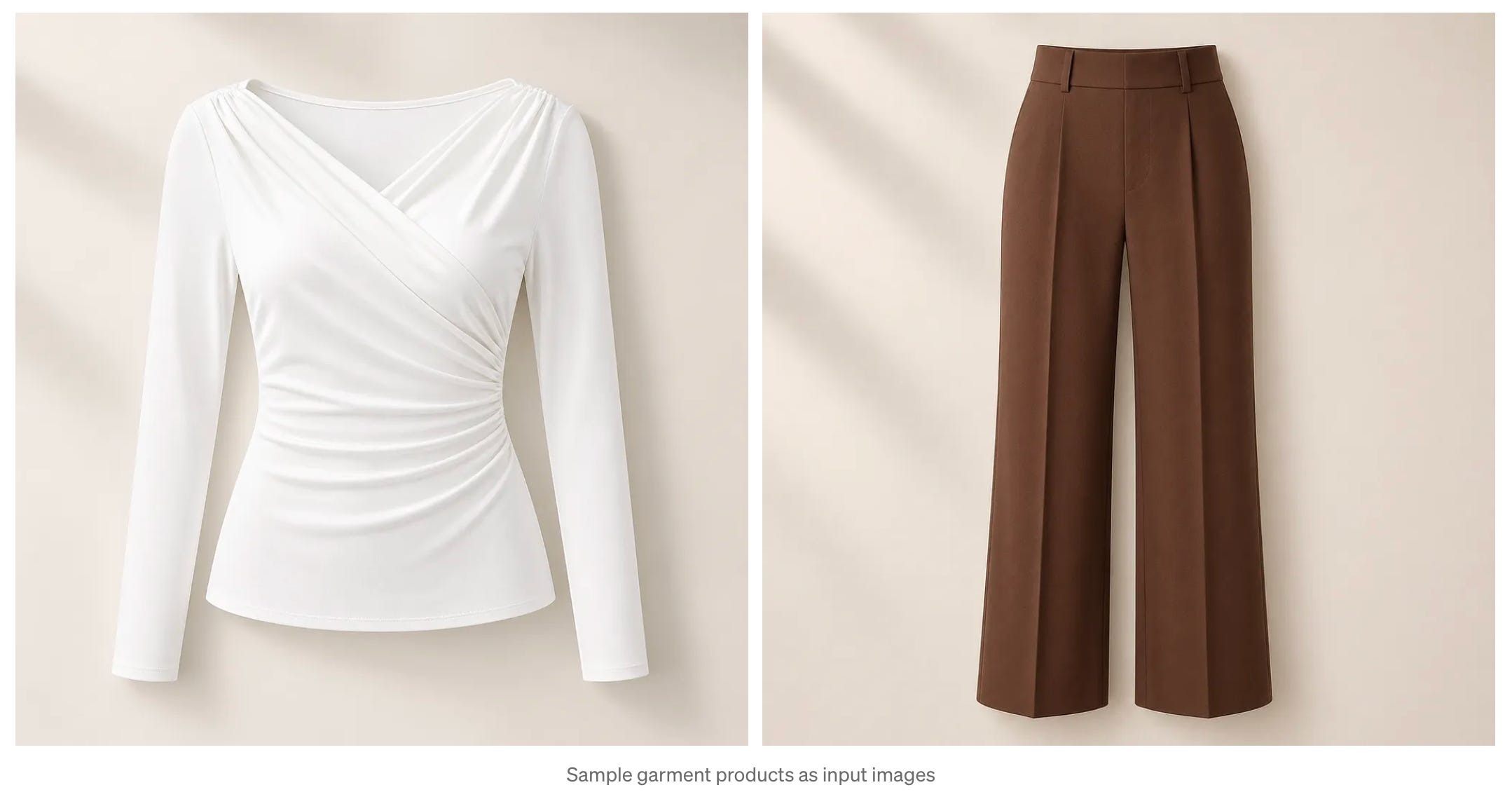
Here is the detailed prompt to guide the AI on what each scene should look like.
Storyboard : FORMAT:
4:5 vertical storyboard collage, high-resolution
Style: luxury editorial, Pinterest-saveable, minimal

CONCEPT:
Get Ready With Me — Outfit

LAYOUT:
4×4 grid (16 frames), equal spacing, clean margins, soft beige background

FRAMES (LEFT → RIGHT, TOP → BOTTOM):

1. White long sleeve base
2. Trousers wear
3. Tuck adjustment
4. Mirror check

5. Shirt layering
6. Blazer on shoulders
7. Sleeve adjustment
8. Fabric movement

9. Watch close-up
10. Necklace placement
11. Belt buckle
12. Sunglasses on

13. Shoes step-in
14. Walking shot
15. Bag grab
16. Final look pose

VISUAL STYLE:
Neutral palette (beige, white, black), soft natural light, subtle shadows, clean interior background

MODEL:
Single subject, consistent framing, calm expressions, editorial posture

TYPOGRAPHY:
Minimal serif font, small step indicators (1–16), optional title:
“GET READY WITH ME — OUTFIT”

COMPOSITION:
Symmetrical grid, aligned edges, consistent crop per frame, high detail, no clutter

OUTPUT:
Clean, aesthetic, bookmark-worthy infographic
This is what each frame in the multi-scene video should be:
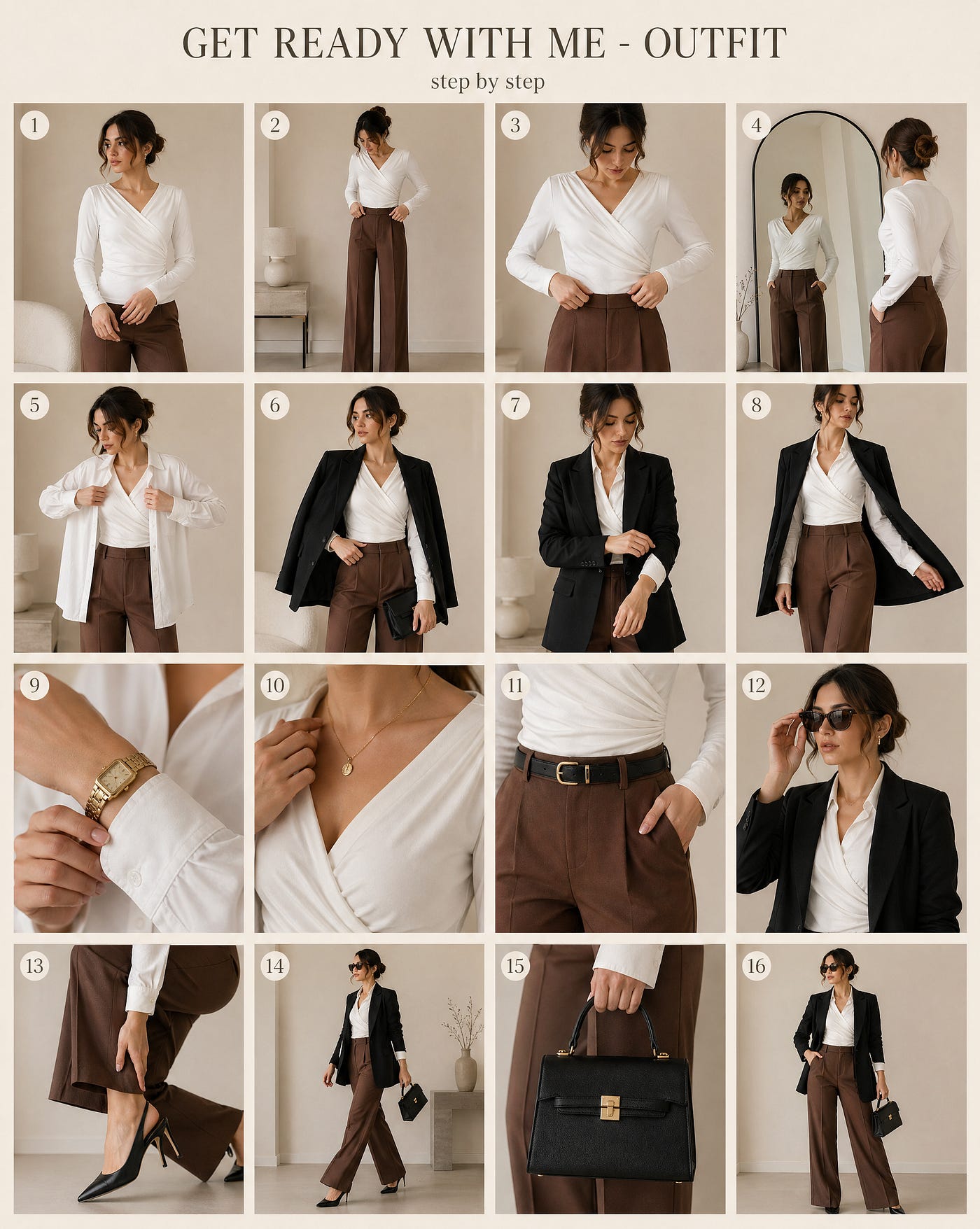
Awesome! Now it’s ready to be turned into a video. In Topview, choose the AI video generator tool with Omni Reference. Upload the image just created and then feed the prompt.
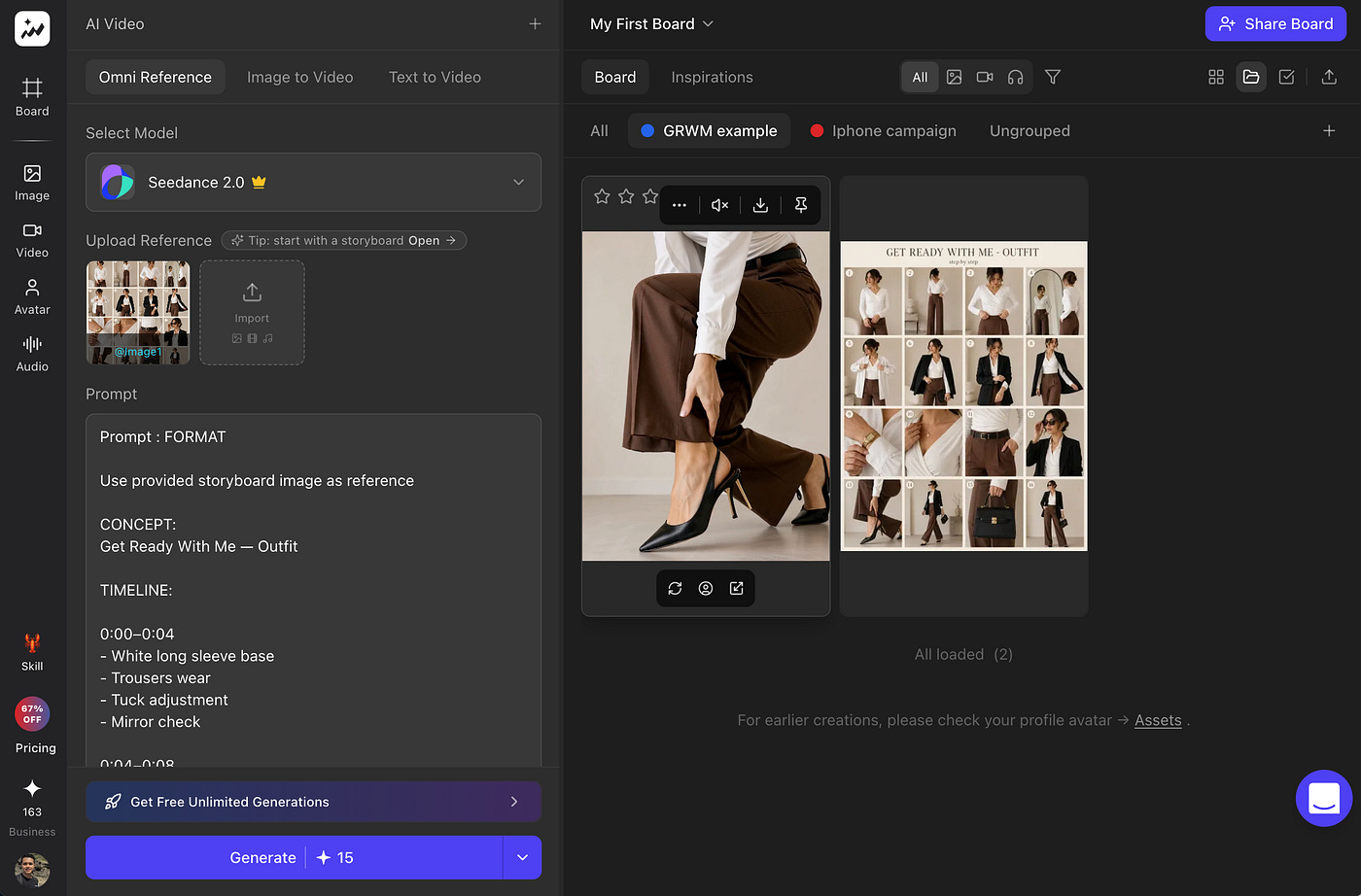
Prompt : FORMAT

Use provided storyboard image as reference

CONCEPT:
Get Ready With Me — Outfit

TIMELINE:

0:00–0:04
- White long sleeve base
- Trousers wear
- Tuck adjustment
- Mirror check

0:04–0:08
- Shirt layer
- Blazer on
- Sleeve adjust
- Body turn

0:08–0:12
- Watch
- Necklace
- Belt
- Sunglasses

0:12–0:15
- Shoes
- Walk
- Final look

STYLE:
Minimal, neutral tones, soft natural light, clean background

CAMERA:
Close-up + mid shots, steady framing, shallow depth of field

TRANSITIONS:
Match cuts, fabric motion, clean jump cuts

OUTPUT:
Loopable, smooth pacing
Adjust the resolution, aspect ratio, and duration of the video. In the example below, I chose a 3:4, 15-second clip at 1080p resolution. Here’s the final result:
2. Creating product ad concepts
This is probably one of the most useful workflows for business owners because product campaigns often require many ideas before one direction feels right. You may want a clean studio ad, a luxury product shot, a lifestyle image, a seasonal campaign, or something more experimental.
GPT Image 2 can help you create these campaign directions much faster.
Suppose you are selling tennis apparel. You can use this prompt:
Prompt: Create an avant-garde sports fashion advertisement for a tennis apparel brand. Show an oversized tennis racket positioned like a monumental sculpture. A female athlete is seated casually on the strings as if it is a suspended lounge. Add the giant word “FOCUS” in bold typography behind her. Use a crisp white studio backdrop, a reflective court-like floor, luxury sportswear styling, cinematic lighting, and an ultra-clean 1:1 composition.
This kind of image is useful because it gives the brand a campaign direction. It may not be the final ad, but it helps the team imagine what the final ad could become.
You can generate this multiple times until you get the right composition. You can test different words, different poses, different clothing styles, different colors, and different product placements.
For example, you can create variations like:
A darker luxury version
A bright summer sportswear version
A streetwear-inspired tennis ad
A clean e-commerce product ad
A campaign poster with stronger typography
This is a huge advantage for small teams. Instead of spending days creating moodboards and rough concepts, you can generate multiple directions in minutes and pick the strongest ones.
It also helps when working with clients. A client may say they want something “premium” or “modern,” but those words can mean different things to different people. GPT Image 2 helps turn vague creative direction into something visual.
Instead of debating abstract ideas, you can show actual campaign images and ask, “Is this closer to what you want?”
In another example, suppose you are a restaurant owner working on either a design for your food menu or a poster to promote your limited edition dish, you could simply use GPT Image 2 to create the poster for you.
Upload a photo of the dish with your smartphone, upload to Topview, make sure to set the image model to GPT Image 2, and then drop the prompt.
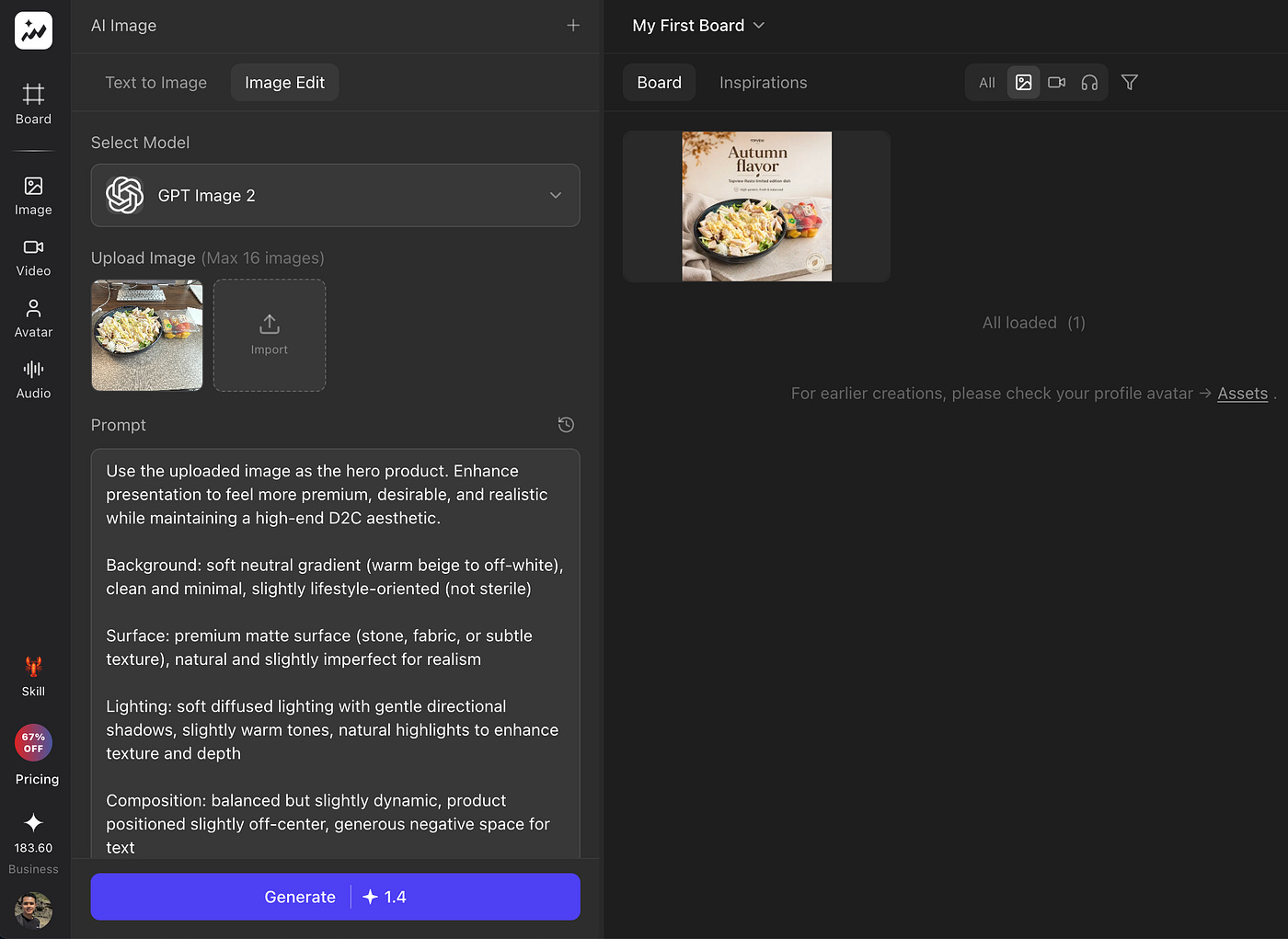
Here’s the full prompt used:
Use the uploaded image as the hero product. Enhance presentation to feel more premium, desirable, and realistic while maintaining a high-end D2C aesthetic.

Background: soft neutral gradient (warm beige to off-white), clean and minimal, slightly lifestyle-oriented (not sterile)

Surface: premium matte surface (stone, fabric, or subtle texture), natural and slightly imperfect for realism

Lighting: soft diffused lighting with gentle directional shadows, slightly warm tones, natural highlights to enhance texture and depth

Composition: balanced but slightly dynamic, product positioned slightly off-center, generous negative space for text

Enhancement: improve clarity, texture, and depth; subtly increase vibrancy and contrast; add slight gloss where appropriate; keep realistic (not over-processed)

Depth of field: shallow depth of field, sharp focus on product, soft background falloff

D2C cues: light lifestyle realism (minimal props if relevant), avoid over-staging, keep it natural and premium

Caption: “Autumn flavor”

Typography (top or center): short, punchy, benefit-driven headline (2–4 words, outcome-focused)

Sub-caption: “Topview Resto limited edition dish”

Small text below: clear, tangible benefit or proof point (performance, speed, quality, convenience)

Branding: minimal, modern D2C aesthetic

Style: ultra clean, premium, conversion-focused, modern brand feel, high-end but human, 8K, sharp focus, soft contrast
Here’s the side-by-side comparison of the input image and the final result.
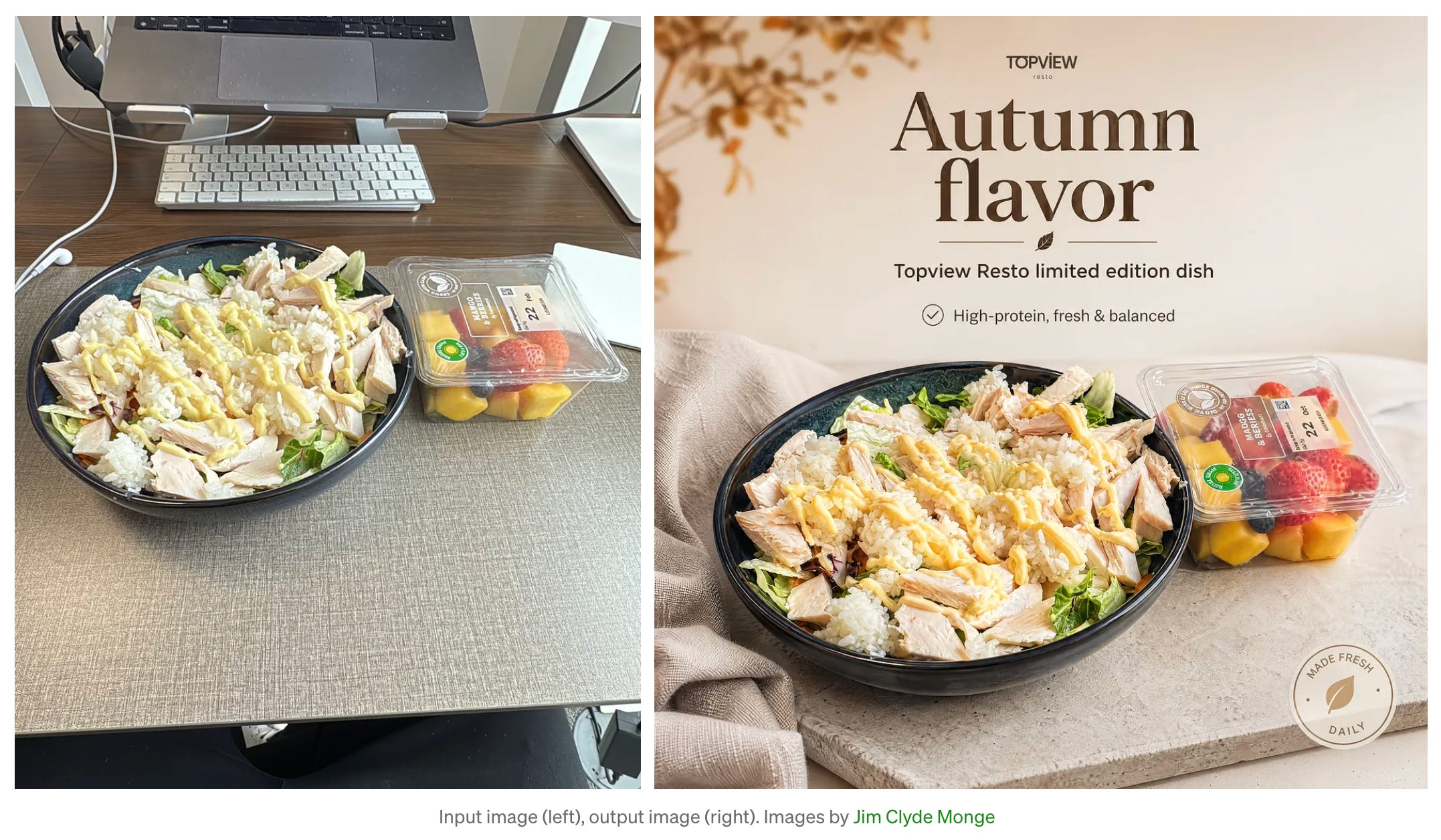
Pretty cool, right? You can adjust some image parameters in the Topview dashboard, like the aspect ratio and resolution, depending on which platform you are planning to post to.
3. Creating brand-specific campaign images
Brands need consistency. That is one of the hardest parts of using AI images.
A random good-looking image is not enough. It has to feel like it belongs to the brand. The colors, mood, product placement, typography, and overall direction should match the company’s identity.
GPT Image 2 is useful here because it can follow brand-specific instructions better than many older models. You can give it a product photo, a logo, or a style direction, then ask it to create campaign assets around that reference.
To give you an example, let’s take a look at Apple. The company has a unique branding of being simple, sleek, and elegant.
In the Topview text-to-image tool, I simply asked it to create a multi-image brand kit for a product. You only need to add the link or upload a sample photo to ChatGPT. Make sure that you are in the text-to-image tab and the selected image model is GPT Image 2.
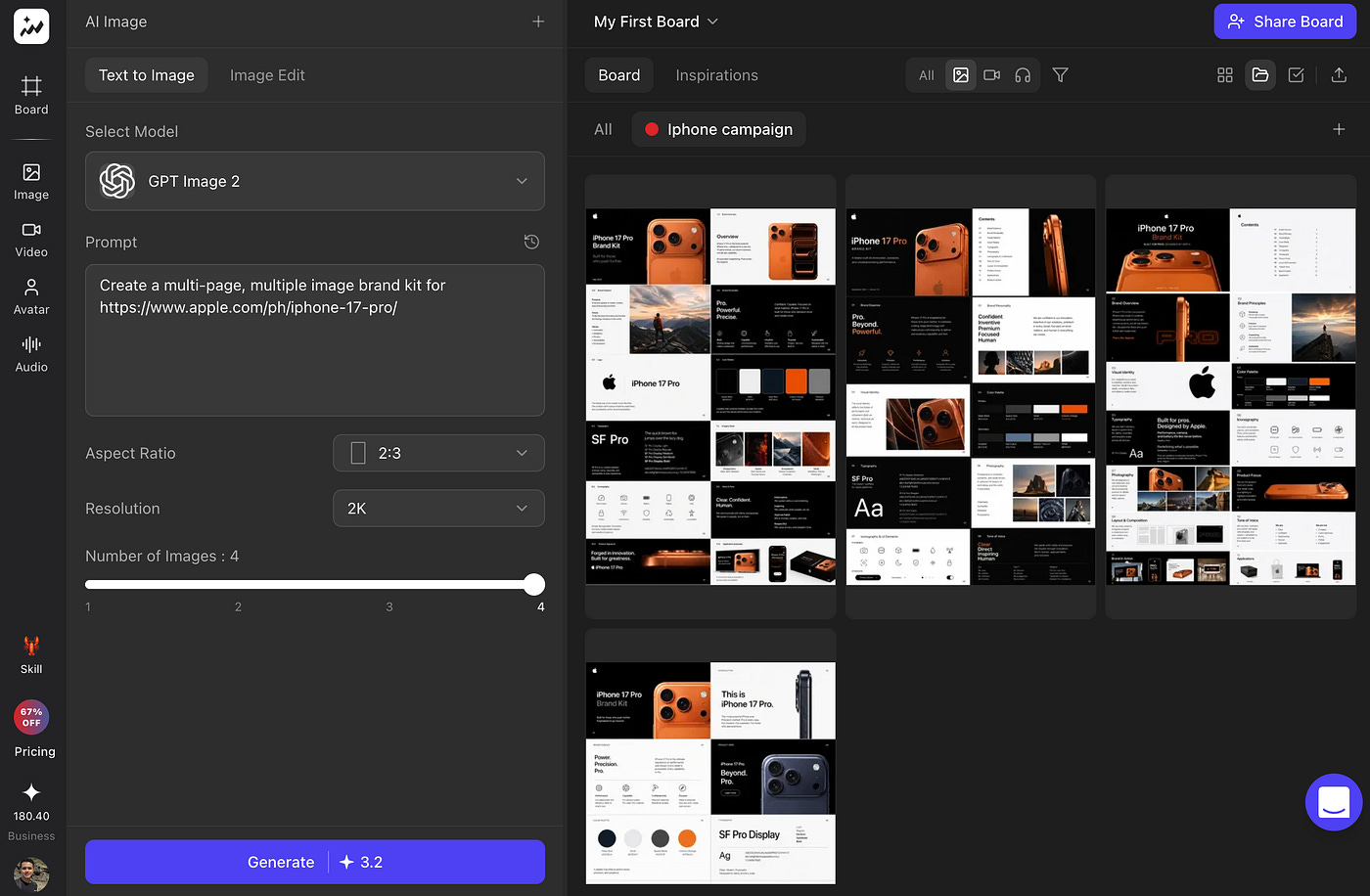
The model does not require a very long and detailed prompt. It understands what you are trying to create without overly explaining the details to the AI.
Here’s the prompt I used:
Prompt: Create a multi-page, multiple image brand kit for https://www.apple.com/ph/iphone-17-pro/
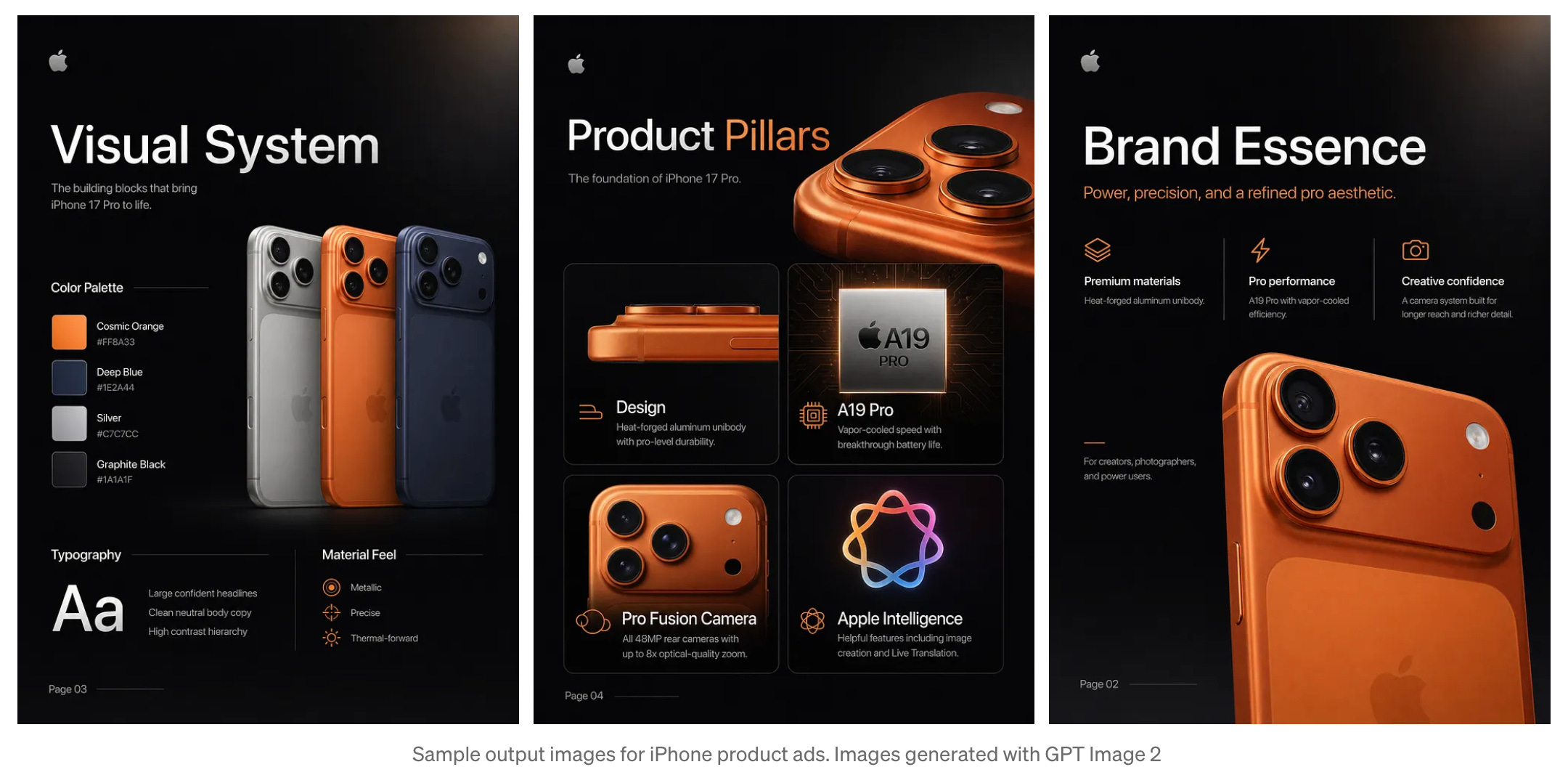
It can look for ways to pull the actual product images, recreate them properly, arrange them into a clean marketing layout, and even write short copy that makes sense for the product.
If you look into the thinking process of the AI agent, you’d see that it is trying to look for ways to extract the actual images of the product, either by using Playwright or taking screenshots from the product page and using them to recreate the image in the final result.
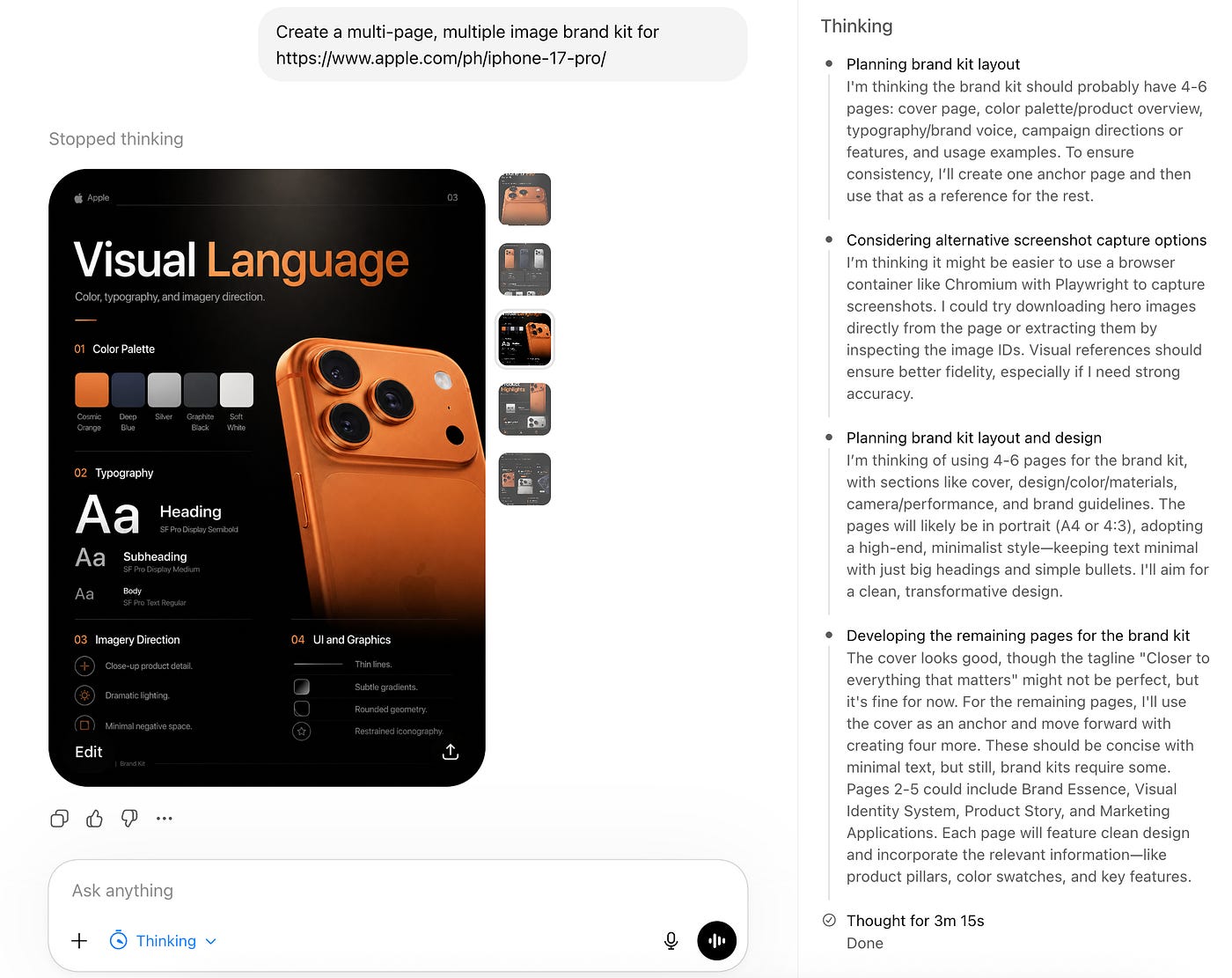
You may not see the thinking process displayed on the Topview dashboard, but if you use ChatGPT, the detailed process is shown within the model’s internal monologue. That is the part that makes this model feel really useful for business owners and marketing teams.
4. Virtual try-ons
Another useful way brands can use GPT Image 2 is for virtual try-ons.
This is especially helpful for fashion brands, shoe brands, and online stores. One of the hardest parts of selling clothes or shoes online is that customers cannot really see how the product looks when worn. Product photos are nice, but they do not always show the fit, the styling, or how the item feels in a real outfit.
To create one, open the Virtual Try-on tool in Topview and upload the product image. For the model, there are hundreds of pre-made models to choose from.
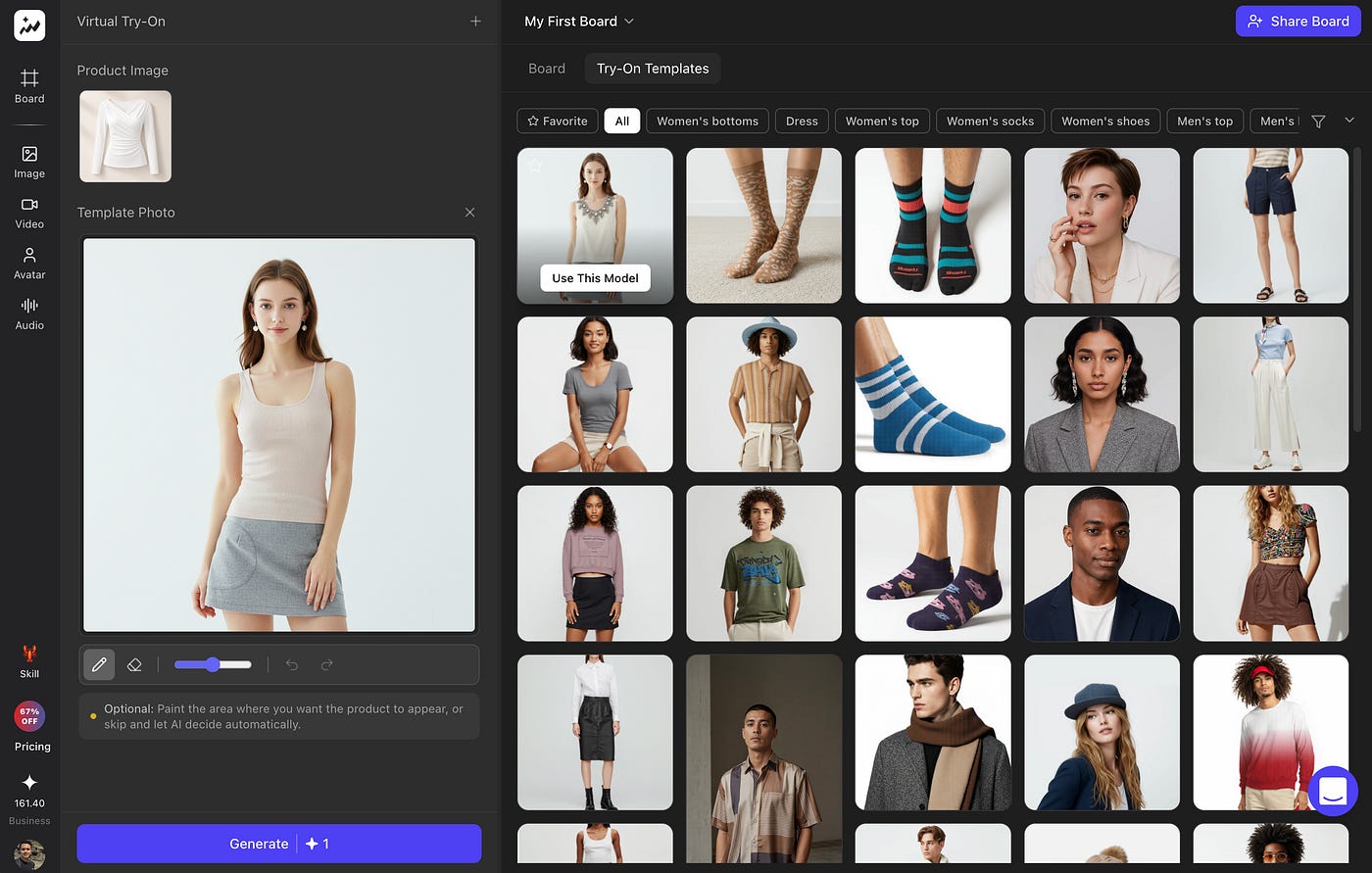
This is what the final image looks like:
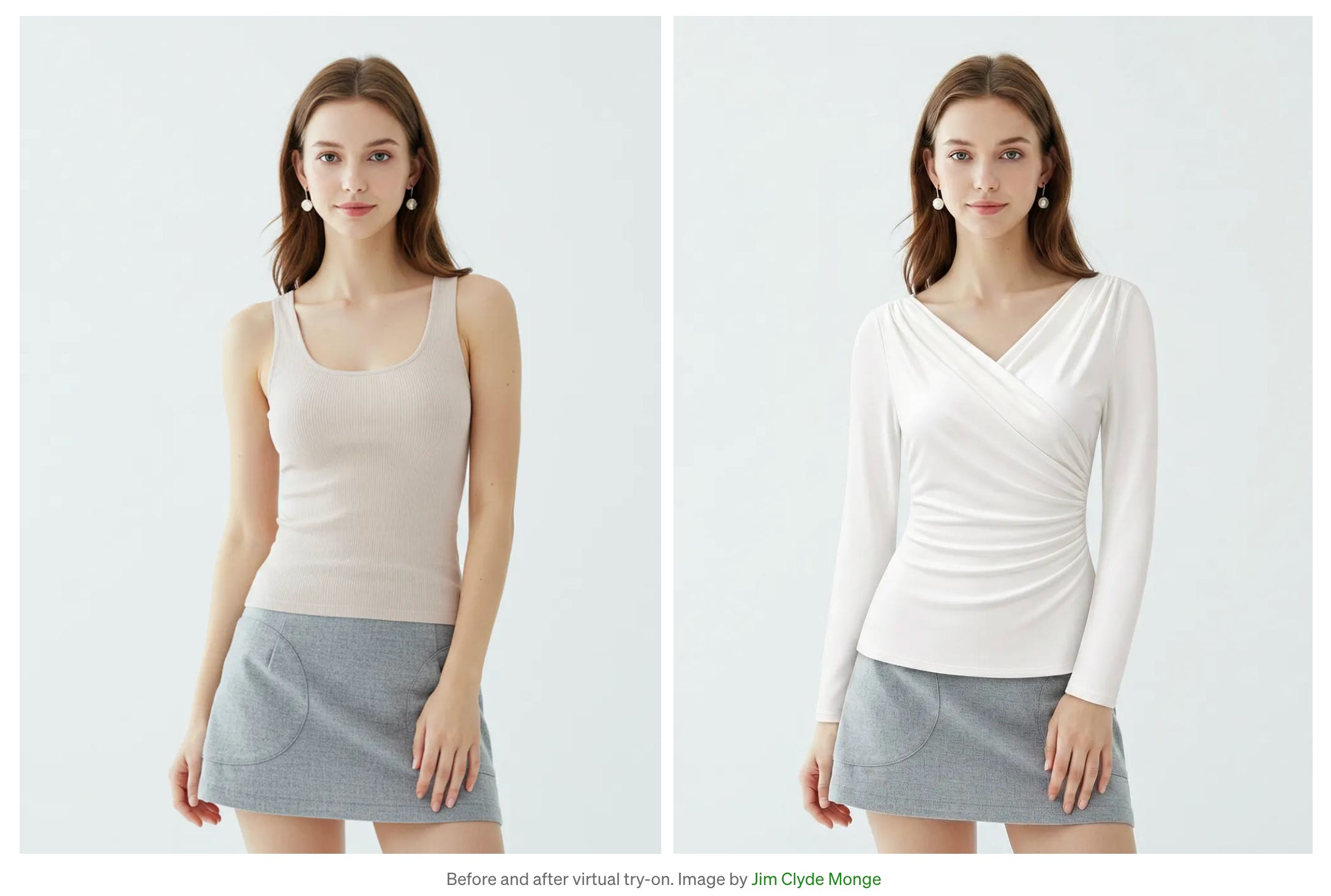
Look at how seamless the garment transfer is. GPT Image 2 is smart enough to know how to make the top fit perfectly into the model.
Of course, this does not replace real product photography. But it is great for testing campaign ideas, creating social media concepts, showing styling inspiration, and helping customers imagine the product better.
5. App store screenshots
Developers and startups can also use GPT Image 2 for app store screenshots.
This is helpful because app store screenshots are not just screenshots anymore. They are basically mini ads for your app. A plain screen capture can show what the app does, but a well-designed app store image can explain the main benefit faster, make the app look more premium, and give users a better reason to install it.
With GPT Image 2, you can upload your app screenshots and ask it to turn them into clean App Store or Google Play images. It can add better framing, device mockups, short copy, background elements, and a layout that feels more ready for a real product listing.
Prompt: 4 set of clean app store mobile screenshot design for topview.ai
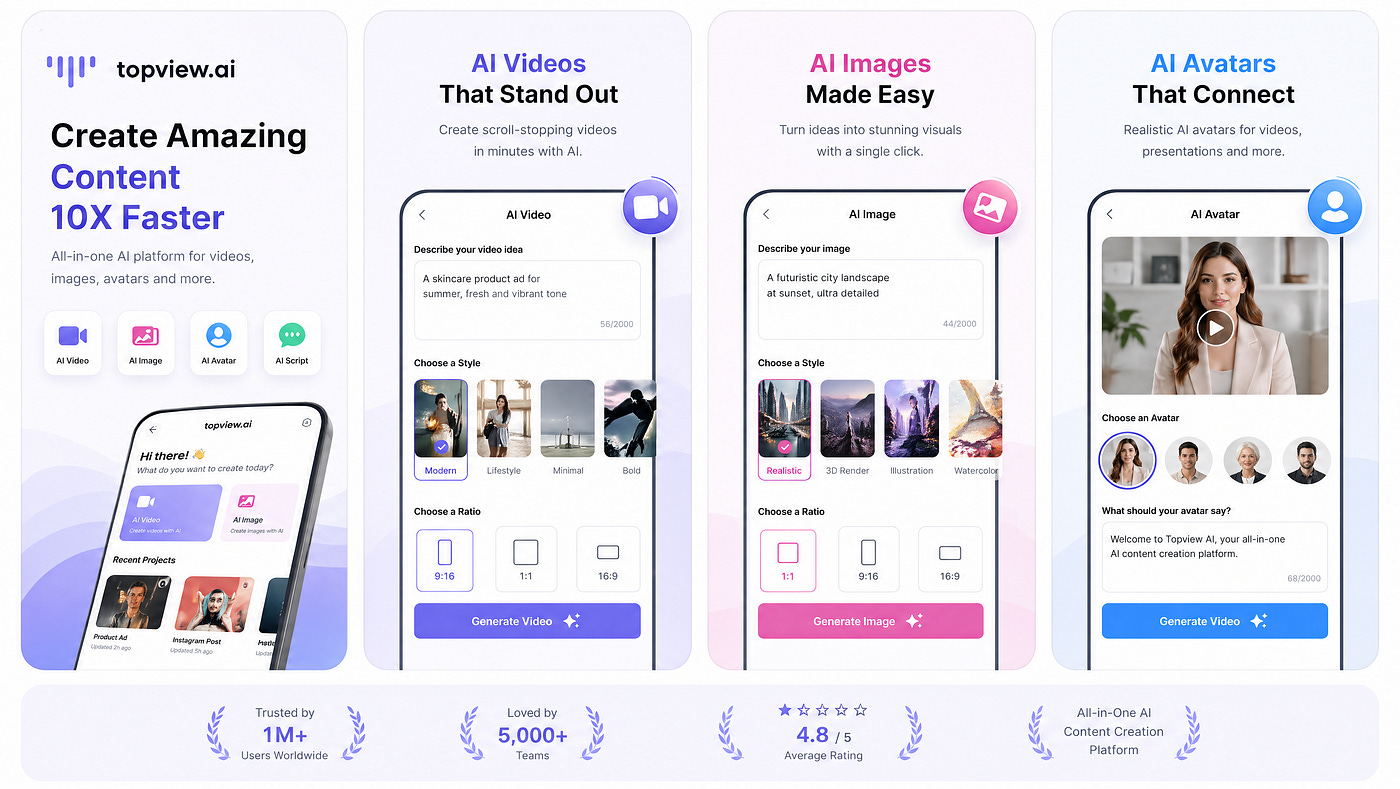
Look at how clean and beautiful the layout is. This is great for indie developers and startups because app store presentation can affect how people see your app.
It works with a desktop mode too. Look at the sample output image below.
Prompt: A clean app store screenshot design for topview.ai on a macbook
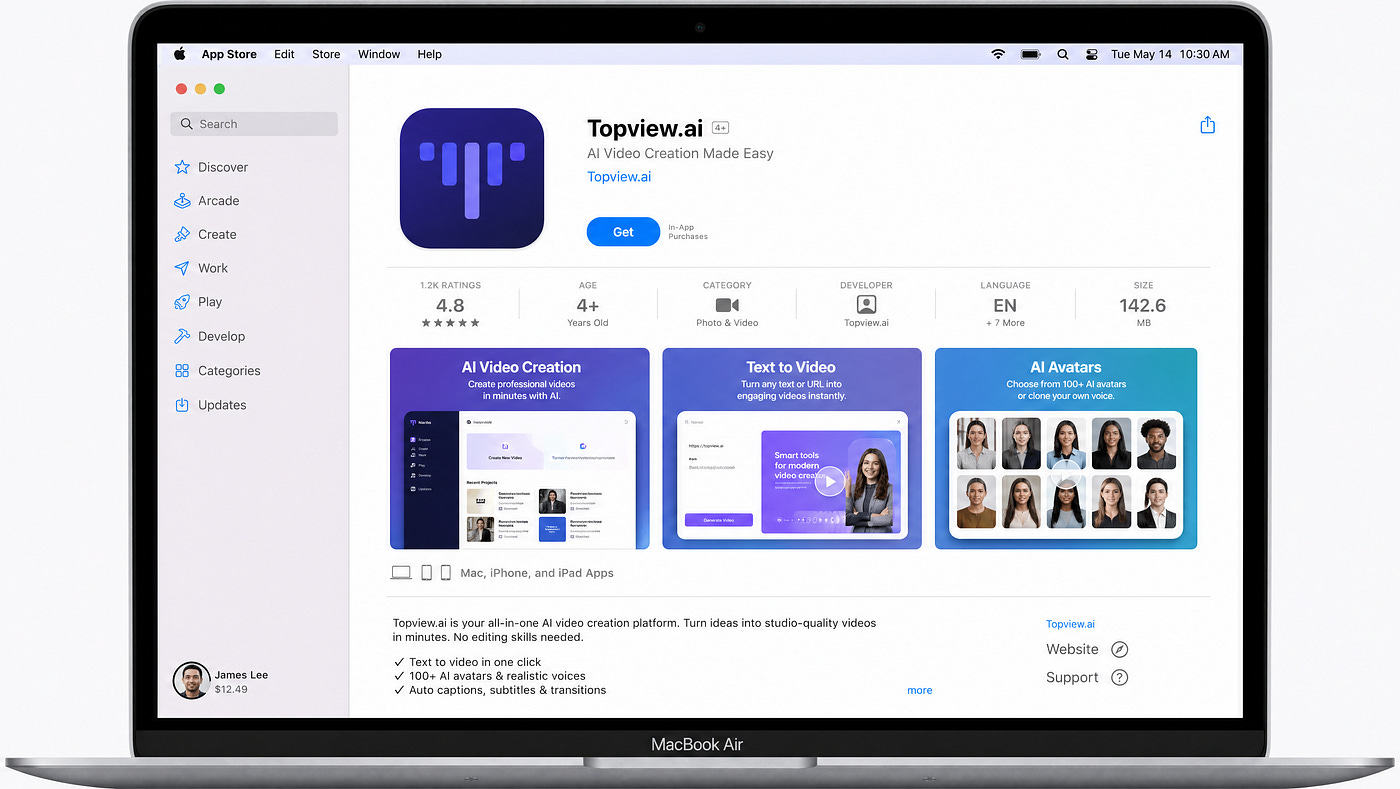
Just like that, you now have a set of high-quality promotional graphic assets to use for your app.
Final Thoughts
Alright, that’s about it. I just showed you how GPT Image 2 can be used for product kits, UGC-style images, product ads, virtual try-ons, app store screenshots, and even campaign images that can be turned into videos using Seedance 2.0.
Of course, these are just a few examples. There are so many other use cases that deserve to be on this list. GPT Image 2 is one of the most versatile and powerful image models out there right now, especially if you are creating marketing assets, brand concepts, social media creatives, or product visuals. The best way to understand what it can do is to actually experiment with it and see how far you can push a simple product image, prompt, or campaign idea.
The combination of GPT Image 2 and Seedance 2.0 is also really cool. You can start with an image, then turn it into a product teaser, UGC-style clip, short ad, or brand video. There are a lot of possibilities with these two models, and at some point, the only real limit is your imagination.
Thanks to platforms like Topview, it is now easier to access these models in a single place. You do not need to jump between several tools just to create images, turn them into videos, and build marketing assets. Topview also has features that make the workflow much faster and more efficient, which is a huge help if you are creating a lot of campaign ideas or product content.
I hope you enjoyed this list. If you have other GPT Image 2 use cases that deserve to be discussed, let me know in the comments.
Hi there! Thanks for making it to the end of this post! If you enjoyed this content and would like to support my work, consider becoming a paid subscriber. Your support means a lot!