

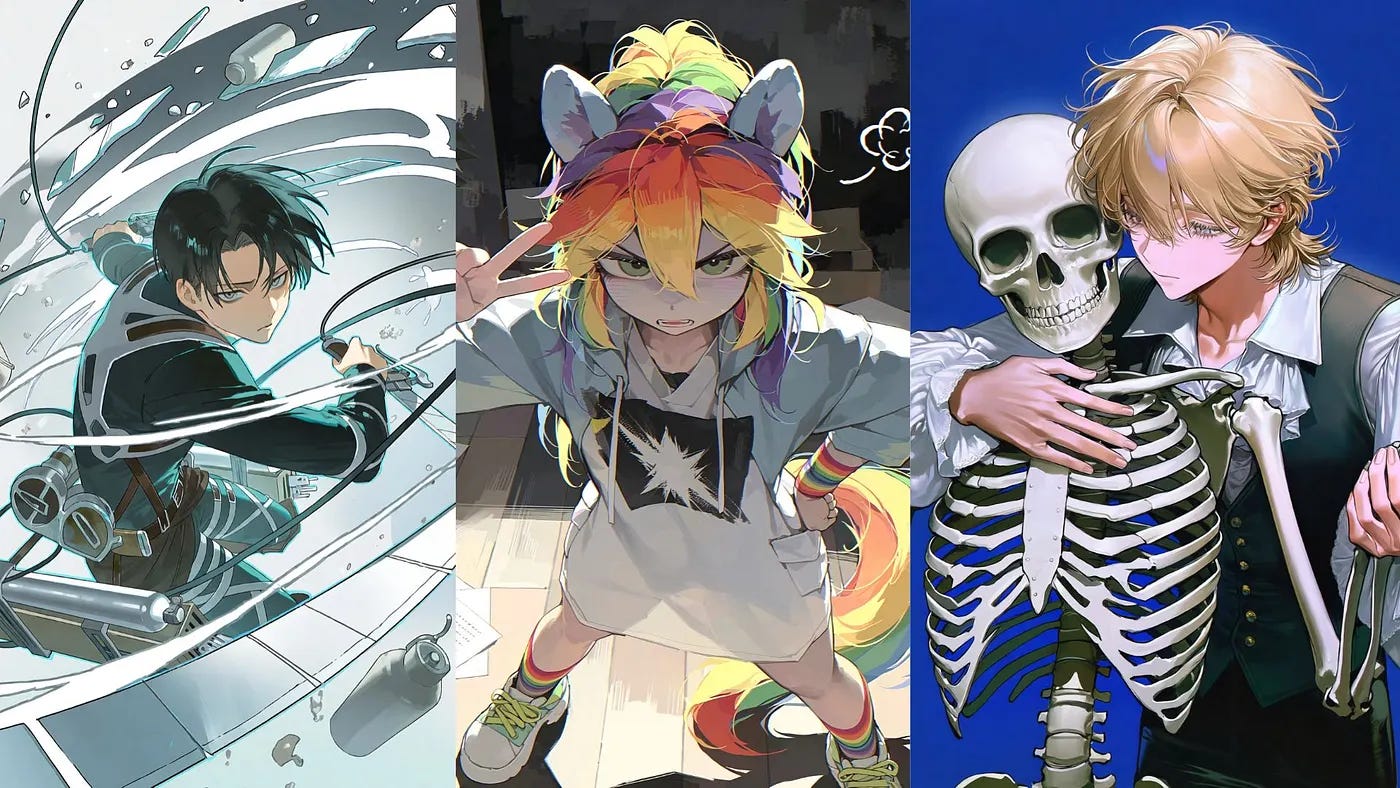
When generating AI anime images, CivitAI is one of the go to platforms for creators. It’s been around for years, and I have personally used it to create images with open models and node-based image generation.
However, using it isn’t always simple. Most of the good stuff on Civitai, the checkpoints and LoRAs, are meant to be downloaded and run on your own computer.
That means installing something like ComfyUI, having a GPU strong enough to handle it, and figuring out which LoRA works with which base model. If you’ve ever spent an hour fixing a node setup before generating a single image, you know what I mean.
There’s an online generator on Civitai too, but it uses Buzz credits, and not every model on the site can be used there. Some models also get taken down over time, so the LoRA you saved last month might be gone when you come back.
I still like Civitai. But there are days when I just want to type a prompt, get a good anime image, and fix a small detail without setting anything up. That’s why I started looking at other platforms.
From my tests, Tensor.Art is the closest match if you want to keep using the exact same checkpoints and LoRAs. SeaArt is similar, but I couldn’t always find the same model version. PixAI is the easiest for generating and editing anime images in the browser, but you’ll probably end up using PixAI’s own models instead of your Civitai files.
If you want a broader overview of Civitai itself, PixAI has one on its blog. This article is more about what happens when you actually try to move.
Civitai Alternatives at a Glance
Here’s a quick summary of how each platform did. “Tested successfully” means it worked in my test, “available with conditions” means it worked with a catch, and “not verified” means I couldn’t confirm it.
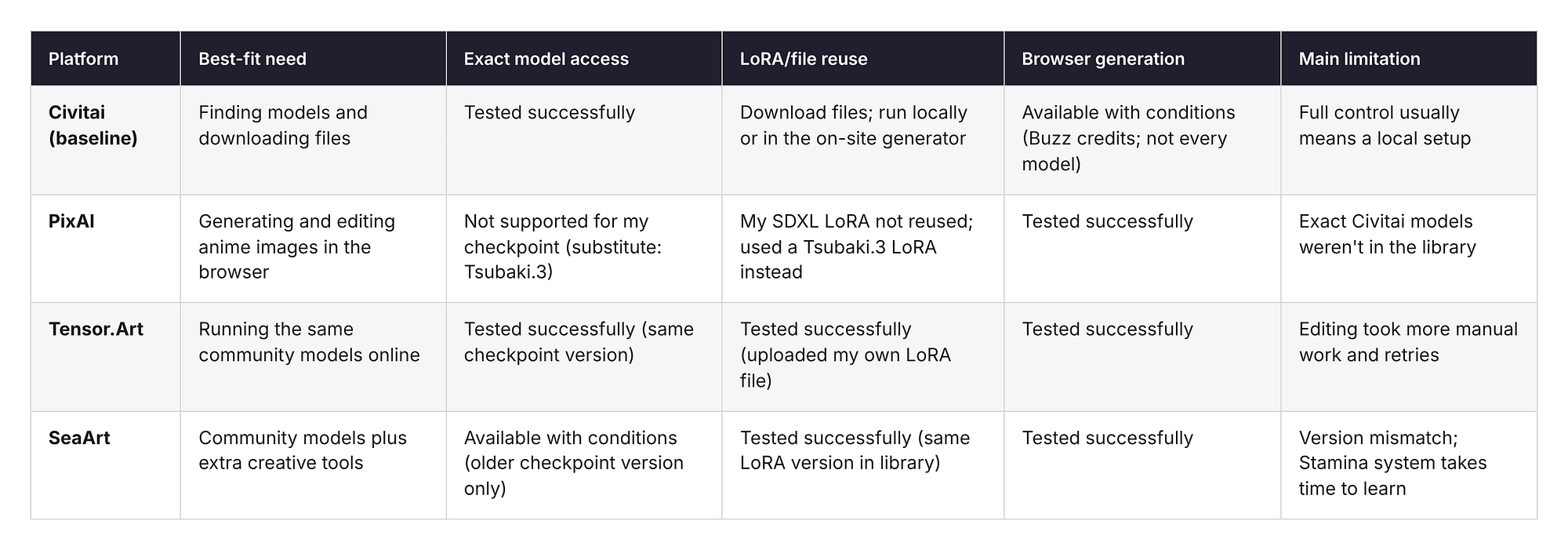
None of these platforms replaces everything Civitai does. Tensor.Art kept the most of my original files. PixAI made generating and editing the easiest. SeaArt sat somewhere in between.
What Each Alternative Actually Replaces
To keep things fair, I brought the same set of files and settings to every platform. I’ll call it my migration pack. It had four things:
An anime SDXL checkpoint from Civitai with a LoRA called Anima.
A prompt with a negative prompt and settings, shown below.
An image I made on Civitai with that setup, which I wanted to keep editing.
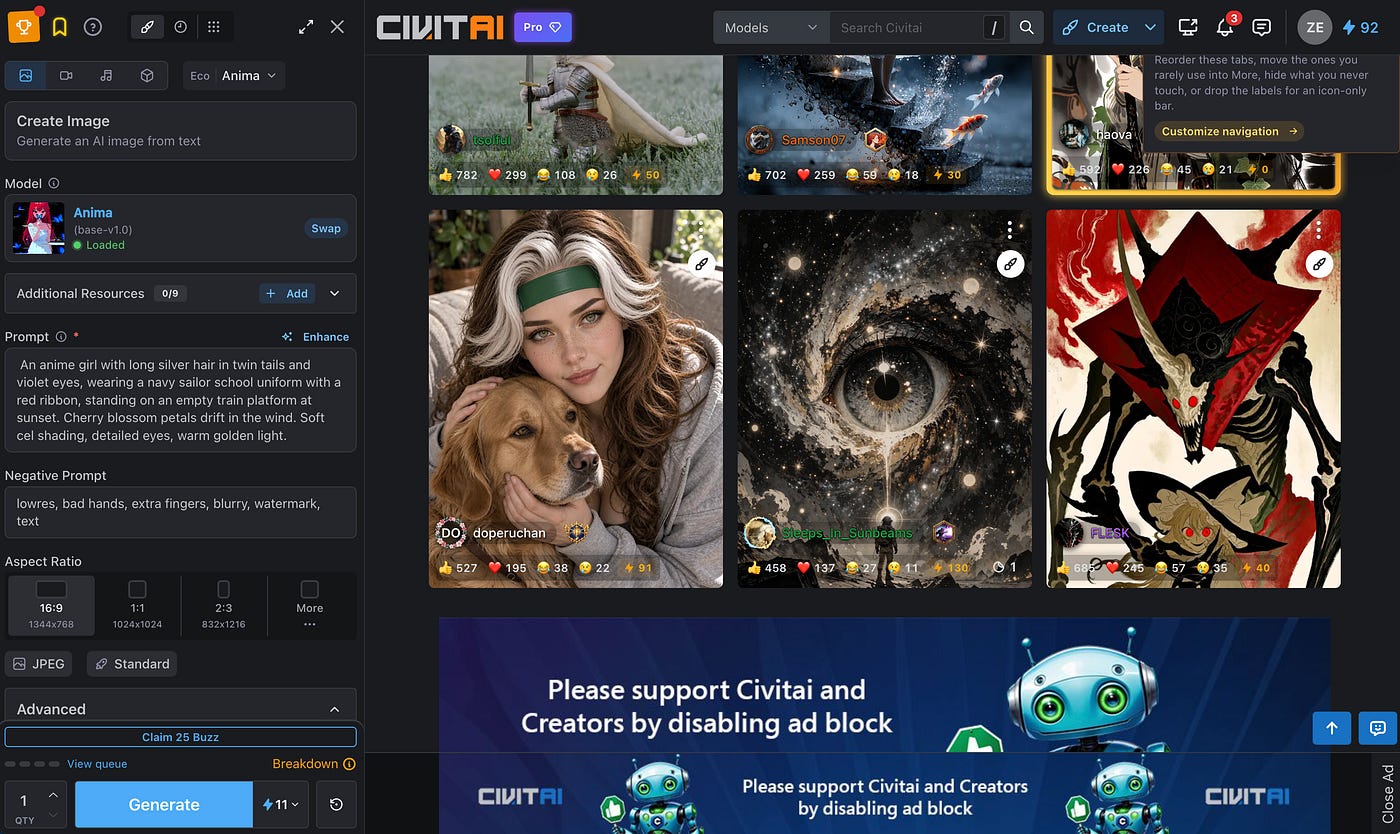
Here’s the prompt:
Prompt: An anime girl with long silver hair in twin tails and violet eyes, wearing a navy sailor school uniform with a red ribbon, standing on an empty train platform at sunset. Cherry blossom petals drift in the wind. Soft cel shading, detailed eyes, warm golden light.
Negative prompt: lowres, bad hands, extra fingers, blurry, watermark, text.
Settings: Euler a, 28 steps, CFG 5, 16:9.
This is what the image generator dashboard looks like:
Here’s the output image:
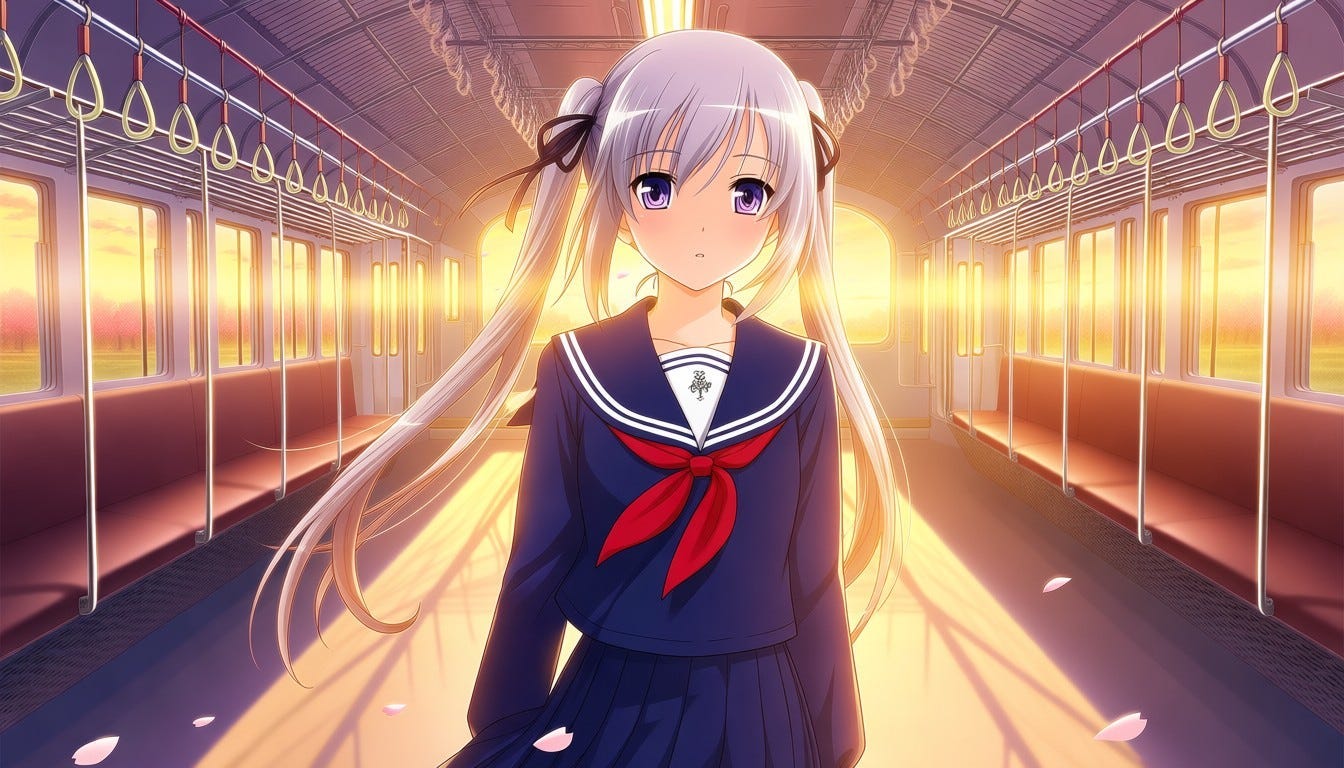
For the editing test, I wanted to change her sailor uniform into a beige winter coat with a red scarf, while keeping her face, hair, and the background the same.
I gave myself up to three attempts for each generation and edit. If a platform needed more than that, I counted it as a fail.
PixAI
PixAI is an AI art platform built for anime and illustration.
It has a big library of community models and LoRAs, and if you click on any image in the feed, you can see the prompt and settings used to make it. What it replaces best is the generating and editing part of your workflow, not the file collection part.
The first thing I did was search for my checkpoint and LoRA. Neither one was in PixAI’s library. I found a few styles that looked similar, but nothing with the same name and version.
So, instead, I picked Tsubaki.3, PixAI’s newest anime model, and looked for a LoRA close to mine. This is where I hit my first real failure. The similar LoRA I found was made for SDXL, and Tsubaki.3 is built on PixAI’s own architecture, so the two didn’t work together.
If you’re not sure why that happens, PixAI has a good explainer on the difference between a base model and a LoRA.
In the end, I ran the prompt with Tsubaki.3 and the Haruka v2 LoRA made for it, clearly a substitute for my original setup.
The prompt, negative prompt, sampler, steps, CFG, and seed all carried over because PixAI shows them in its advanced settings. But the image looked different from my Civitai version, which makes sense because the model was different.
The same seed doesn’t mean the same image when the model changes.
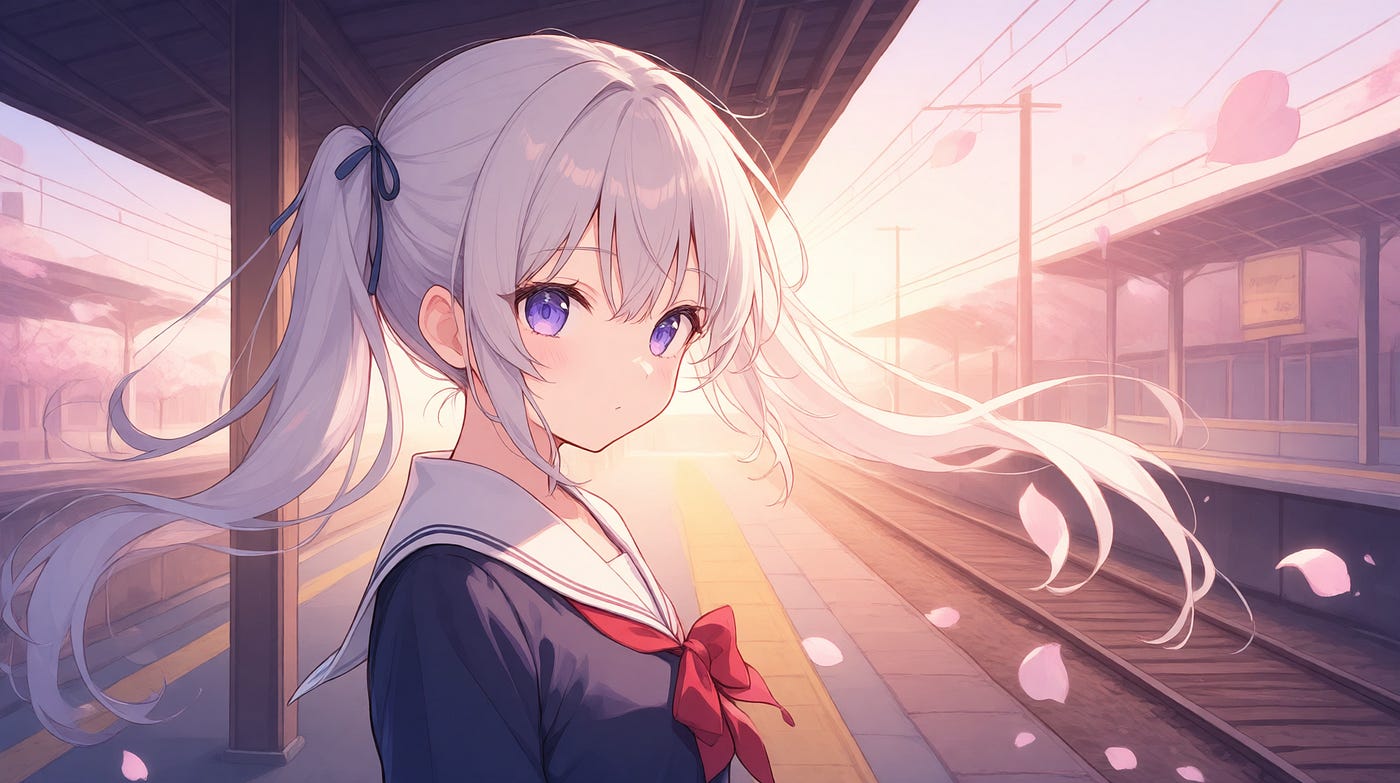
This looks really good. Way better than the one I got from CivitAI. But the editing test is where PixAI did best.
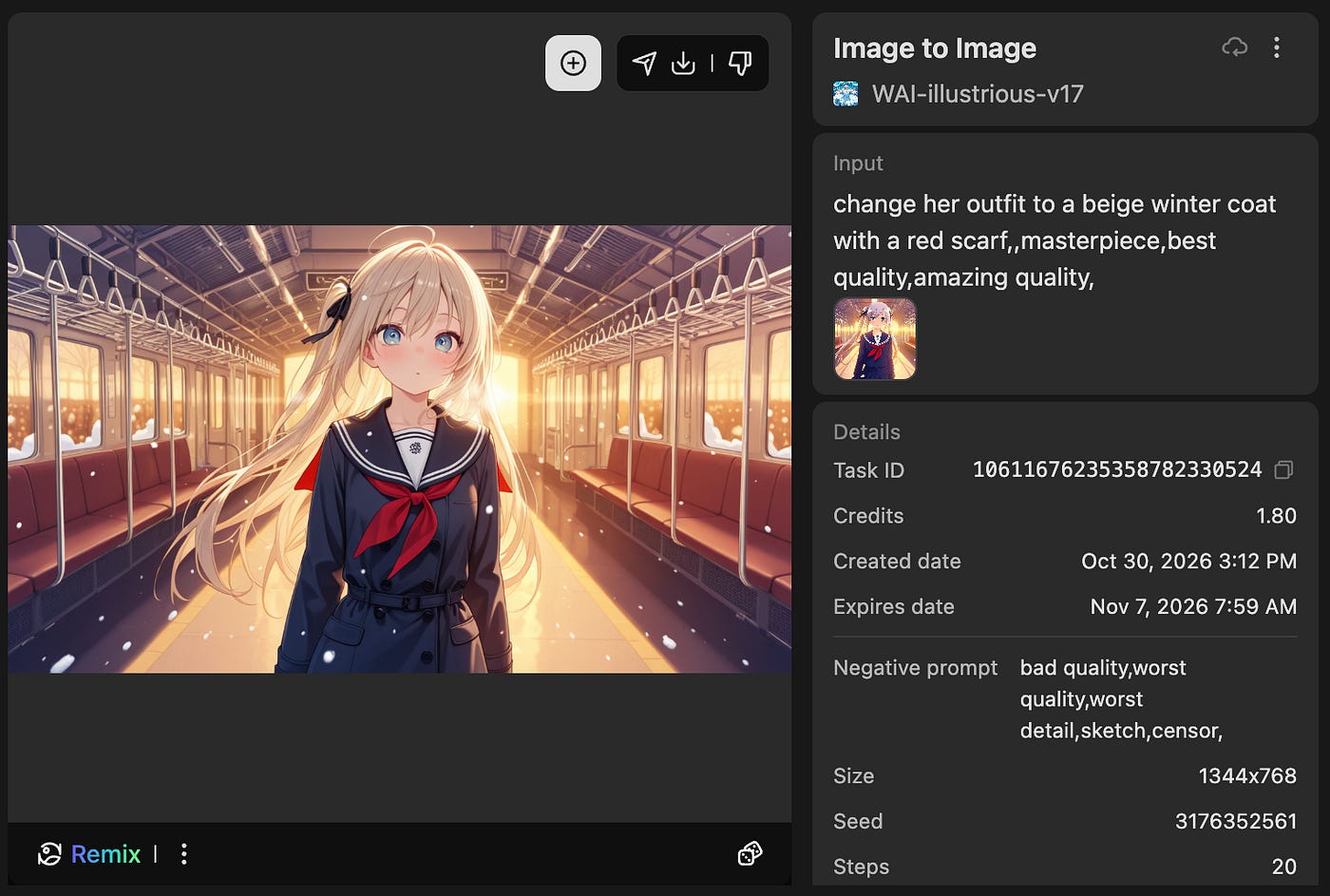
I uploaded my original Civitai image and asked Tsubaki.3 to “change her outfit to a beige winter coat with a red scarf.” It kept her face, hair, pose, and the train platform, and only changed the clothes. It worked on the first attempt.
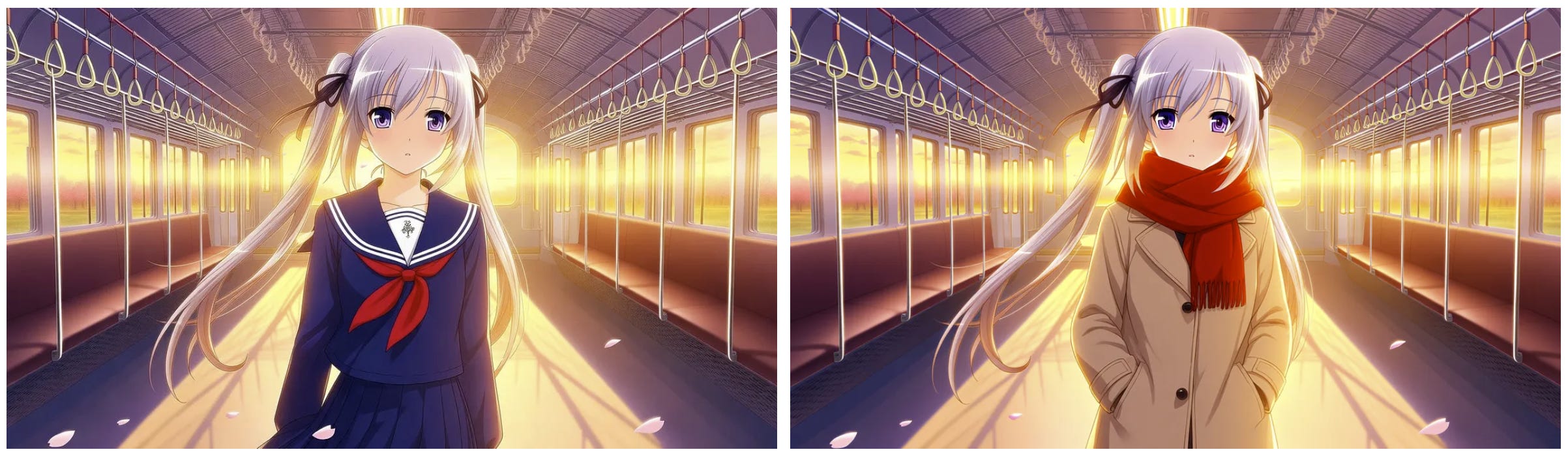
I really like how PixAI handles the image-to-image workflow. It understands the boundaries and only changes the parts needed and keeps everything else intact.
Also, the free plan gives you 10,000 credits a day, which covered all my tests. The generation used 1,000 credits and took about 5 seconds. Pretty fast!
PixAI’s biggest limitation is that your exact Civitai models probably won’t be there. If you can live with that, it’s the best option here for making and fixing anime images in the browser.
Tensor.Art
Tensor.Art felt the most like Civitai. It has a huge library of community checkpoints and LoRAs, and a lot of creators post their models on both sites. It can replace the model library and the online generator at the same time.
My checkpoint was there, and the version number on the model page matched the one I used on Civitai. That’s important. A model with the same name isn’t always the same file, so always check the version.
The LoRA was a different story. Tensor.Art had an older version of it. Since the LoRA allowed reuse, I uploaded my own copy instead. Uploading took a few minutes, and after that it ran with the checkpoint without any issues.
I pasted my prompt, negative prompt, and settings, and used the same seed. The result was very close to my Civitai image. Same style, same colors, same character. There were small differences in the petals and the background, which can happen when the platform runs things a bit differently.
This is the result:
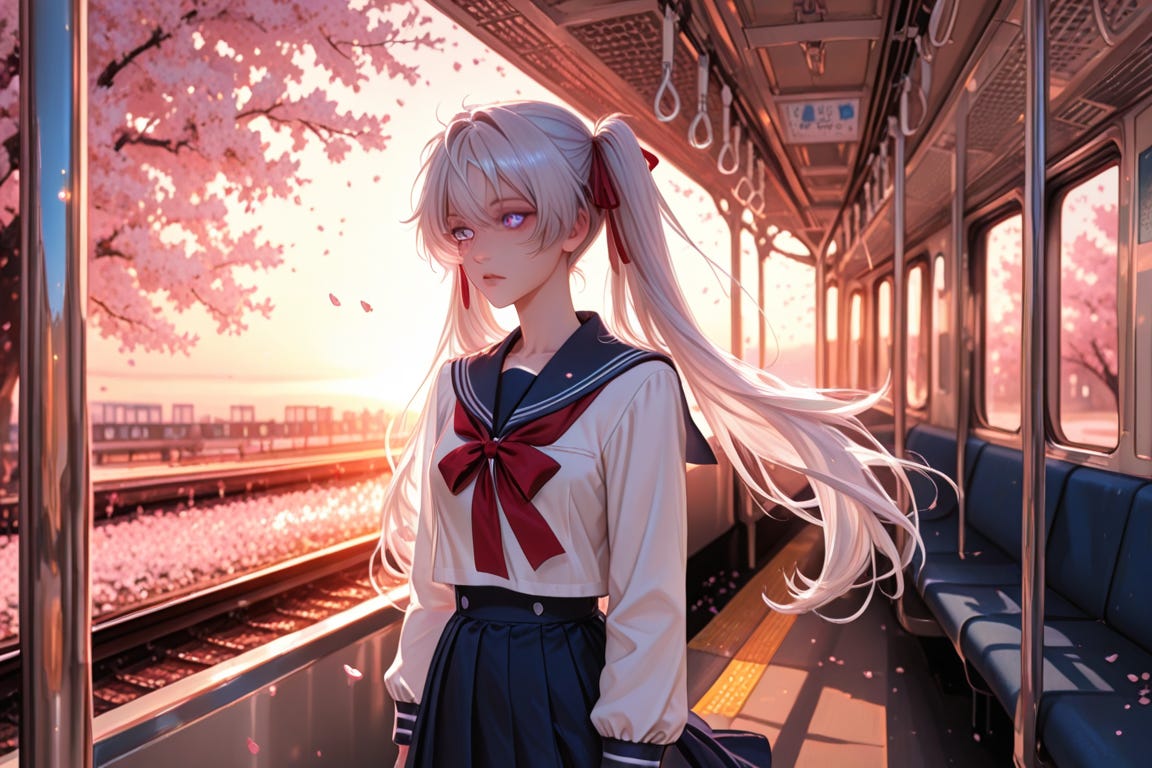
It looks good, and the LoRA greatly affects the result of the image. Nonetheless, it’s still a good-looking image.
Remove upgrade prompts from your unlocked stories in your settings.
To edit the original image we created with CivitAI, I simply switched to the img2img tab and uploaded the reference photo and described he change I wanted.
Yeah, the output does not conform to the requested changes. The subject didn’t change despite me trying it multiple times. Perhaps the solution here is to perform inpainting and manually masking the areas to be changed.
The main limitation is that editing is more hands-on. Tensor.Art is a good choice if you want to keep using the exact same models and LoRAs without running them on your own computer.
SeaArt
SeaArt is another community platform with a big library of checkpoints and LoRAs.
It also has extras on top of image generation, like AI characters you can chat with, video tools, and small apps for specific effects. It can replace the model library and generator too, plus a few things Civitai doesn’t really focus on.
My checkpoint was on SeaArt, but only an older version. I’m pointing that out before anything else because it affects everything after it. I used that older version and labeled it as a substitute. The LoRA was there with the same version and trigger word.
With the same prompt and settings, the result was close but not the same as my Civitai image. The subject was much closer to the camera, the colors were brighter, and the sunset was stronger. I’m guessing most of that came from the older checkpoint version.
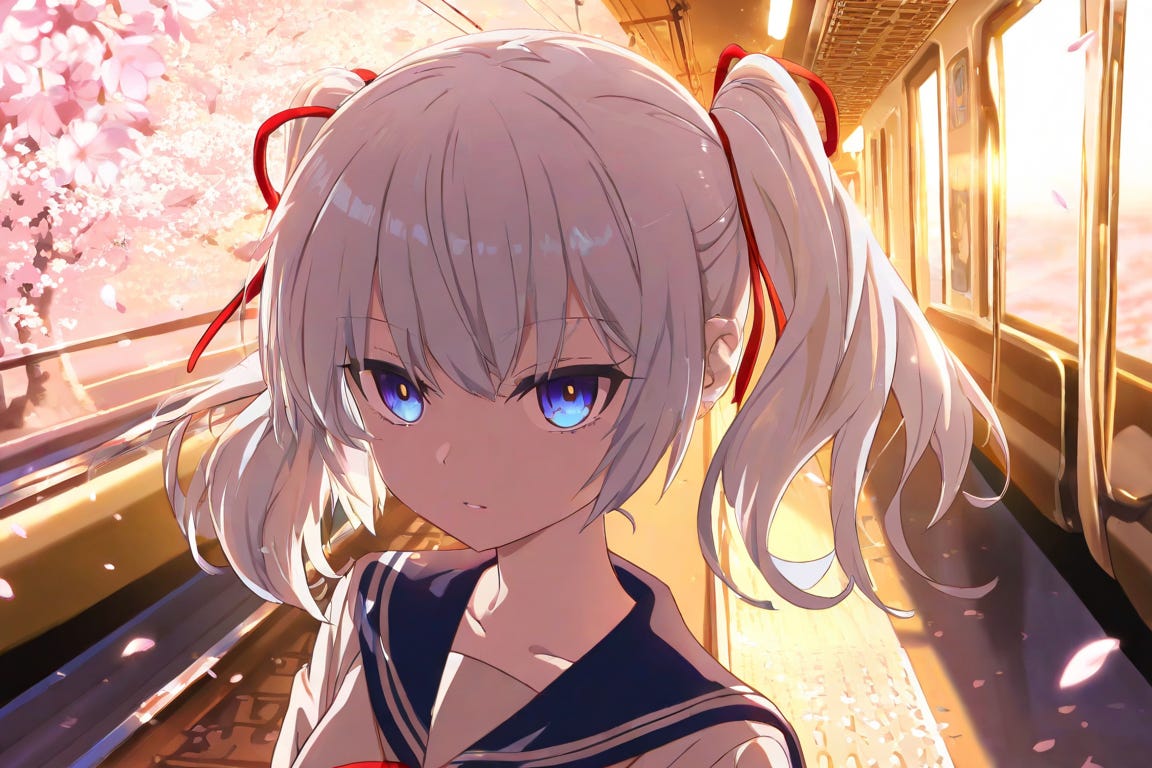
Hmm… not quite sure what to feel about this image, but this doesn’t scream high-quality to me. Yes, it’s decent. But the ones from PixAI and CivitAI are much better.
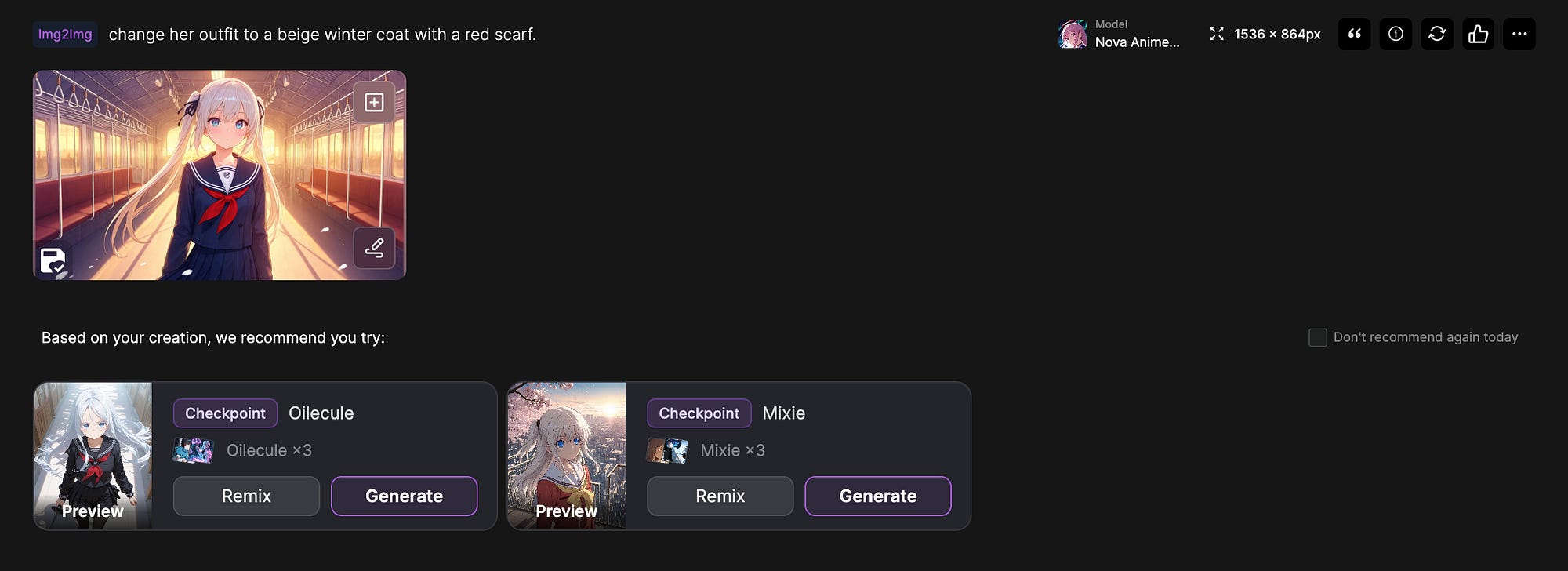
For the outfit edit, the same thing with CivitAI happened here. The model cannot perform any image editing, even after multiple attempts. I have not done the inpainting process here, but I would suppose people won’t bother doing it anyway since prompt editing is already available on other platforms.
SeaArt uses something called Stamina along with credits. According to SeaArt’s FAQ, free users can make around 21 images a day, and most standard models use 6 credits per image.
The main limitation for me was the version mismatch. The Stamina system also took a while to understand. SeaArt is a good fit if you want a big community library plus extra creative tools, and you don’t need the exact same model version.
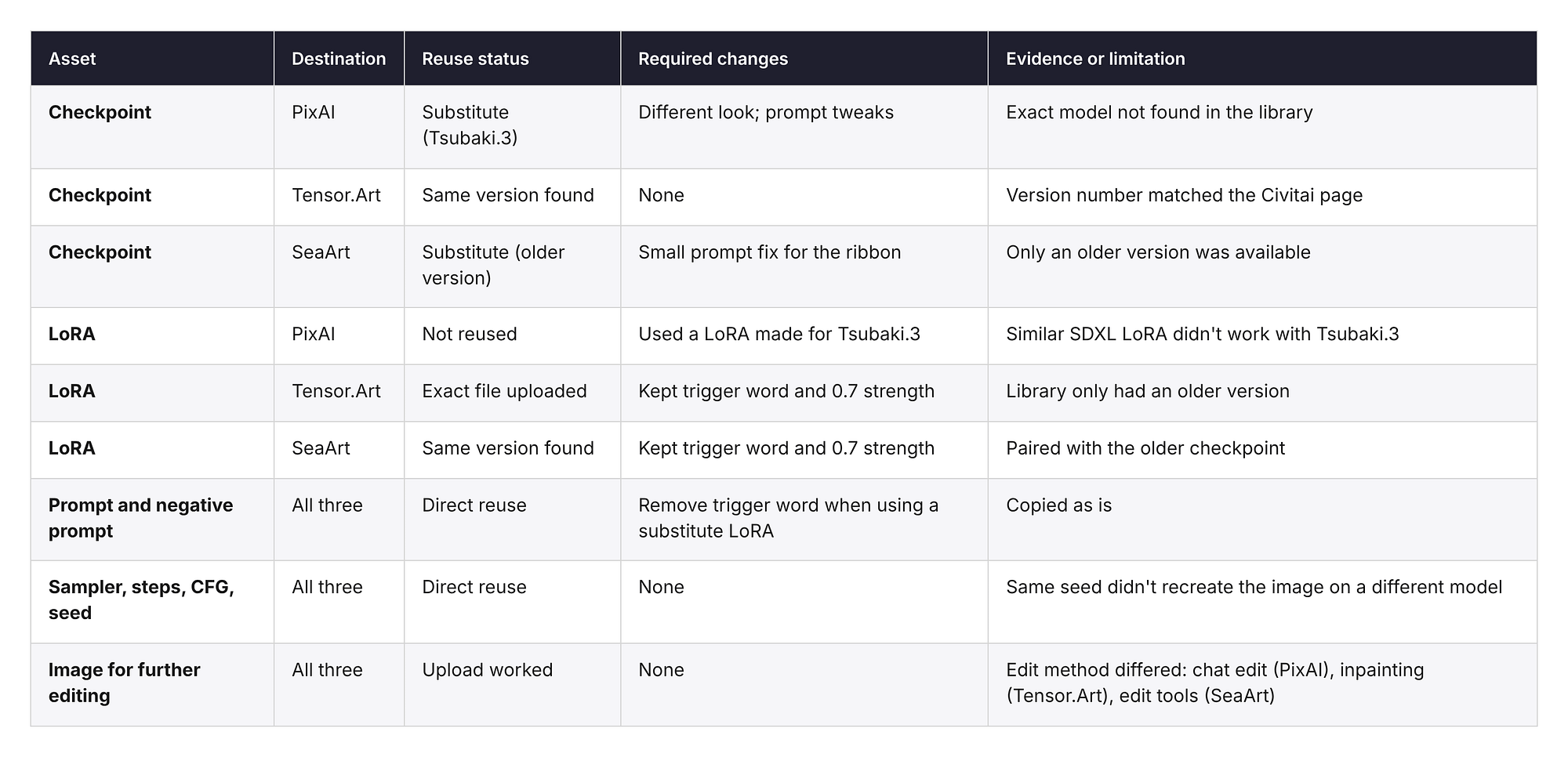
What Happens to Your Models, LoRAs, Prompts and Images?
This is probably the part you care about most if you’re thinking of moving. Here’s what happened to each piece of my migration pack.
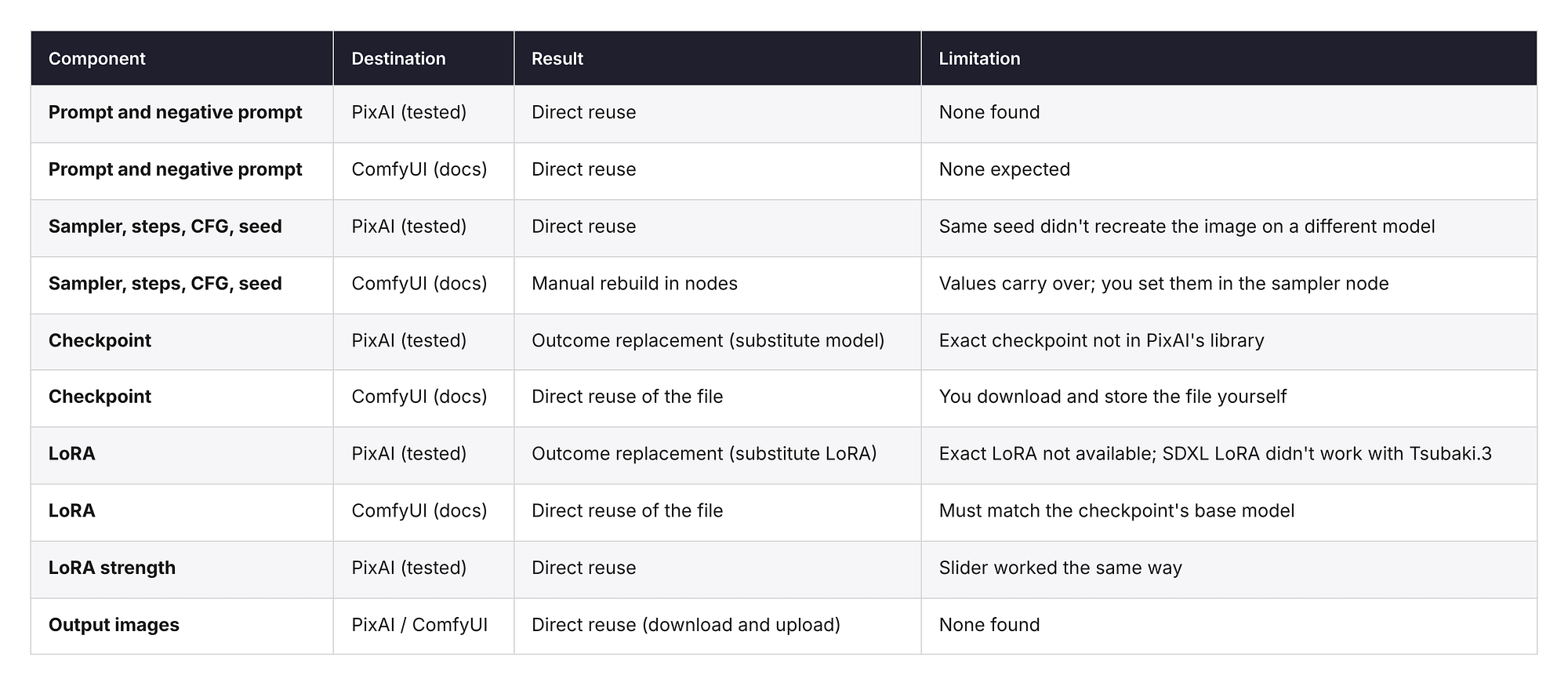
There are actually four different things that can happen to a model when you move, and they’re easy to mix up.
The first is reusing the exact file. That’s what I did with my LoRA on Tensor.Art. It’s the most reliable way to get the same result, but you need the file and the license has to allow it.
The second is finding the same verified version in another library. This happened with my checkpoint on Tensor.Art and my LoRA on SeaArt. I checked the version number, not just the name.
The third is using a substitute. That’s what happened on PixAI and with the older checkpoint on SeaArt. The results can still look good, but don’t expect the same image.
The fourth is uploading an image to keep editing it. This worked on all three platforms, which is good news if you have a folder of old Civitai images you want to fix up.
Prompts and settings were the easiest to move. Trigger words still matter though. If your LoRA uses one and you switch to a substitute, remove it, since it won’t do anything and might confuse the model.
The Cost of Switching an Anime Workflow
Even with free plans, moving your workflow still takes time and effort. Here’s what it took on each platform.
On PixAI, there was no setup at all. The time went into searching for my models, finding out they weren’t there, and picking a substitute that worked with Tsubaki.3.
After that, generating and editing were quick. The outfit edit needed the fewest steps of all three.
On Tensor.Art, the setup was uploading my LoRA. That only took a few minutes, but you need to have the file and the right to use it. Editing took the most retries, since I had to adjust the mask and prompt a few times.
On SeaArt, the time went into checking versions and figuring out the Stamina system. My prompt also needed a small tweak to fix the ribbon, since the older checkpoint read it differently.
I’m not comparing prices directly here because each platform uses its own credit system. A credit on PixAI isn’t the same as a credit or Stamina point on SeaArt. For reference, PixAI gives 10,000 free credits a day and paid plans start at $7.99 a month (billed yearly) at the time of writing. Tensor.Art gives daily free credits. SeaArt’s free tier covers around 21 images a day.
Stay, Combine Tools, or Migrate?
Based on my tests, here’s how I’d decide.
I’d stay on Civitai if your favorite models are rare or only exist there, or if you already have a local setup that works well. None of these platforms had every file I needed, and a substitute isn’t the same thing.
I’d combine tools if you like finding models on Civitai but don’t want to deal with local setup for editing. You could keep browsing and downloading on Civitai, run your exact models on Tensor.Art, and bring your images into PixAI when you need to change an outfit or fix a hand.
I’d migrate to Tensor.Art if your main goal is running the same checkpoints and LoRAs online. It kept the most of my original files.
I’d migrate to PixAI if what you really want is good anime images and easy editing, and you’re okay using PixAI’s own models instead of your old ones.
Which One Is the Best So Far?
If I had to pick one for most anime creators, I’d go with PixAI.
Tensor.Art is still the better pick if you need your exact Civitai files. But a lot of anime creators don’t really need the exact same checkpoint. They need images that look good and a way to fix them when something goes wrong. That’s where PixAI was the strongest.
The default results already look like anime. With Tsubaki.3, I didn’t need to hunt for the right checkpoint or change settings to get a clean anime look.
Editing saves a lot of time. Changing an outfit by typing one sentence, and fixing a hand with Repaint, meant I didn’t have to regenerate the whole image. In anime art, small things like ribbons, hands, and eye color matter a lot.
It’s easier to keep characters consistent too. Tsubaki.3 can keep the same character across different expressions and angles, and you can train your own LoRA on PixAI if you have an original character.
And the free plan is enough to try all of this. With 10,000 credits a day, you can test models, LoRAs, and edits before deciding whether to pay. If you want to try it, here’s a short guide on getting started with PixAI.
Final Thoughts
All three platforms can work as a Civitai alternative, but each one replaces a different part of the workflow.
Tensor.Art is probably the best pick if you want to keep your exact models, and SeaArt is good if you want a big library with extra tools.
For me though, I’m going with PixAI. The anime models look great without much tweaking, and the editing tools let me fix and change images without starting over.
If you’re still deciding, think about how you use Civitai right now.
Do you need your exact checkpoints and LoRAs, or is a similar style enough?
Do you mostly browse models, or do you mostly make images?
How often do you edit images after generating them?
And how much time are you willing to spend moving things over?
Thanks for reading this far. I hope this helps you figure out what to keep and what to leave behind.
Hi there! Thanks for making it to the end of this post! If you enjoyed this content and would like to support my work, consider becoming a paid subscriber. Your support means a lot!