

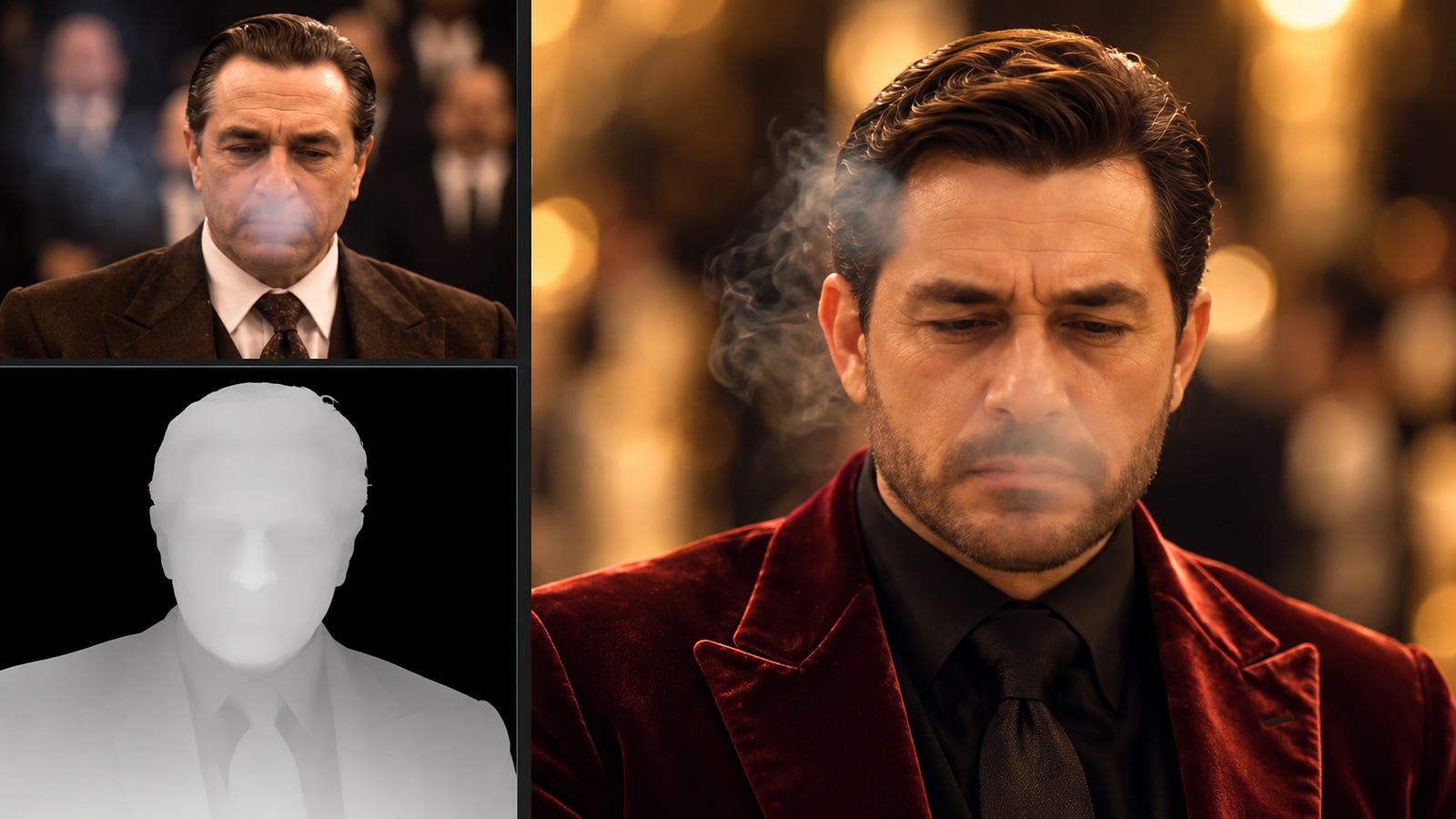
It’s been several weeks since GPT-6 Astra was released, and I’ve been enjoying the model so far. It’s been really great at following instructions, coding, and research. But did you know you can also connect it to other image, video, and 3D tools?
Topview AI now has a plugin that lets you access models such as Seedance 2.5 and Nano Banana through ChatGPT.
You can ask Astra to write a story, prepare the scenes, and use Topview to generate the images and videos. Topview also supports workflows involving 3D scenes, so you can go further with camera angles and composition.
In this guide, I’ll walk you through setting up the plugin and share three prompts for creating different kinds of videos. We’ll do a product ad and try a short cinematic scene.
Let’s get started.
What is the Topview plugin?
The Topview plugin connects your AI assistant to Topview’s media tools. Once you’ve installed it and connected your account, you can request images, videos, and other supported assets directly in your conversation.
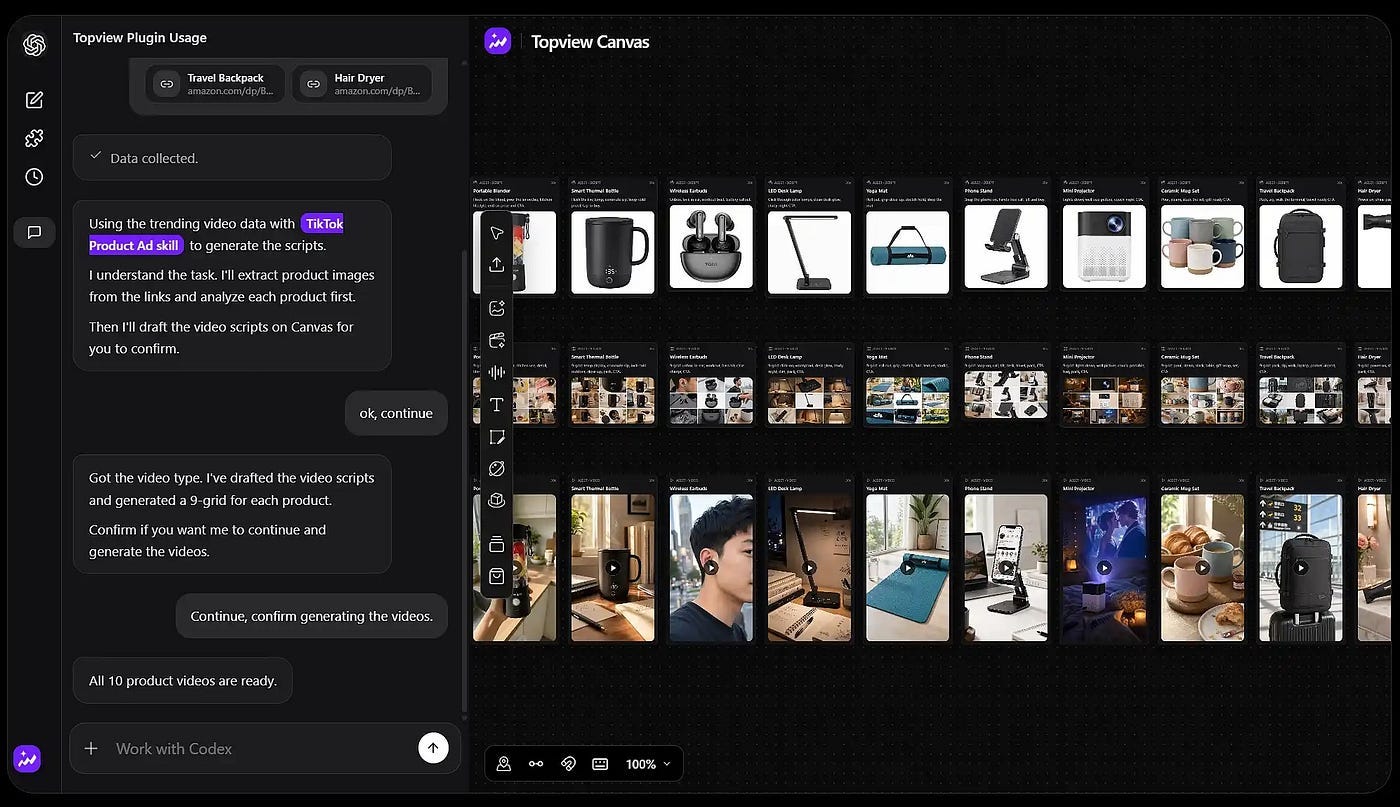
For example, you can upload a product photo and ask ChatGPT to create a video ad around it. Astra can help write the script and decide what should appear in each shot, then call Topview to generate the footage.
You can be specific about the result, too.
Ask for a vertical video for Instagram, a slow camera movement, a particular setting, or several shots featuring the same character. The available settings depend on the generation model you choose.
Topview also has Canvas, where you can organize the assets and continue working on the project. This becomes handy when you have several scenes, reference images, and different versions of the same shot.
Installing the plugin
Head over to the official Topview plugin page and select the ChatGPT option.
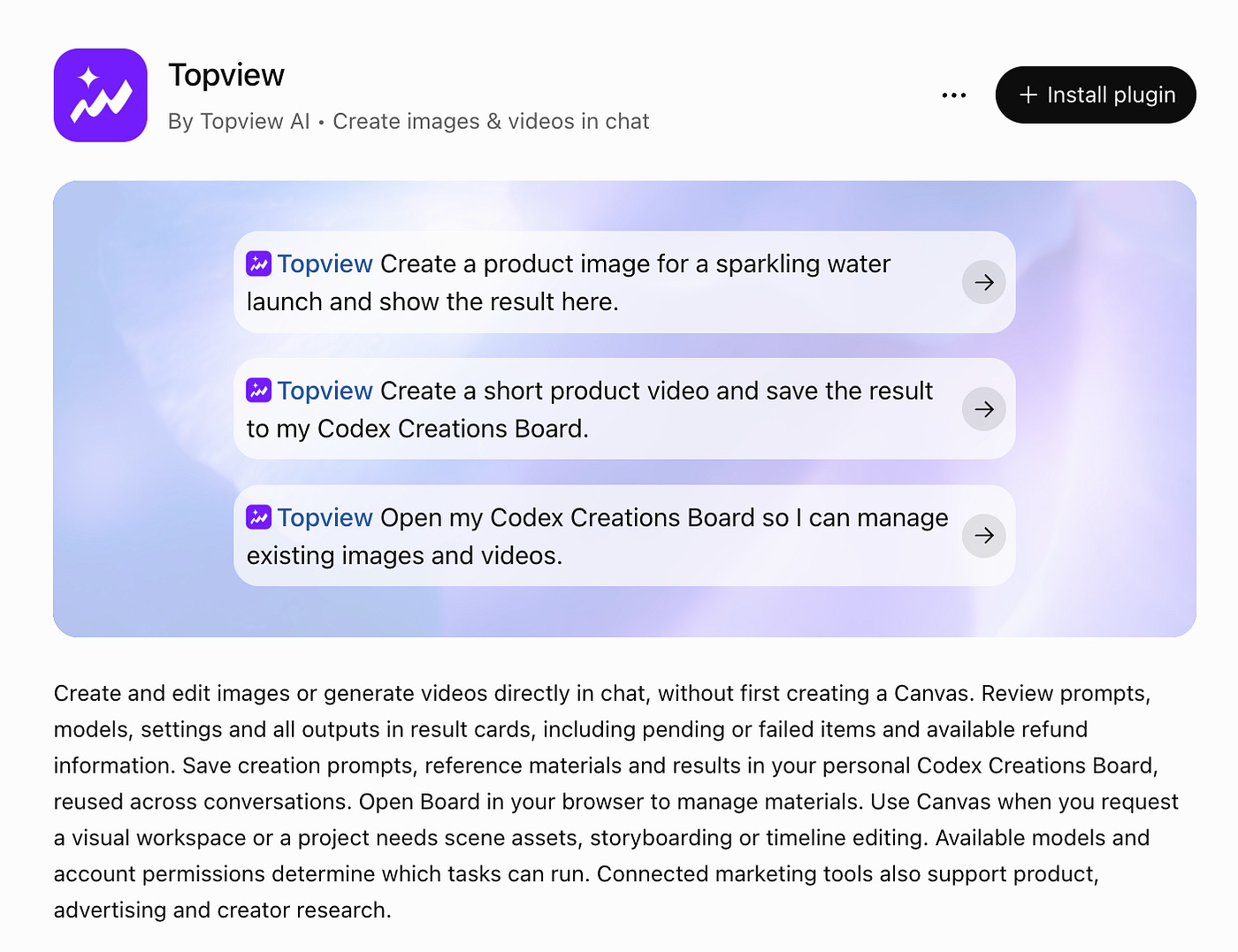
Click Install plugin. This takes you to the plugin listing in ChatGPT, where you can add Topview to your account.
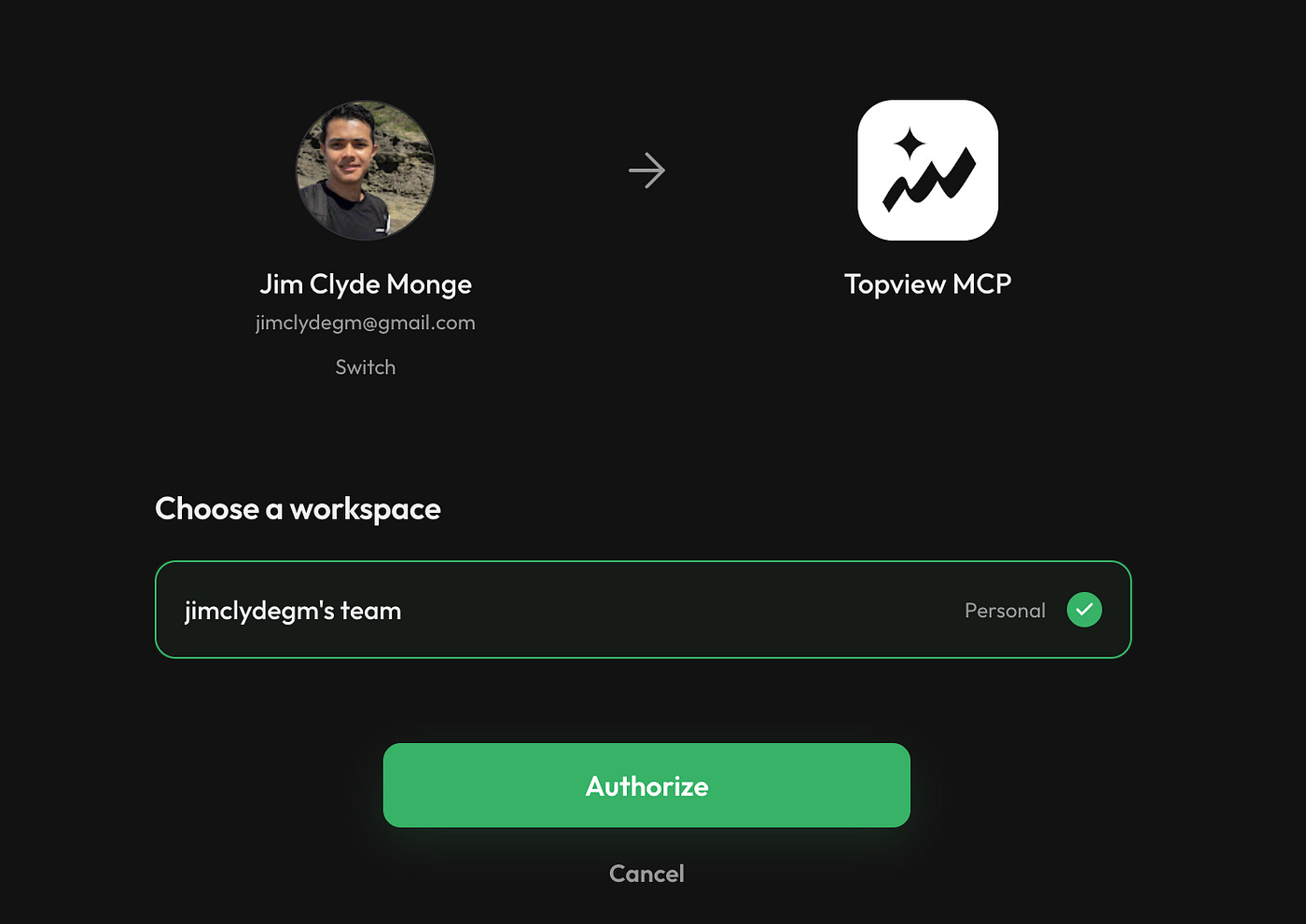
Next, sign in to Topview through the authorization page that opens. If you already have an account with credits, use that account.
After authorization, start a new chat, type @topview, and select it from the available options. That’s the setup process Topview documents for ChatGPT.
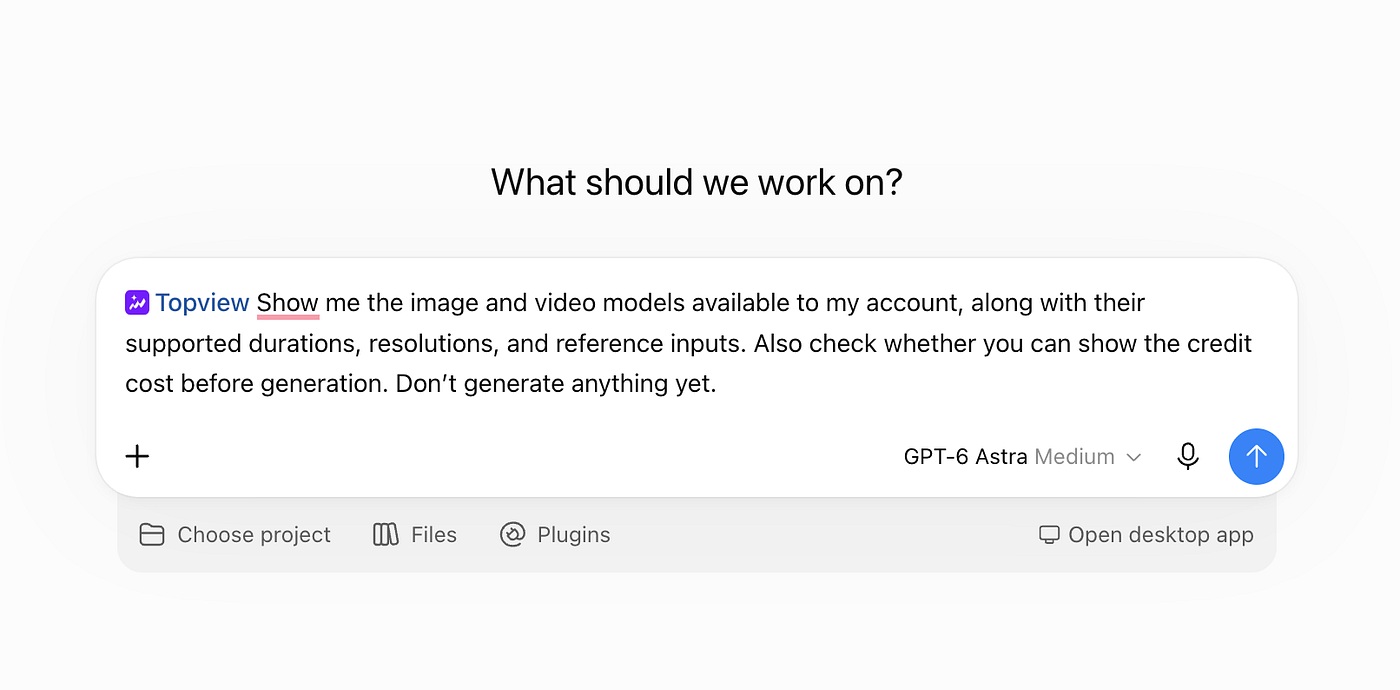
Notice that I set the model to GPT-6 Astra. This affects the output of whatever prompt you provide.
Before generating anything, you can ask ChatGPT to check what’s available through the connection:
@topview Show me the image and video models available to my account, along with their supported durations, resolutions, and reference inputs. Also check whether you can show the credit cost before generation. Don’t generate anything yet.
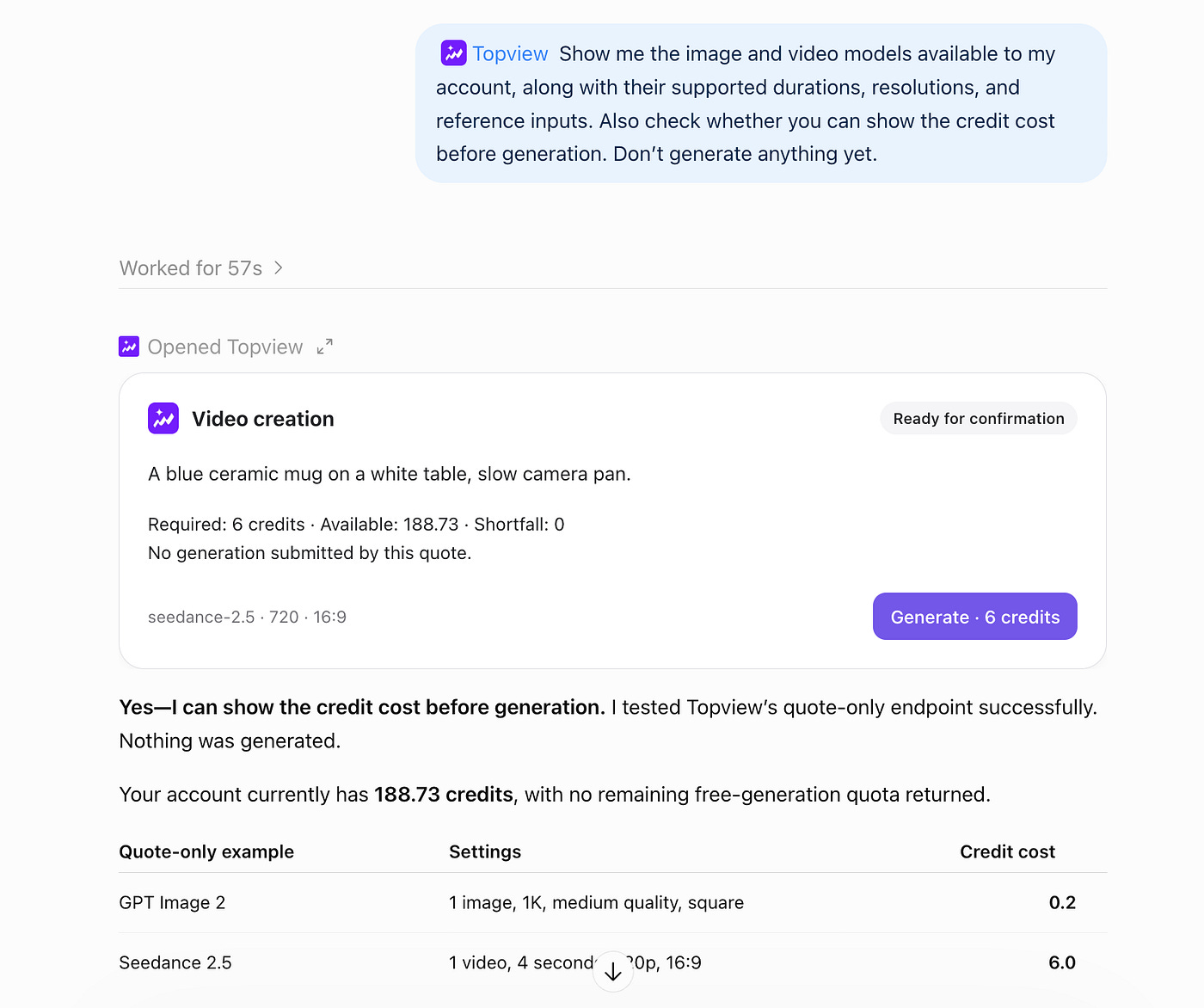
And just like that, I can easily monitor my Topview account, calculate credits, generate content, and do whatever I want inside the chat interface.
I’d do this before writing a detailed prompt around a particular model. You don’t want to plan a long scene and then discover that the selected tool only accepts a short clip or a different type of reference.
Also, constantly check your credits. Topview says its Unlimited allowance doesn’t cover automated workflows through MCP, plugins, or skills. An Unlimited offer on the website doesn’t automatically mean unlimited generations through ChatGPT.
For your first attempt, keep it small. Generate one clip and check the result before asking for several versions.
Generating AI videos with Astra in ChatGPT
In ChatGPT Work, open the model controls beneath the composer and select Astra. Make sure you are a paid user because Astra is only accessible to paying users.
You can also adjust the reasoning effort. I’d leave it at the default for a simple video request. Higher effort takes more time and tokens, and a straightforward product shot probably doesn’t need extensive planning. OpenAI explains the controls in its model guide.
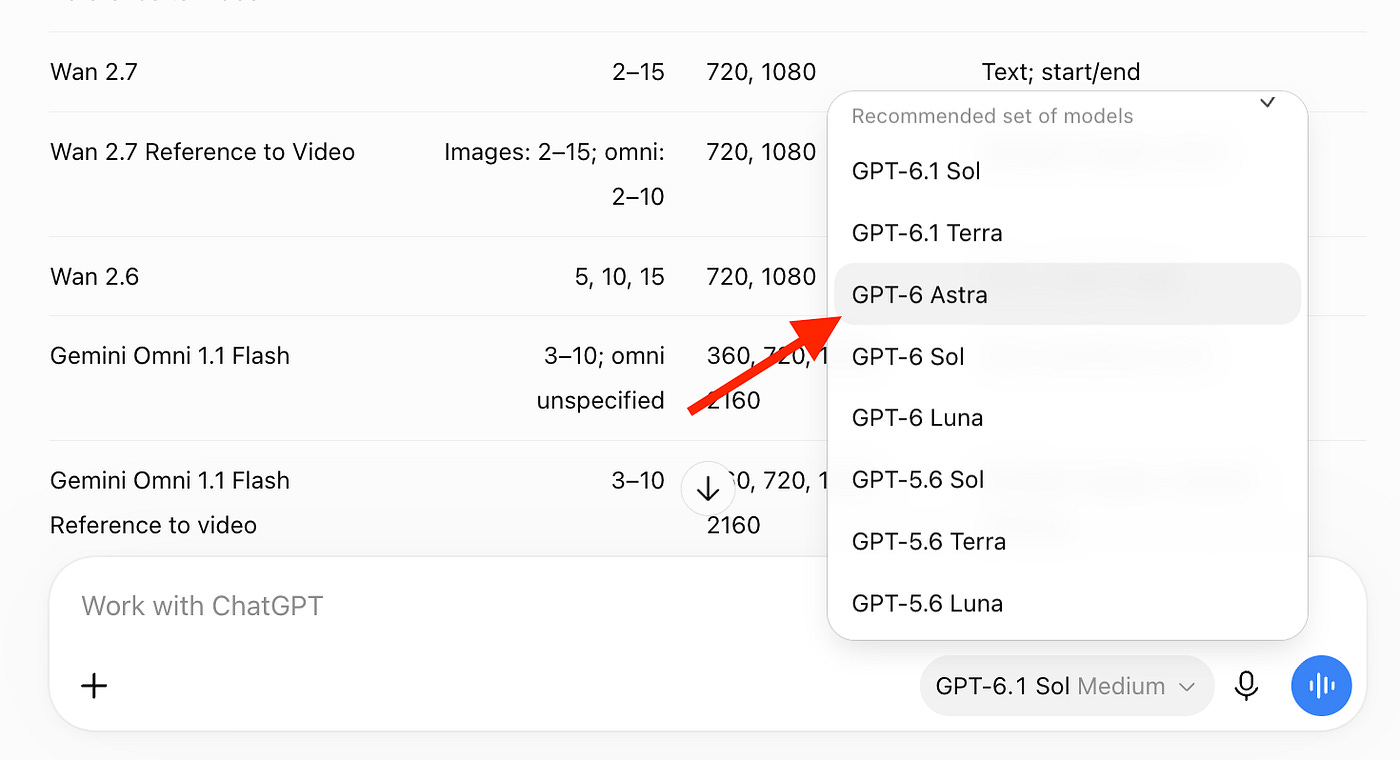
Now select @topview and attach any images or documents you want to use.
Give ChatGPT enough information to work with. “Make an awesome video” leaves almost everything up to the model. Tell it what the video should show, how long it should be, where you’ll publish it, and which details you want to keep.
You can still write the request in normal language. You don’t have to know every camera term or prepare a professional production brief.
For the examples below, I’ve included a planning step before generation. This lets you review the shots and cost first. The prompts are ready to try; the requested durations may need to be split into shorter clips depending on the model and tool available.
Example 1. Create a product ad from a photo
Let’s start with a desk lamp.
It’s a simple product, but there’s enough you can do with it visually. You can show a dark workspace, turn on the lamp, and end with a close-up of the product. That gives the video an obvious sequence even before adding any narration.
Upload a clear photo of the lamp, then try this prompt:
@topview Create a 12-second 16:9 video ad using the desk lamp in the attached photo. The video is for people who work at home in the evening. Start with a dim desk with a laptop and an open notebook, then show the lamp switching on and lighting the workspace. Finish with a close-up of the lamp, with the warm light falling across the notebook. Keep the product’s shape, color, proportions, and branding the same as the reference. Use realistic lighting and slow camera movement, and leave text out of the generated footage. First, show me a short shot plan and the estimated credit cost. Use Seedance 2.5 if it’s available for this task, and create any reference images needed before animating the shots.
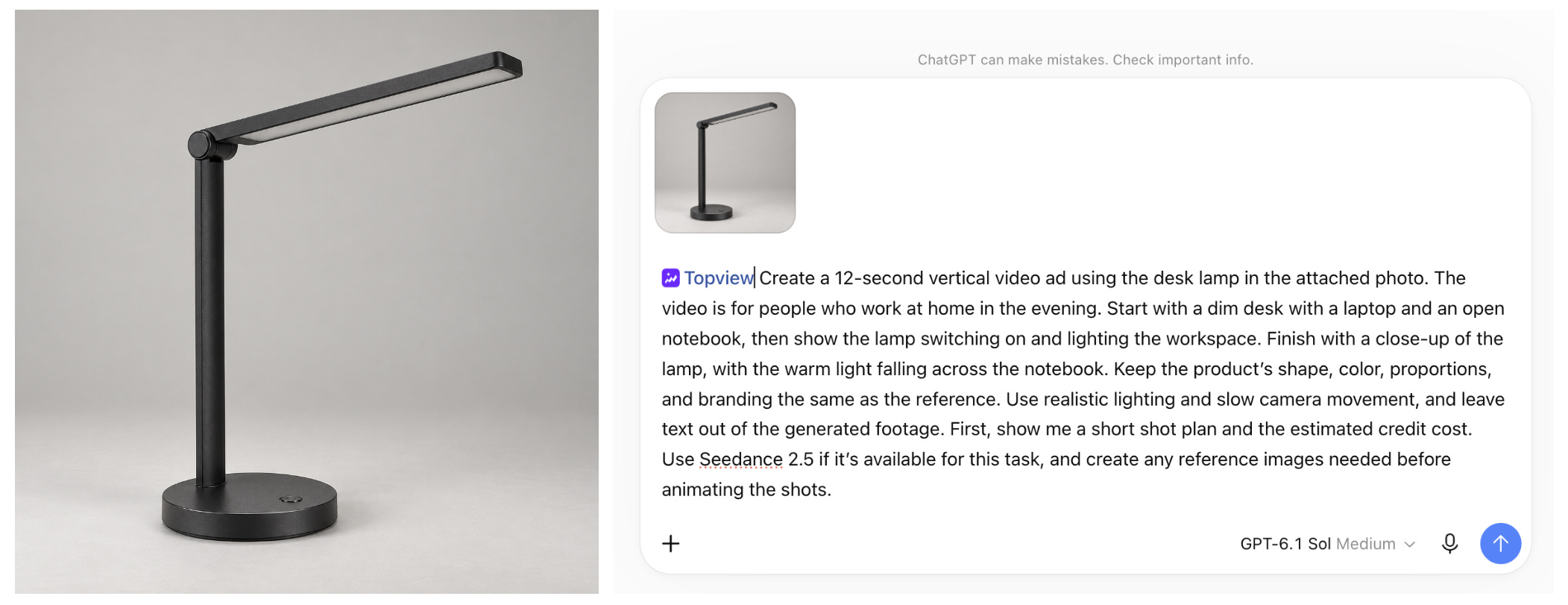
The product photo gives the model something to follow. If you only describe “a modern desk lamp,” it could generate a different lamp in every scene. That’s a problem when you’re trying to promote an actual product.
For this example, I’d pay attention to the lamp’s base and hinge. Those small parts can make it obvious when the design has changed between shots. The light should also come from the lamp itself; a sudden change to the whole room can make the transition look strange.
You can keep the first attempt quite basic. Leave the lamp on the desk and let the camera move toward it. Once that works, try adding a hand reaching for the switch.
There’s no need to force every action into the first generation. A product moving, a hand interacting with it, and a camera orbiting around the desk gives the model several things to get right at once.
After you get a clip you like, ask for a second version with a different opening. For example, show someone working in the dim room before cutting to the lamp. Keep the rest of the video similar so you can compare which opening feels stronger.
Once the generation is done, ChatGPT will let you know and give you a summary of the video generation workflow.
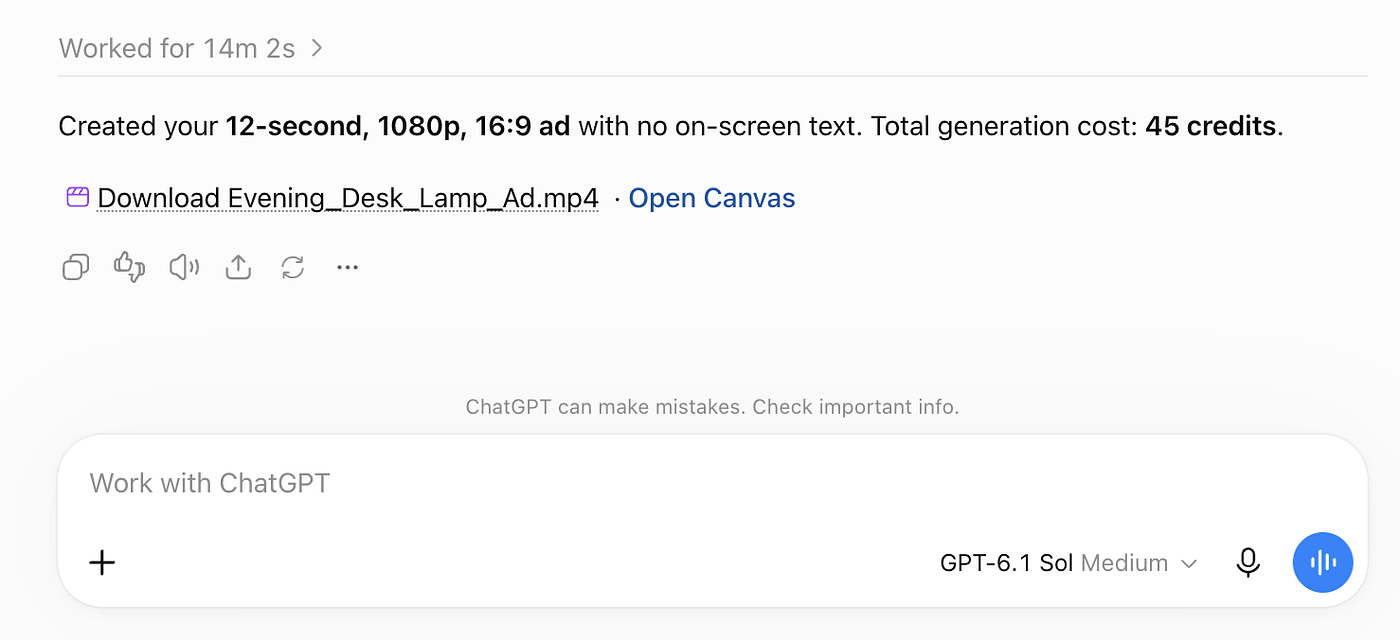
In this example, the generation took around 14 minutes to complete and consumed 45 credits. It also gives you a link to the project. Here’s what the project looks like in the Topview Canvas dashboard:
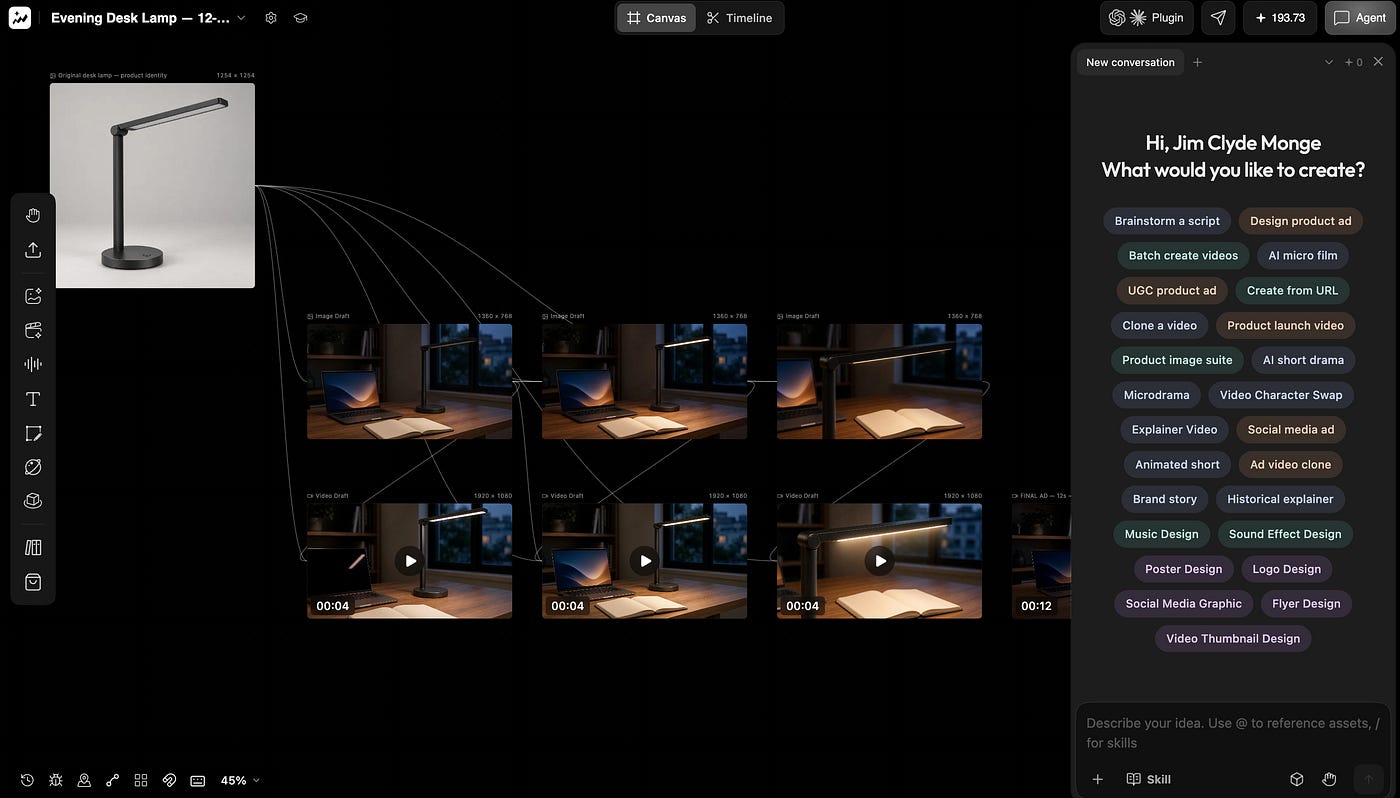
Here’s the final output:
You could use the same approach for a pair of headphones, a bag, a skincare bottle, or a kitchen accessory. Change the action to match the product. A bag could be packed for a trip; headphones could be placed on a desk beside a phone.
Another thing I like about Topview is that it’s not limited to generation. It has a built in editor that you can use to edit your videos. For example, instead of using another tool to trim or upscale a clip, you can do it right inside the Topview Canvas board.
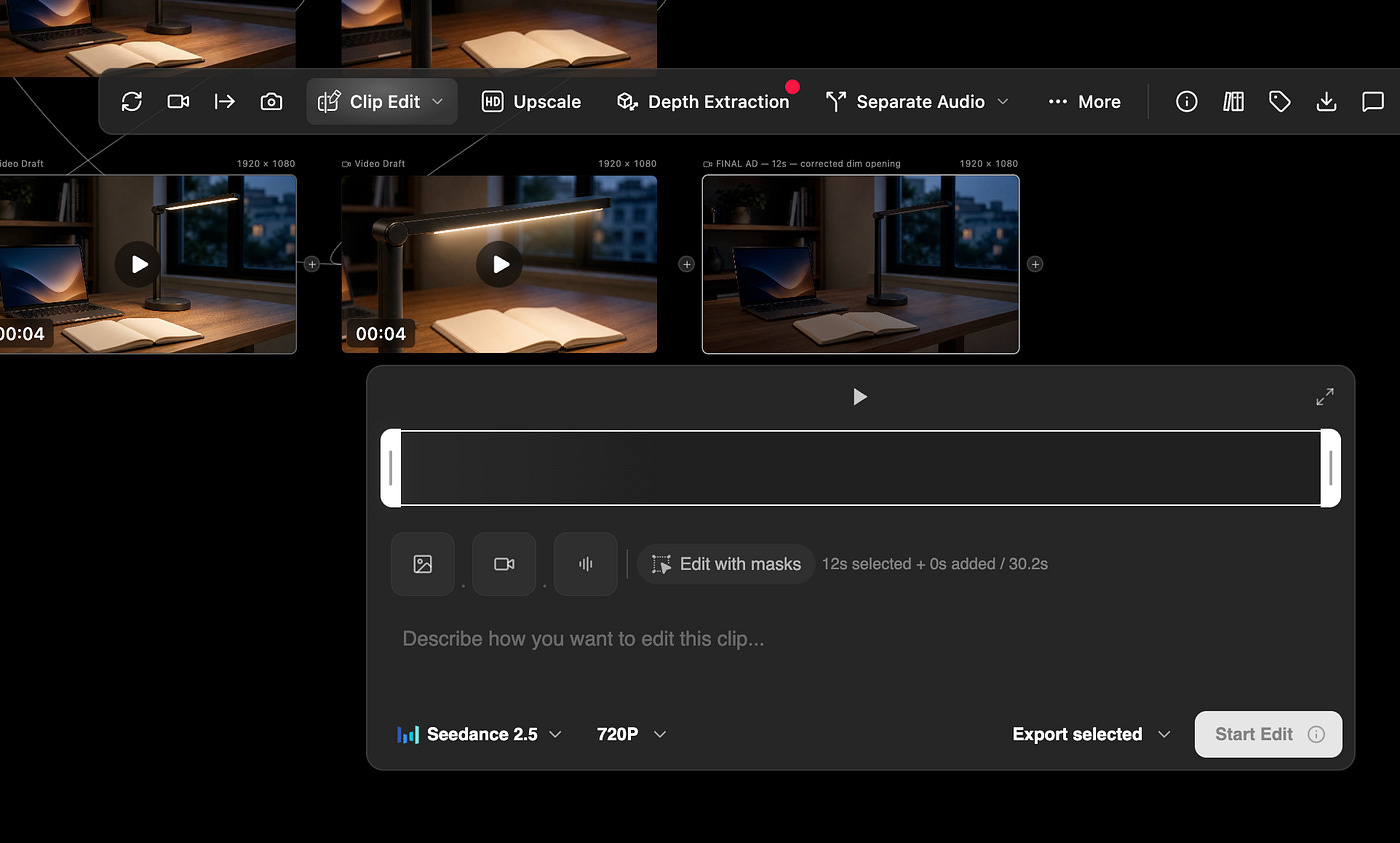
Pretty cool, right? I recommend exploring these editing tools yourself.
Example 2. Make a short sci-fi scene
For the second demo, let’s try something more creative.
Remove upgrade prompts from your unlocked stories in your settings.
Picture a courier entering an abandoned train station at night. They’re carrying a silver case that starts glowing, and the station lights turn on as they walk past.
I like this setup because you can tell the story through movement and lighting. You don’t need a long explanation or dialogue for the viewer to understand that something unusual is happening.
Here’s the prompt:
@topview Create a plan for a sci-fi video in 16:9. A lone adult courier wearing a weathered dark-green jacket enters an abandoned train station at night, carrying a small silver case. Start with a wide shot showing the empty station and wet floor, then follow the courier as they walk toward an old departure board. In the final shot, the case begins glowing, and the station lights turn on one after another. Keep the character’s face, clothing, case, and station design consistent. Use an available Nano Banana image model to prepare the character and scene references, then choose a compatible video model for the animation. Show me the storyboard and estimated cost before generating. Split the sequence into supported clip lengths and include rain and station ambience if the selected tools support audio.
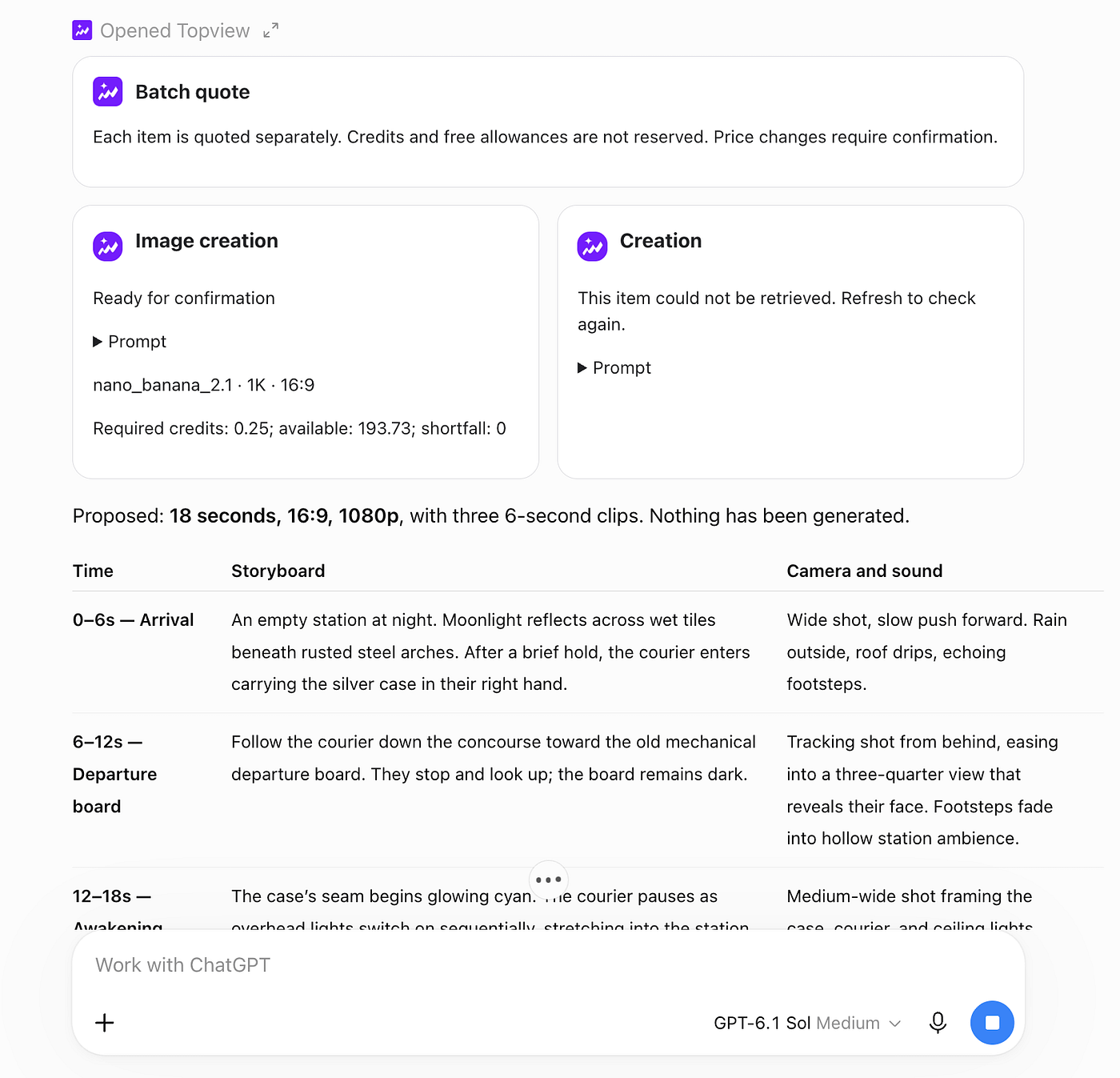
Here’s a snippet of the plan:
Use Nano Banana 2.1, available in Topview, to prepare five 16:9 images at 1K:
- One character-and-case reference sheet: adult courier, short black hair, weathered dark-green jacket, charcoal trousers, black boots; small brushed-silver case with two latches and a black handle.
- One station reference: rusted arches, cracked glass roof, wet tiled concourse, central departure board.
- Three shot-specific starting frames, derived from those same references.
Reuse the approved face, jacket details, case proportions, station layout, and screen direction in every frame. The case stays closed and in the courier’s right hand throughout.

Animation model: Seedance 2.5, using each prepared starting frame. Its current configuration supports 6-second clips, 1080p, and native audio.
Rain, footsteps, station echoes, and the final electrical sounds will be requested; no dialogue or music.
You see? This is the beauty of using ChatGPT because it’s got super powerful model to help you plan out the workflow.
This also gives Astra a few decisions to work through. It has to establish the location, introduce the courier, and time the reveal at the end. The references also need to agree with each other before they become separate video clips.
Topview currently has a Nano Banana 2.1 model page covering image generation and editing. For this demo, ask the plugin which Nano Banana options it can actually use through your connection.
Take your time on the character image. Check the jacket, face, hairstyle, and size of the case. If you already dislike the design, fix it before generating three clips around it.
I approved the plan and these are the images I got:
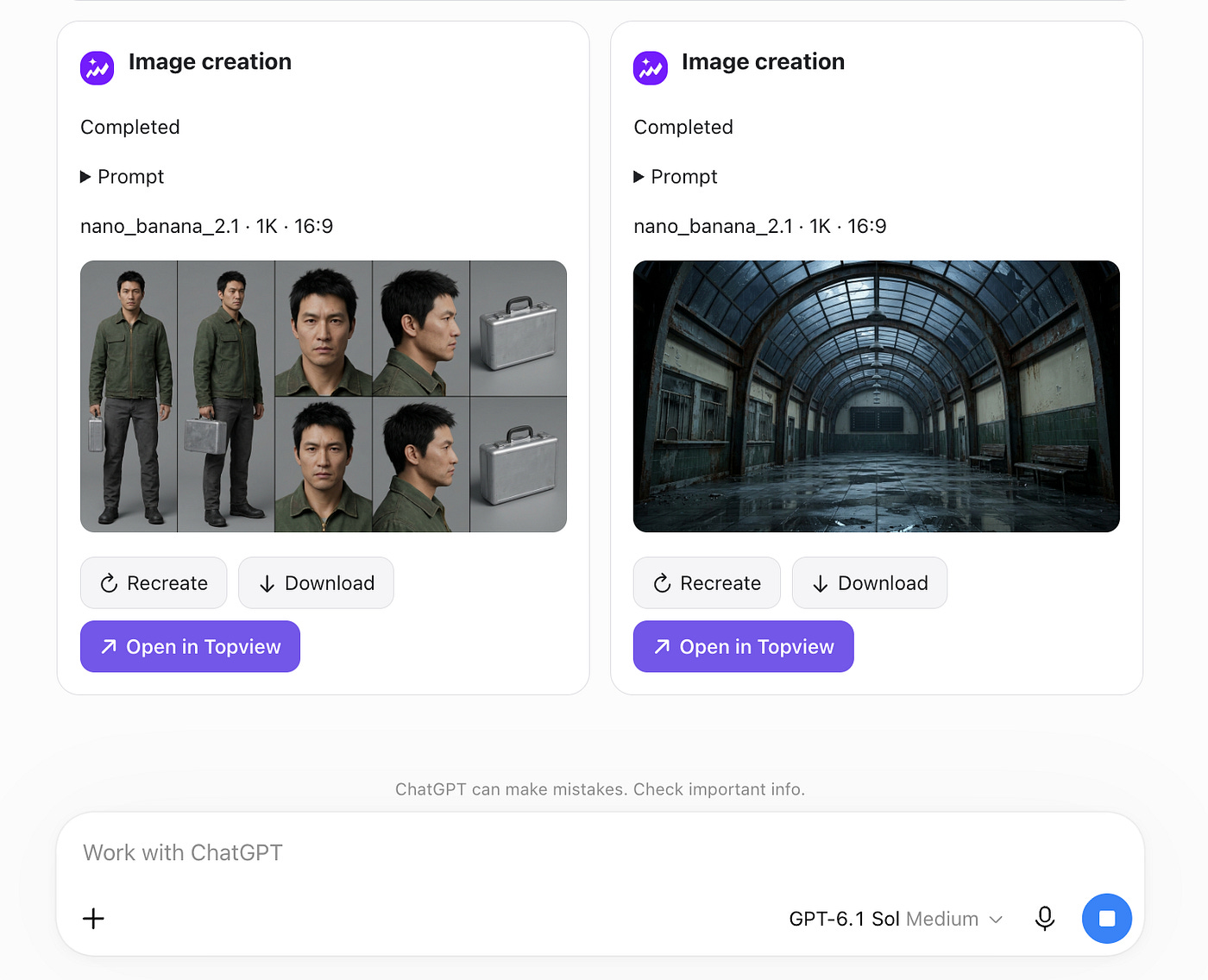
Here’s the character image in full resolution:
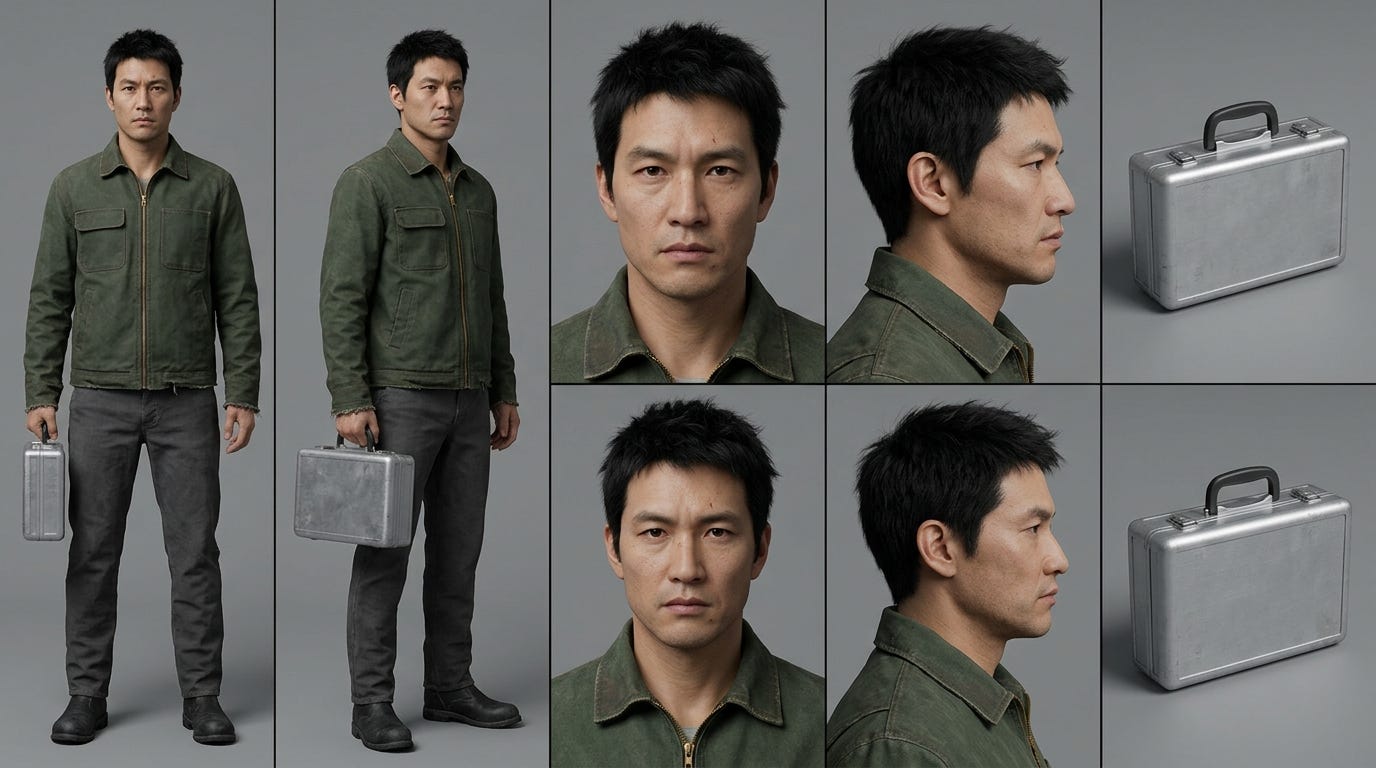
If you’re curious about the prompt generated by Astra, here’s the full prompt for this image:
CHARACTER AND PROP CONTINUITY REFERENCE SHEET for cinematic photorealistic science fiction.
Landscape 16:9 image with orderly neutral gray studio panels, no captions.
All panels depict EXACTLY THE SAME ONE adult courier, about 35, short black hair, angular face, small scar above left eyebrow, brown eyes, neutral serious expression.
Weathered dark-green canvas jacket with brass zipper, frayed cuffs, two square chest pockets; charcoal trousers and worn black boots.
Show front full body, three-quarter full body, facial close-up and profile. Courier carries ONE small brushed-silver rectangular hard case in RIGHT hand, approximately 30cm wide, black top handle, two silver front latches, narrow continuous seam, lightly scuffed, closed and unlit.
Include a clearly separated prop detail of this exact case. Grounded realistic clothing and anatomy, consistent face in every view. No weapons, no helmet, no logos.
Here are the different scenes needed for the sequence:
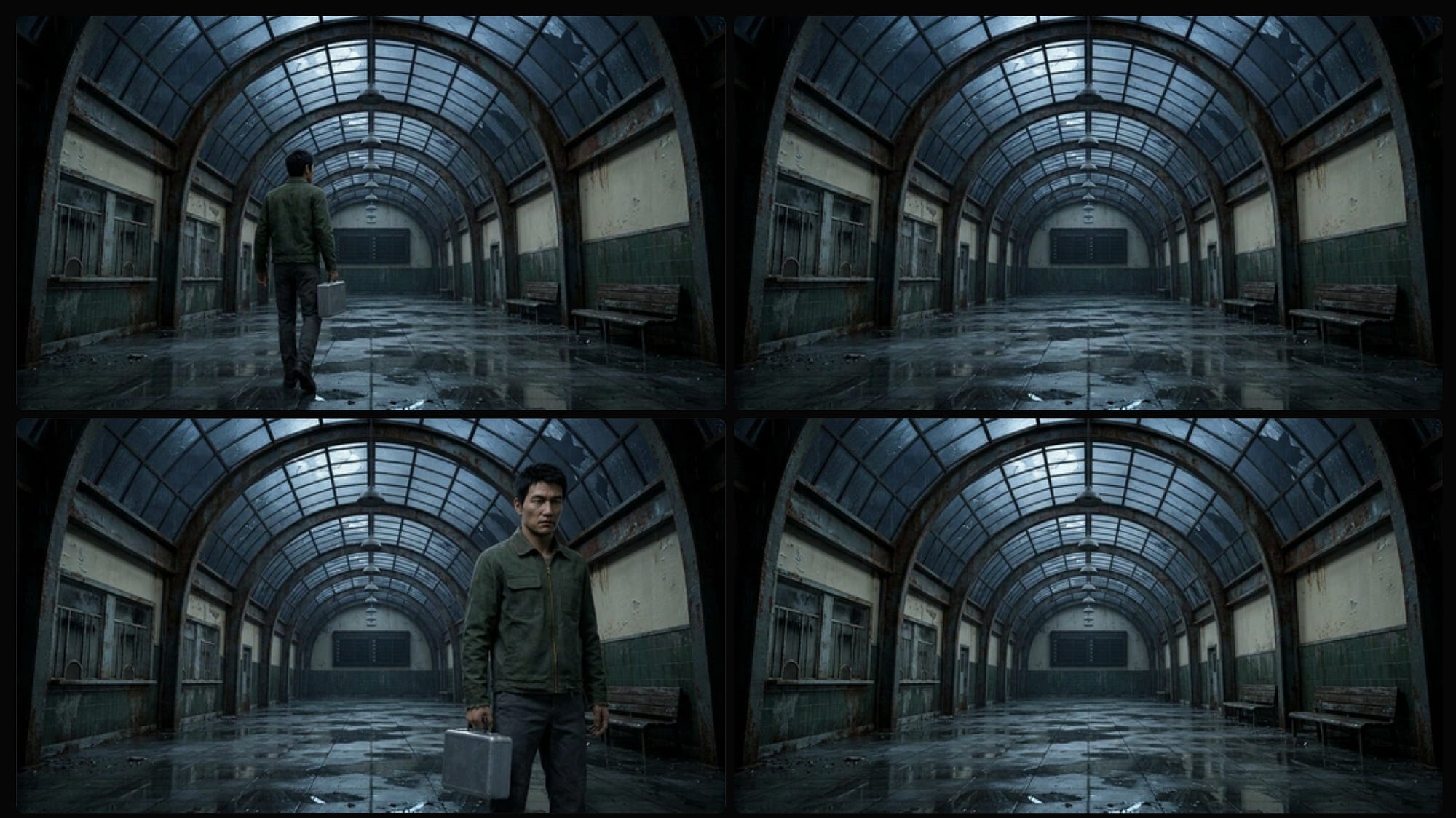
In the video generation part, I asked ChatGPT to use a cheaper model to conserve credits.
When reviewing the footage, watch the case. Does the courier carry it in the same hand? Does it remain the same size? Is the glow subtle at first, or does the model turn it into a giant light source immediately?
Those details affect whether the shots feel connected. You can have three good-looking clips that still don’t make sense when played together.
For revisions, point to the actual problem. “Keep the case in the courier’s right hand” is easier to work with than “improve the continuity.” If the walk looks unnatural, try a shorter movement or cut to a closer shot.
It’s also nice to keep the final moment brief. Let the lights come on, show the courier reacting, then end the video. You can always continue the story in another clip.
Here’s the final output:
Despite me switching to lower tier video model, the video still looks very sharp. Feel free to try different models and see which one fits your needs.
This is the sort of demo where you can explore Astra’s planning alongside the video model’s camera control and character consistency. You’ll have specific things to judge in the result, beyond whether the frames look nice.
The advantages of using Topview plugin + Astra
If you already use ChatGPT to research and write, the plugin saves you from rebuilding the same brief in another app.
Say you’ve spent a conversation deciding who a product ad is for, which feature to show, and how the opening should look. You can continue from there and ask Topview to generate the assets. You don’t have to copy the discussion into a new prompt and hope you remembered everything.
Revisions can stay in the conversation, too. You can refer to the shot you just discussed and ask for a change to the camera movement or background. I’d still name the asset and describe the change clearly, especially once the project has several versions.
For larger projects, Topview Canvas gives you somewhere to review the images and clips. I’d want to open it when comparing shots or checking how the sequence fits together. Chat is convenient for giving instructions; the video still needs to be watched.
Having access to several media models also gives you more options during production. You can prepare a still image, use it as a video reference, and create a cover image around the same subject.
For example, the sci-fi scene could have a poster showing the courier in the station. The product ad could have a matching image for a social post. You’ve already chosen the colors, subject, and setting, so those decisions can carry into the next asset.
Astra can also help with the work before generation. You can ask it to research a topic, examine the material you’ve supplied, or suggest how to explain something visually. Topview’s plugin pages additionally advertise access to marketplace data for supported workflows.
I’d ask for the evidence behind any trend claim. If the assistant recommends a certain type of opening because it performs well, I want to see what it based that on. That gives me something to evaluate before spending credits.
And for video generation itself, Topview handles the media model. Astra can write and manage the instructions, but the resulting motion, detail, and consistency still depend on the video model and references you use.
The cost needs watching across both services. You have the assistant’s usage and Topview’s generation credits. Planning a shot before rendering it can help avoid wasted attempts, but repeatedly generating variations can still add up.
Why should you care?
For content creators, this makes it easier to test ideas you already have.
You could turn a written post into a short video, create a recurring fictional character, or produce a series around one topic. I prefer to start with a format I could repeat and improve over several posts.
If you sell products, you can use your existing photos as references for ads. Try different settings or opening shots while keeping the product recognizable. You could show the same bag being used for an office commute and a weekend trip, for example.
For a small team, the early planning can also help with reviews. Show the script and storyboard before generating the whole video. It’s much easier to change the opening at that stage than after everyone has already picked apart the finished footage.
Topview has more tools beyond the models mentioned in these demos. Its broader platform includes templates and ready-made video skills, Drama Studio, agentic video generation, and its own T1 model.
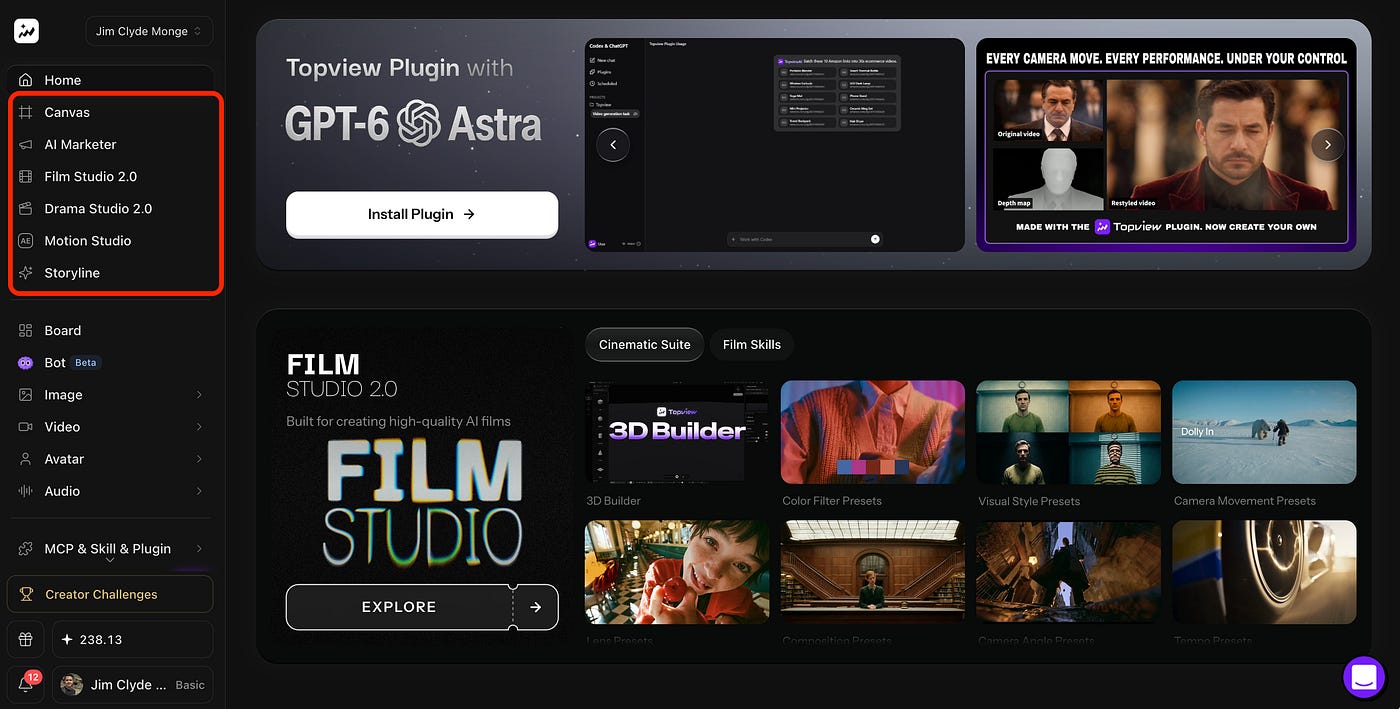
The templates give you somewhere to start when you don’t have a complete idea yet. You can choose a format that fits the product, add your materials, and then adjust the script and shots.
There’s also an AI creative director workflow for developing concepts and storyboards. I’d use it to get a few directions on the table, then choose one before generating a batch of assets.
For projects where the placement of objects and the camera angle need more control, Topview has 3D Shot Composer. You can stage a scene and work on the composition before generating footage around it.
That’s appealing for scenes where text instructions become awkward. If I want a character behind a table, a doorway on the left, and the camera looking over someone’s shoulder, being able to arrange the scene would save a lot of explaining.
Check which tools are available through your plugin connection. Some parts of a project may need to continue in Topview’s own interface.
You can also use Topview outside ChatGPT. It has a documented Claude Code plugin setup, along with support for other agent environments such as Cursor. The installation process depends on the platform you choose.
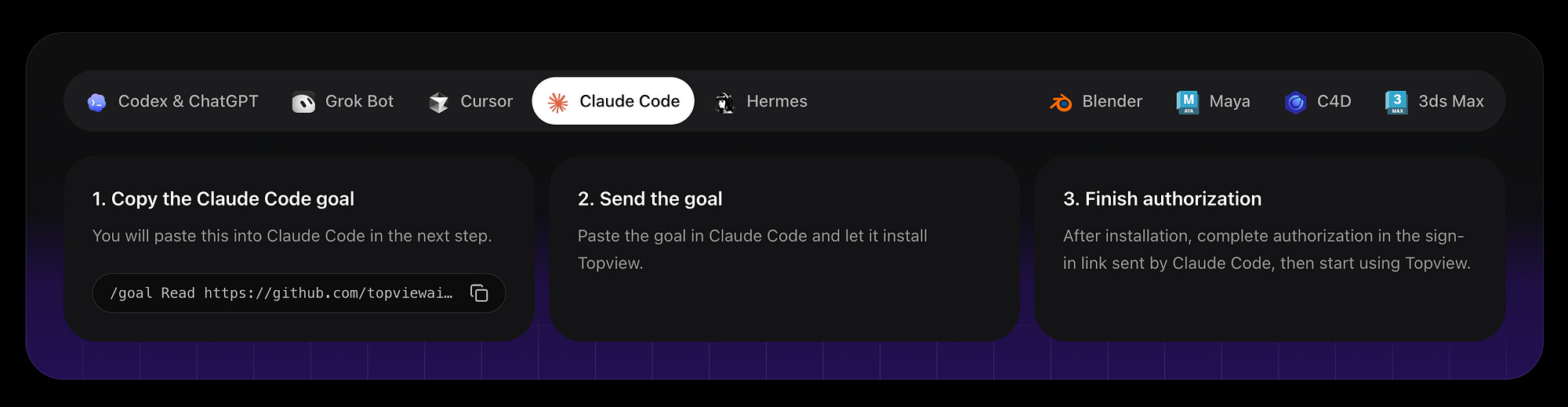
So if you prefer Claude for writing a story, you have another route to try. You can choose the assistant you want to work with and keep using Topview for the media generation.
I’d save the approved script and reference assets separately as the project develops. That way, if you move to another assistant, you have the actual materials ready to bring over.
Final Thoughts
I like that Topview has made the setup short enough to explain in a few steps. Add the plugin, authorize the account, and you can start requesting media from the conversation. Paired with Astra, there’s a lot I want to try, especially videos that need a bit of story planning before the first shot gets generated.
The three examples here are just the basics of what’s possible: product ads, short cinematic scenes, and videos based on articles. Sellers can work with their product photos, creators can build a series, and writers can bring their explanations to video.
Personally, I want to use this to experiment with videos that could go viral and help grow my social accounts. Being able to try different ideas gives me more chances to find a format people respond to.
Thanks to Topview for making these tools available through the assistants people already use. It can save time spent moving prompts and assets between apps. Keeping the brief in the conversation can also reduce repeated explanations, though actual token savings will depend on how much planning and tool use the task needs.
I’d love to hear your thoughts on this tool. Let me know in the comments!
Hi there! Thanks for making it to the end of this post! If you enjoyed this content and would like to support my work, consider becoming a paid subscriber. Your support means a lot!