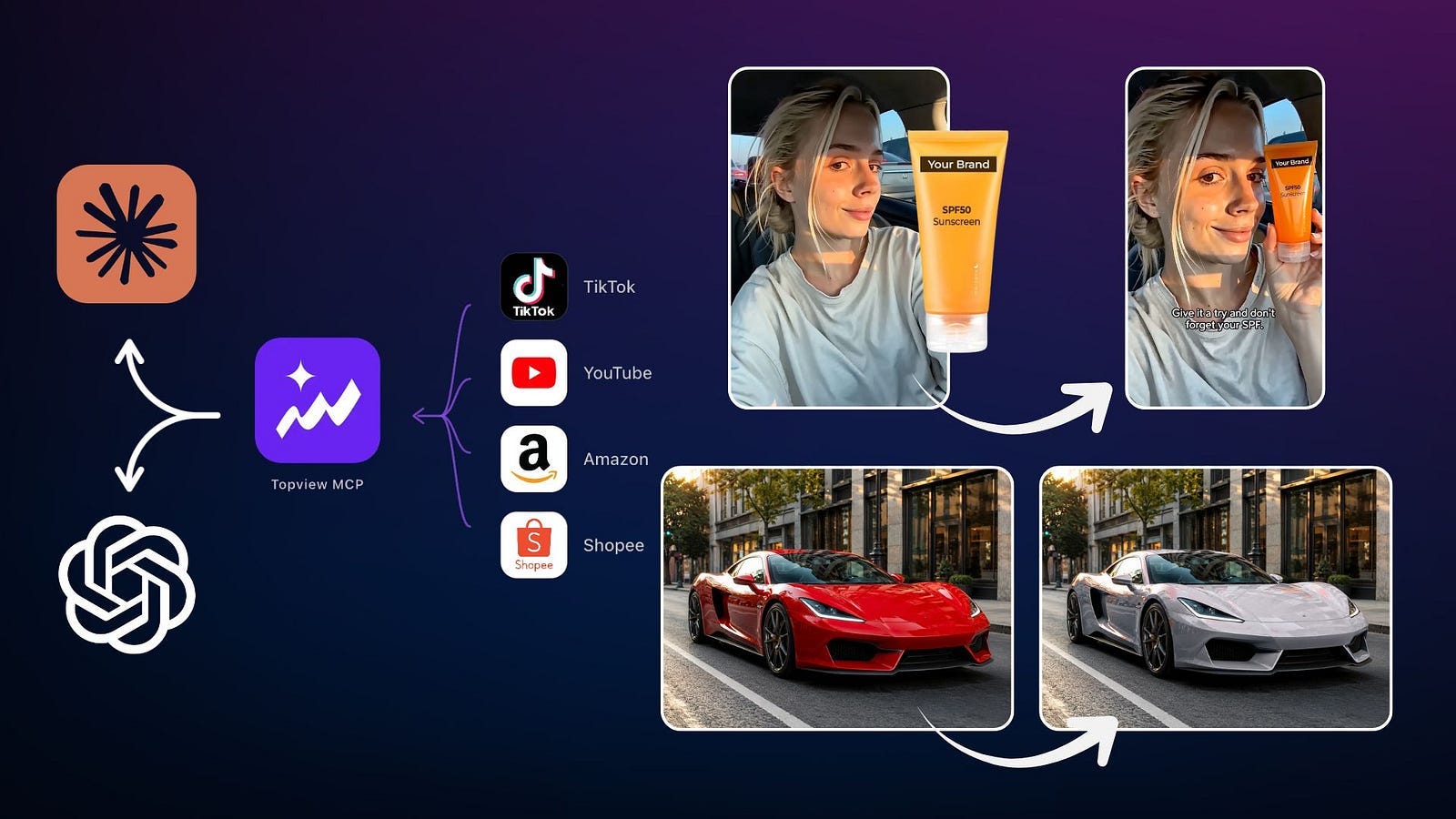
How to Generate AI Images and Videos in ChatGPT and Claude with Topview MCP
This is a detailed guide to generating high-quality AI videos inside chatbots using Topview's MCP.

I spend most of my working day inside AI chat apps. I use them to research ideas, improve scripts, plan content, and work through drafts. The annoying part begins when the conversation turns into an actual media project.
ChatGPT can generate images on its own, but its native video option is gone. Claude has the opposite problem. It can understand uploaded images and create diagrams or charts, but Anthropic still says it does not generate photos or illustrations like a dedicated image model.
So the usual workflow becomes more fragmented than it should be. I discuss an idea in ChatGPT or Claude, copy the prompt into another platform, upload the same references again, generate the asset, and return to the original chat when I need a revision.
MCP offers a much better way to connect those two parts.
The Model Context Protocol is an open standard that lets AI applications connect to external tools and services. Instead of asking Claude or ChatGPT to do something outside its native capabilities, an MCP connector gives the chatbot a tool that can handle the request on its behalf.
Topview MCP applies that idea to media production and marketing.
Once connected, you can ask ChatGPT, Claude, or any MCP agents to generate a video, edit an image, remove a background, create product visuals, or work on a larger campaign without moving the project into a completely separate workflow.
That is exactly what I tested and will share in this guide.
What Is Topview MCP?
Topview MCP is a remote Model Context Protocol server that connects supported AI assistants to Topview’s media generation and marketing tools.
The chatbot remains the conversational layer. It reads the request, understands the context, decides which Topview tool is needed, and sends the job to Topview. Topview’s server then handles the image or video processing and returns the result to the conversation.
When I edit an image through Claude, Claude does not suddenly become an image-generation model. It acts as the interface and reasoning layer, while Topview performs the media task using the models and production tools available on its platform.
Its current workflow covers market research, campaign strategy, content planning, and creative production inside one Campaign Workspace. It can pull signals from TikTok, YouTube, Amazon, and Shopee, then turn those findings into audience insights, message maps, campaign plans, content briefs, and creative assets.
The media tools cover video generation and editing, image generation and editing, product model images, background removal, storyboards, product visuals, UGC-style videos, ad edits, and creative variations.
Topview can also orchestrate several image and video models. The models currently shown on its MCP page include Seedance 2.5, Kling 3.0, Veo 3.1, Nano Banana 2.0, GPT Image 2, and Seedream 5.0 Pro.
The model routing can stay mostly invisible. I can describe the result in normal language instead of opening several dashboards or configuring separate APIs.
How to Set Up Topview MCP in ChatGPT
Before adding the custom plugin, enable developer mode in the Security and login tab in the Settings page. Depending on the account and workspace, OpenAI may place this option under Apps, Plugins, Advanced Settings, or the workspace’s connected-data permissions.
After enabling it, open the Plugins page and create a new connector. Name it Topview, then paste this URL into the connection field: https://mcp.topview.ai/chatgpt
ChatGPT will inspect the connector and ask you to sign in to your Topview account. Complete the authorization process and grant the requested permission.
You should then be redirected to ChatGPT, where Topview will appear in the Plugins list.
Take a moment to open the connector details before using it. The Permissions section controls whether ChatGPT can call Topview tools automatically or must ask before an action.
Here are the permission levels shown in my account:
Always ask: ChatGPT will ask before reading or making changes.
Allow read actions: ChatGPT can read without asking, but will ask before making changes.
Allow low-risk actions: ChatGPT will automatically approve low-risk actions but may deny actions involving sensitive information.
Allow all actions: Elevated risk. ChatGPT won’t ask before reading or taking action. This comes with elevated risk.
I kept the connector on Allow low-risk actions. It reduces repetitive confirmations during normal media work without giving every tool unlimited approval.
Generating AI Videos with Topview MCP
For my first test, I wanted to see whether I could create a realistic UGC advertisement from two reference images.
I uploaded a photo of the woman who would appear in the video and a separate image of the sunscreen product.
Then I used this prompt:
Prompt: Create a UGC video of a girl promoting a sunscreen product. Both images of the subject and the product are attached
That was the entire request. I did not write a full script, divide the video into scenes, describe every camera movement, or explain how the product should appear in the woman’s hand.
ChatGPT understood the request and passed the task to Topview. From there, Topview created the video and returned a link inside the same conversation.
Here’s the final video:
The final video looked better than I expected. The woman looked so realistic, her appearance stayed consistent across the shots, and the product did not feel pasted on top.
I also liked the scene transitions. They made it feel like a proper short-form ad rather than one AI avatar speaking in front of a fixed background.
The generated script was also on point. It sounded like something a creator might say in a quick sunscreen promotion, and the pacing fit the UGC format. I expected that part to require at least one rewrite, but the first version was already usable.
This is where the connection between ChatGPT and Topview worked really well. ChatGPT handled the request as part of the conversation, while Topview dealt with the production work. I did not need to re-upload the references elsewhere or rebuild the prompt in a video editor.
I can also stay in the same chat and ask for a shorter hook, another aspect ratio, a more casual delivery, or a version that focuses more heavily on the product. That is much easier than starting another project for every change.
How to Set Up Topview MCP in Claude
Claude users can connect Topview through the platform’s custom connectors feature.
Anthropic currently supports remote MCP connectors across Claude, Claude Desktop, Cowork, and mobile. Custom connectors are available on Free, Pro, Max, Team, and Enterprise plans, although Free accounts are limited to one custom connector.
Open Claude and go to Customize, then open the Connectors page. Click the option to add a custom connector.
Name the connector Topview and enter this address in the remote MCP server URL field: https://mcp.topview.ai/claude
Click Add and continue through the Topview sign-in and authorization process.
Once connected, Topview should appear in Claude’s connector list. Open its settings and choose the permission level that fits the workflow. My account used Needs approval by default, which means Claude asks before calling a tool.
That default is sensible while testing. After seeing which tools Claude calls, I can decide whether any should run without repeated approval.
The connector also needs to be enabled for the individual conversation. Before sending a media prompt, click the plus button beside the chat box, open Connectors, and switch on Topview.
Anthropic’s documentation confirms that remote connectors can be enabled or disabled per conversation from this menu.
Once that is done, Claude is ready to generate or edit media through Topview.
Editing an Image Inside Claude
For the Claude demo, I started with a simple image-editing request. I uploaded a photo of a red car and asked Claude to change it to white.
The Claude model does not matter very much for the actual pixel editing because the media processing happens on Topview’s side. Claude still needs to understand the request and choose the correct connector tool, but it is not the model repainting the car.
Here’s the side-by-side input and output:
The edit did what I asked. The red body of the car became white while the rest of the scene stayed largely intact.
Pretty cool, right?
For a long time, Claude has been able to inspect and discuss images, but Anthropic still doesn’t position it as a native photo or illustration generator. It can create charts, diagrams, and interactive visuals, but normal generative image work has required another service.
For small media jobs, that removes a surprising amount of friction. I no longer need another generator just to recolor an object, remove a background, or test a visual idea.
The Real Value of MCP Connectors in Our Favorite Chat Apps
Before MCP, I treated chatbots and media platforms as separate tools. Every handoff required copying prompts, uploading files again, and explaining the project from the beginning.
A connector reduces those handoffs. The chat already contains the product description, audience, references, and feedback, so the assistant is not working from an isolated prompt.
Topview’s wider marketing workflow makes this even more useful. Its MCP is not limited to one image-generation command. Topview says it can collect signals from TikTok, YouTube, Amazon, and Shopee, turn them into campaign documents, and then use the same Campaign Workspace for creative production.
That creates a more connected path from research to output.
I could begin with a product page, ask for recurring complaints in customer reviews, turn those complaints into possible ad hooks, draft a UGC concept, generate product images, and produce a video based on the selected direction. The work stays tied to the same campaign instead of becoming a pile of unrelated prompts spread across multiple tools.
It also separates the assistant from the production model. I do not have to choose one platform that is best at everything. Claude can handle the conversation while Topview handles the media task. ChatGPT can organize the campaign while Topview routes the generation job to an appropriate image or video model.
There are still limits. An MCP connector does not guarantee that every generation will be perfect, and the output still depends on the reference files, prompt, selected model, and task. Media generation may use Topview credits, and processing can take longer than a normal text response.
Final Thoughts
I originally connected Topview because I wanted to generate one UGC video inside ChatGPT. That alone worked better than I expected. The result looked realistic, the references stayed consistent, and the script needed less fixing than I had planned.
The Claude test was simpler, but it showed why MCP is useful beyond video generation. Claude still does not have a normal image generator of its own, yet I was able to edit an uploaded photo directly from the chat by giving it access to Topview.
I think this is how more AI tools will be used going forward. I do not want to keep opening a new dashboard for every model or feature. I would rather stay inside the assistant that already understands the project and call the right production tool when I need it.
Topview MCP already makes that workflow feel practical. It connects research, campaign planning, image work, and video production without forcing me to manually move every idea between platforms.
I remember someone said that MCPs could be as big as the birth of the internet. That’s a big claim, but the benefits of using it are really huge.
So what do you think about Topview MCP? Will you be using them in your favorite chat app? Let me know your thoughts in the comments.
Hi there! Thanks for making it to the end of this post! If you enjoyed this content and would like to support my work, consider becoming a paid subscriber. Your support means a lot!


