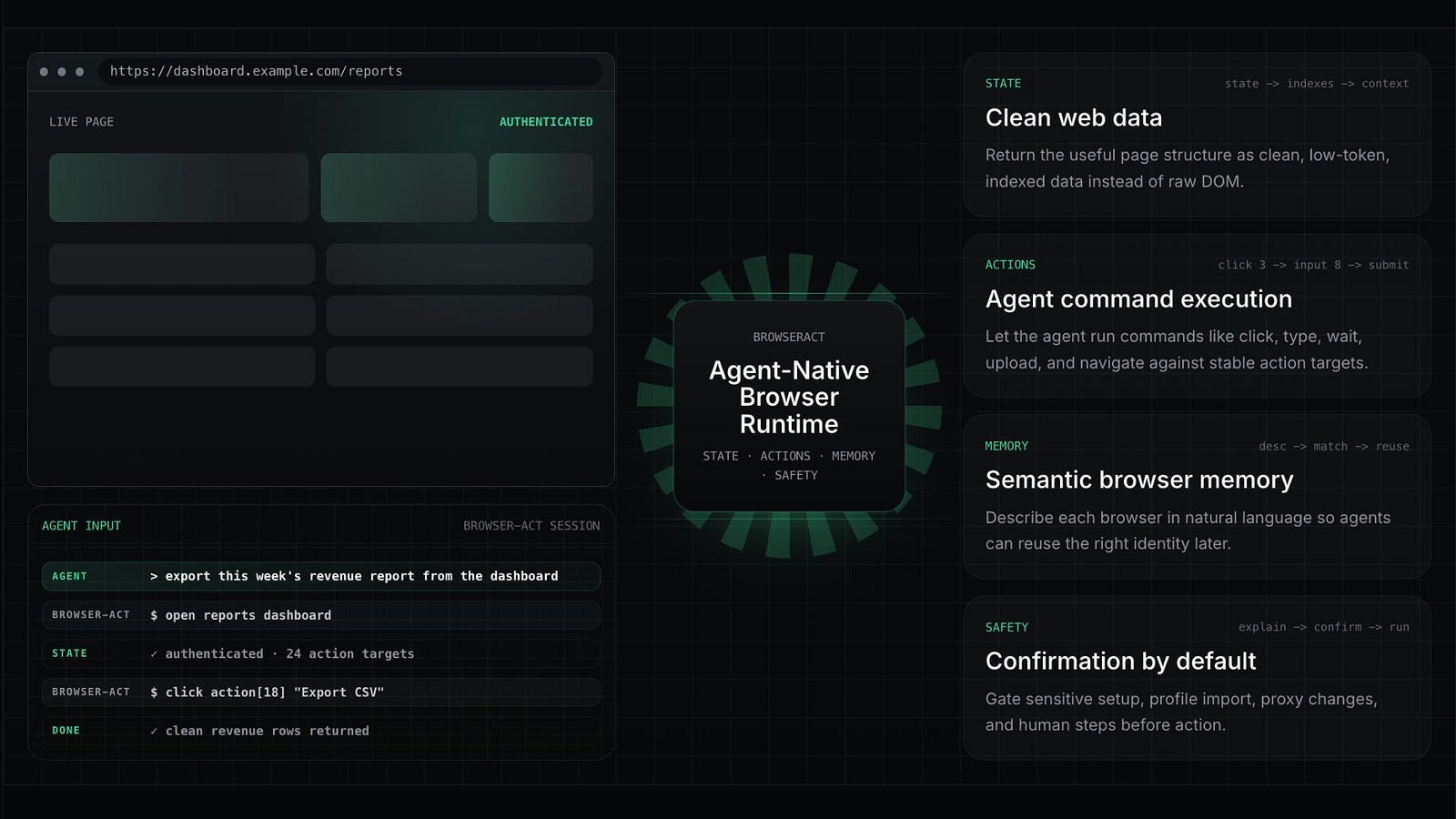
I Found the Best Browser Automation Anti-Bot Tool That Lets Agents Truly Control My Browser
BrowserAct gives AI agents a real browser so they can scrape live data, handle logins, solve CAPTCHAs, and complete web tasks from one simple prompt.
AI agents with browser control have been getting a lot of attention over the past couple of months. We now have different versions of these tools from OpenAI’s browser agent to Perplexity Comet, OpenClaw, and many others.
I have tried a handful of them, and while they are useful, there are still clear limits to what they can actually do. Sometimes I ask an agent to complete a web task, and it starts fine, only to fail midway because of CAPTCHAs, authentication, login issues, or some random website behavior it cannot handle properly.
One tool that I find really interesting and stands out among those that I tried is called BrowserAct. It gives agents a more reliable way to use the web, extract live data, take browser actions, and complete real tasks from end to end.
In this guide, I’ll describe what BrowserAct is, show you how it works, and discuss how you can take advantage of it.
Let’s get started.
What is BrowserAgent?
BrowserAct is a browser automation tool built for AI agents.
The easiest way to think about it is this: instead of giving your AI agent a normal text-only search tool, BrowserAct gives it a real browser it can control from the terminal.
It can open pages, read what is on the screen, click buttons, type text, extract information, inspect page state, manage sessions, and continue working through multi-step web tasks.

The real value is in how BrowserAct handles the messy parts of the web.
If you keep an eye in the latest AI news, you’d know that a lot of popular browser agents only work well in clean demo environments. Ask them to open a simple page and click a button, and they look impressive. But once you try them yourself in a real working environment, things start to get messy.
Pages load dynamically. Login sessions expire. Buttons move in random places. Websites detect automation. CAPTCHAs appear. Some pages need your existing Chrome profile. Some tasks need a human to step in for a few seconds.
I mean… it’s an annoying experience.
BrowserAct is designed around those problems.
It gives agents different browser modes depending on the task. You can use a normal Chrome-based browser, control your current Chrome session directly, use stealth browsers for protected public pages, or create separate browser identities for account-based work.
Key features of BrowserAct
BrowserAct has a lot of features, but these are the ones that matter most if you are using it with an AI agent.

Real browser control from the terminal: BrowserAct lets agents open websites, inspect the page, click buttons, type into fields, and continue through multi-step browser tasks directly from the CLI. This makes it useful for Claude Terminal, Cursor, Codex CLI, and other agentic coding tools that can run shell commands.
Multiple browser modes: BrowserAct supports different browser setups depending on the task. You can use a normal Chrome-based browser, import a local Chrome profile, control your current Chrome session directly, or use stealth browsers for public pages that are harder to access with basic scraping tools.
Page extraction for research: For simple research tasks, BrowserAct can extract rendered web pages as Markdown or HTML. This is useful when you need clean notes from product pages, docs, pricing pages, changelogs, or JavaScript-heavy websites.
Support for logins and sessions: BrowserAct can reuse browser state through Chrome profiles or direct Chrome control. This is helpful when the task needs access to a logged-in dashboard, account page, admin panel, or internal tool.
CAPTCHA solving and human handoff: If a task gets blocked by a CAPTCHA, 2FA, or another manual step, BrowserAct can either attempt solving or create a remote assist link so a human can complete the step.
Reusable scraping skills: BrowserAct also has Skill Forge, which helps agents turn repeated browser workflows into reusable skills. This is useful when you do not want the agent to rediscover the same website structure every time.
These are just some of the things the platform can do. I encourage you to go to the skills page and explore other capabilities.
How to install BrowserAct
BrowserAct has two main parts.
The first is the CLI itself. This performs the actual browser automation.
The second is the entry skill. This tells your AI agent when and how to call the CLI.
If you are using an agent that supports skills, the easiest path is to ask your agent to install it for you.
Open a Claude code instance and paste the following commands:
Install browser-act.
Skill URL: https://github.com/browser-act/skills/tree/main/browser-act
After installation, verify that the CLI is available.
If you want to install it manually, you can use uv with Python 3.12:
# Install the BrowserAct CLI using uv and Python 3.12.
uv tool install browser-act-cli --python 3.12
# Confirm that the command is available.
browser-act --versionSome BrowserAct features can work without an API key, especially basic Chrome and chrome-direct automation. But hosted features like stealth browsers, stealth extraction, dynamic proxy rotation, and CAPTCHA solving require an API key.
To get the API key, head over to the API keys page in your BrowserAct profile section and click on the Manage API Keys to create one.

You can start the login flow with:
# Start BrowserAct authentication.
browser-act auth login
# Poll until the login flow is complete.
browser-act auth pollOr set your API key directly:
# Set your BrowserAct API key directly.
browser-act auth set <your_api_key>Take note that Claude may ask for your permission to fetch several GitHub codes and also to allow some skills to execute.
Once all the necessary libraries and dependencies are installed, you should get this message in your Claude terminal.

Okay, you are now ready to use BrowserAct.
Example use case 1: Extract product information for article research
The first example I would show readers is a simple research workflow.
This is useful for writers, marketers, developers, and anyone who needs to collect information from live web pages. Since I write a lot of AI tool reviews and tutorials, this is the kind of task I can actually see myself using.
Let’s say I want to research BrowserAct’s homepage and pricing page, then save the results as Markdown so I can use them as notes for an article.
Command:
# Extract BrowserAct homepage content and save it as Markdown.
browser-act stealth-extract https://www.browseract.com/ --output ./browseract-homepage.md
# Extract BrowserAct pricing page content and save it as Markdown.
browser-act stealth-extract https://www.browseract.com/pricing --output ./browseract-pricing.mdPrompt for Claude Terminal:
Use BrowserAct to extract the BrowserAct homepage and pricing page.
Save both pages as Markdown files.
Then read the files and create a concise research summary with:
1. What BrowserAct does
2. Key features
3. Browser modes
4. Pricing details
5. Possible use cases for AI agentsThis is a simple example, but it already shows the value. Instead of manually opening pages, copying text, cleaning the content, and pasting it into my notes, I can let the agent extract the rendered pages and turn them into a structured research summary.

Notice in the logs above, Claude loads the BrowserAct skill that we have installed earlier, uses stealth-extract to gather all relevant data, and sums it up into a markdown file.
This is the output result with full text below:

Research Summary (condensed)
1. What it does — BrowserAct is an agent-native browser runtime: a real browser layer that lets AI agents use the live web
reliably, getting past bot blocks and CAPTCHAs, isolating sessions, handling human hand-offs, and returning clean, low-token
indexed data. Positioned as an advanced replacement for WebFetch/curl/selector scrapers, delivered as a CLI/skill for Claude
Code, Cursor, Codex, Windsurf.
2. Key features — stealth fingerprints + TLS rotation + residential proxies; automatic CAPTCHA solving (reCAPTCHA, Cloudflare
Turnstile, DataDome, HUMAN); human-in-the-loop remote-assist; unlimited non-interfering concurrency; LLM-native runtime (clean
State, command Actions, semantic Memory, Confirmation-Gate Safety); plus CLI, no-code cloud workflows, and API/MCP
integrations (Make, n8n, Zapier).
3. Browser modes — three types, all local-capable: chrome (imports local login state, runs independently), chrome-direct
(drives your live Chrome with extensions/SSO), and stealth (anti-detection, undetectable even headless). Stealth adds private
mode, fixed-identity mode, and dynamic/static proxies. A lightweight stealth-extract path handles read-only parallel
extraction (what I used here).
4. Pricing — Free Trial ($0, 100 daily credits, 5 local browsers) → Basic $13/mo (10K credits, 10 tasks) → Essential $56/mo
(50K credits, 20 tasks, most popular) → Advanced $96/mo (100K credits, 40 tasks). Yearly saves 20%. Pay-as-you-go from the
credit pool: dynamic proxy ~$3.2/GB, static proxy by tier, workflow steps ~$0.0032 each; Cloud Browser TBD. No credit card for
trial.
5. Use cases for AI agents — large-scale scraping past Cloudflare (the Amazon bestsellers demo), turning any site into an API,
authenticated dashboard workflows via reused Chrome login, isolated multi-account matrices, competitive monitoring/research,
human-assisted 2FA flows, and embedding web abilities into products via API/MCP.
One caveat worth noting: figures like “99%+ CAPTCHA success,” “500M+ pages,” and “10K+ concurrent sessions” are BrowserAct’s
own marketing claims from the homepage, not independently verified.My thought here is that BrowserAct is very useful for writers who need live product data. A lot of AI tools update their pricing, model names, features, and limits all the time.
If you are writing a review or comparison article, you want to work from current pages, not old assumptions.
Example use case 2: Use Chrome to work with logged-in pages
The second example I would show is logged-in browser work.
This is where basic scraping tools usually fail because the page is behind an account. BrowserAct can help by importing a local Chrome profile into an isolated browser or controlling your current Chrome directly.
For example, let’s say I want the agent to open a dashboard I am already logged into and summarize the visible data.
First, list profiles:
# Find the local Chrome profile that contains the login state you need.
browser-act browser list-profiles
Then create a Chrome browser from that profile:
# Create a BrowserAct-managed Chrome browser from the selected local profile.
browser-act browser create \
--type chrome \
--name “dashboard-research” \
--desc “Logged-in Chrome profile for dashboard research” \
--source-profile <profile_id>
Then use it:
# List BrowserAct browsers and copy the browser ID you want to use.
browser-act browser list
# Open the logged-in dashboard in a named session.
browser-act --session dashboard-check browser open <browser_id> https://example.com/dashboard
# Read the current page state.
browser-act --session dashboard-check statePrompt for Claude Terminal:
Use BrowserAct with my logged-in Chrome browser called “dashboard-research.”
Open the dashboard page, inspect the visible page state, and summarize the key numbers.
Do not click destructive buttons.
If the page asks for 2FA or a manual verification step, use remote assist and wait for me to complete it.
This is a good example because it shows the more practical side of BrowserAct.
A lot of business workflows happen inside logged-in dashboards. Analytics tools, ad platforms, content management systems, SaaS admin panels, project management tools, and internal portals all live behind accounts.
A normal search tool cannot access those. A normal scraper should not be given raw credentials. BrowserAct gives the agent a browser-based path that can reuse existing login state and keep the task more controlled.
I would still be careful here. I would not tell an agent to roam freely inside sensitive accounts. I would give it a narrow task, ask it to avoid destructive actions, and use confirm-before-use for sensitive browsers when needed.
Example use case 3: Getting through human verification when standard automation fails
One practical difference between BrowserAct and a standard browser automation tool is how it handles human-verification challenges.
A normal automation script can open a page, wait for it to load, and click a few buttons. But once the website shows a CAPTCHA, bot check, or manual verification screen, the workflow often stops there.
For example, a simple Playwright-style script might look like this:
// A simple Playwright-style example.
// This can open the page, but it cannot reliably complete human verification on its own.
import { chromium } from “playwright”;
const browser = await chromium.launch({ headless: false });
const page = await browser.newPage();
await page.goto(”https://medium.com/me/stats”);
// The script can wait for the page to load.
await page.waitForLoadState(”networkidle”);
// But if the page shows a CAPTCHA or human verification challenge,
// the script usually gets stuck here unless you build a custom workaround.
const content = await page.textContent(”body”);
console.log(content);
await browser.close();When I ran the command:
node playwright-verification-test.jsYou can see that we are blocked and can’t get the necessary information.
This is not really a Playwright problem. Playwright is powerful, but it is still a developer-first automation tool. Modern websites often use browser fingerprinting, TLS checks, proxy reputation, JavaScript challenges, CAPTCHA pages, and other verification steps that interrupt basic automation.
BrowserAct approaches this with three layers.
The first is the environment layer. BrowserAct can run the task in a stealth browser environment with fingerprint spoofing, TLS rotation, and proxy switching. This helps the agent avoid some of the common signals that break standard automation.
The second is the execution layer. If I only need to extract content from a protected or JavaScript-rendered page, I can use one command:
# Extract a protected or JavaScript-rendered page as Markdown.
browser-act stealth-extract https://example.com/protected-page --output ./protected-page.mdIf the session hits a supported CAPTCHA challenge, BrowserAct can attempt to solve it directly:
# Ask BrowserAct to solve a supported CAPTCHA challenge in the current session.
browser-act --session research-session solve-captchaThe third is the human layer. When the page needs 2FA, account confirmation, or manual review, BrowserAct can generate a live handoff URL:
# Generate a live URL so I can take over the browser from any device.
browser-act --session research-session remote-assist --objective “Complete the human verification step”I can open the remote-assist link, complete the verification myself, and then let the agent continue in the same browser session.
Now, let’s access the same link using BrowserAct with this command:
browser-act stealth-extract https://medium.com/me/stats --output ./protected-page.mdAll the personal stats on my Medium account got retrieved and summarized. This is super cool!
A standard automation tool often stops when a page asks users to “verify you are human.” BrowserAct gives the workflow more ways to continue. It can improve the browser environment, attempt CAPTCHA solving when supported, or hand the session to a real person when human judgment is needed.
For legitimate workflows like researching public pages, checking my own dashboard, testing my own website, or working inside an account I control, this makes BrowserAct feel more practical than basic browser automation. It does not pretend the web is clean and predictable. It gives agents a way to handle interruptions without losing the whole session.
Other use cases for BrowserAct
BrowserAct can be used for many practical workflows, especially when the task involves live web data or browser interaction.
Here are some examples I would include in the article.
1. AI research and article writing
This is the most obvious use case for me.
You can ask an agent to collect live information from product pages, docs, changelogs, pricing pages, GitHub repos, public directories, and comparison pages. Then the agent can summarize the results, pull out useful details, and save everything into Markdown.
This is helpful when writing long-form articles because it reduces the boring part of research. You still need to think, fact-check, and write the actual opinion, but the agent can gather the raw material faster.
2. Competitor research
You can use BrowserAct to monitor competitor websites, pricing pages, feature pages, landing pages, and product updates.
Example prompt: Use BrowserAct to visit these five competitor pricing pages. Extract plan names, monthly prices, yearly discounts, credit limits, and key restrictions. Put the results in a Markdown table. Also add a short note about what changed compared with my previous notes.
This is useful for SaaS founders, marketers, and indie hackers who need to keep track of what other products are doing.
3. QA testing for your own website
Another good use case is checking your own web app.
You can ask BrowserAct to open your website, click through important flows, check buttons, inspect forms, capture screenshots, and report anything broken.
Example prompt: Use BrowserAct to test my website homepage.
Open the page, inspect the visible state, click the main navigation links, and check if each page loads correctly. Do not submit any forms. Create a QA report with broken links, missing buttons, layout issues, and confusing copy.
This is not a replacement for full automated testing, but it is useful for quick checks. I can see this being helpful when launching a landing page, a new pricing page, or a new onboarding flow.
4. Lead research
BrowserAct can help collect public company information, product descriptions, contact pages, or directory listings.
Example prompt: Use BrowserAct to research AI startups from this public directory. For each company, extract the name, website, short description, category, and pricing page URL if available. Limit the result to 20 companies. Save the output as CSV.
Again, this should be done responsibly and only on pages where you are allowed to collect data. But for public research, it can save a lot of manual work.
5. Internal workflows
Some workflows are not about scraping at all. Sometimes you just need an agent to do repetitive browser work inside your own tools.
Examples:
Open a dashboard and export a report.
Check if a scheduled post went live.
Update a small field in a CMS.
Open several internal pages and summarize visible data.
Review web forms before launch.
These are simple tasks, but they become annoying when you do them every day. BrowserAct gives agents a way to do those tasks through the browser instead of requiring a custom API integration for everything.
Why should you care?
I think the reason BrowserAct is interesting is because AI agents are moving from chat to action.
For the past few years, most AI tools were built around answering questions. That is useful, but the next step is getting agents to complete actual work. The browser is a huge part of that because so much work still happens inside websites and dashboards.
The problem is that browser automation is messy.
Traditional tools like Playwright and Puppeteer are powerful, but they are usually developer-first. You need to write scripts, maintain selectors, handle sessions, debug failures, and update code when the website changes.
AI browser agents are easier to use, but many of them still break when the task touches real-world friction like logins, CAPTCHAs, dynamic pages, or multi-step flows.
BrowserAct sits in an interesting middle ground.
It gives AI agents a structured browser tool they can call from the terminal. It supports browser state, sessions, indexed page elements, stealth extraction, CAPTCHA handling, remote assist, and reusable skills. It is still technical enough for developers and agent users, but it removes a lot of the manual work needed to build browser automation from scratch.
For me, the most useful part is not just automation. It is recoverability.
When something goes wrong, the agent has options. It can inspect the state again. It can use another browser mode. It can call CAPTCHA solving. It can request remote assist. It can continue from the same session after a human completes a verification step.
That is a big deal because failed browser tasks are usually where these agents become frustrating. BrowserAct does not make every website magically easy, but it gives the agent a better path through the messy parts.
BrowserAct pricing
BrowserAct’s pricing is based around infrastructure services and credits.

There is a free fingerprint browser option for the first five profiles. This includes unique browser profiles, full session and cookie isolation, and one-click proxy assignment.
Dynamic proxy usage is priced by credits per GB. BrowserAct lists dynamic proxy pricing at 5,000 credits per GB, with pricing as low as $3.20 per GB.
Static proxy pricing depends on location and tier. This is meant for dedicated long-term IPs, which are useful for account management and stable connectivity.
Workflow steps cost 5 credits per step, with the pricing page showing a rate as low as $0.0032 per step. These steps are tied to AI-powered task execution, remote browser scheduling, proxy support, and CAPTCHA solving.
My thoughts after trying BrowserAct
BrowserAct feels like one of those tools that makes more sense once you have already hit the limits of browser agents.
If you have only used agents for simple search or basic page summaries, it may look like another automation tool. But once you start asking agents to work with logged-in pages, dynamic websites, CAPTCHAs, dashboards, and multi-step tasks, the value becomes clearer.
What I really like is that BrowserAct is built for the messy web, not just clean demos. It gives agents a browser, but it also gives them sessions, state inspection, browser modes, profile import, stealth extraction, CAPTCHA handling, and human handoff.
I also like that it works from the terminal. Since I already use Claude Terminal for coding and research, BrowserAct fits naturally into that workflow. I can ask Claude to collect data, inspect a page, save Markdown files, compare changes, or test a website without manually building a scraper every time.
That said, I would still use it carefully.
Browser automation can touch sensitive accounts, private dashboards, and websites with strict rules. I would not give an agent broad access without clear limits. I would start with public pages, personal workflows, and accounts I own. For logged-in pages, I would keep the task narrow and avoid destructive actions unless I am watching closely.
BrowserAct is not a magic button that makes every website automation work perfectly. No tool can promise that. But it gives agents a better browser layer, and that is exactly what a lot of agent workflows need right now.
Final Thoughts
AI agents are becoming more capable, but they still need better tools to interact with the real web.
BrowserAct is one of the more practical tools I have tested because it focuses on the part where many agents still fail: using the browser properly. It can extract rendered pages, interact with websites, reuse Chrome sessions, manage isolated browsers, handle some CAPTCHA flows, and hand control to a human when needed.
For writers, it can help with research. For developers, it can help with browser testing and automation. For founders and marketers, it can help with competitor tracking, pricing checks, and data collection. For agent builders, it can become part of a larger automation stack.
I am still early in testing it, but I can already see why BrowserAct is useful. It gives AI agents a more reliable way to work with the web, and that is becoming more important as agents move from answering questions to completing real tasks.
If you are already using Claude Terminal, Cursor, Codex CLI, or other agent tools, BrowserAct is something I would test. Start with a simple extraction task. Then try a browser session. Then try a logged-in workflow. That is where you will start to see what it can actually do.
Hi there! Thanks for making it to the end of this post! If you enjoyed this content and would like to support my work, consider becoming a paid subscriber. Your support means a lot!


