

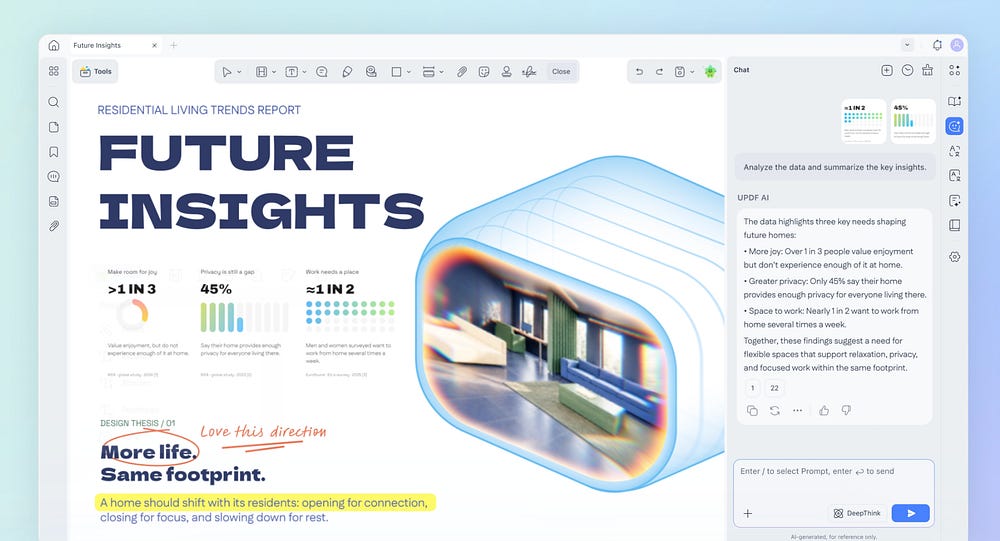
A few weeks ago, I wrote about switching from Adobe Acrobat and Apple’s Preview to UPDF for most of my PDF work. At that time, I was mostly interested in its editor and the AI chat feature that lets you ask questions about a document.
Since then, the team has released UPDF 3.0, and it turned out to be a bigger update than I expected.
The update adds two features that I think deserve their own article.
The first is called Scenario Assistants, which are AI assistants built for specific types of documents like contracts, research papers, financial reports, and resumes.
The second is Request Sign, which lets you send a document to other people for signature and track its progress without leaving the app.
Why do I care so much about these two? It has a lot to do with how I handle contracts.
As someone who runs a small business, almost every agreement I receive goes through the same routine. I read it to understand what I’m agreeing to. I review it for clauses that could cause problems later. Someone edits the wording we agreed to change. And finally, everyone signs.
The annoying part is that each of those steps used to happen in a different app.
I’d read the PDF in a reader, paste clauses into a chatbot to ask what they meant, fix the text in an editor, and then upload the final file to an e-signature service. By the time the contract was signed, I had four or five copies of the same file sitting in different places.
So in this article, I’ll take one contract through all four steps inside UPDF 3.0 and share what I think about each of them.
Let’s get started.
What’s New in UPDF 3.0?
If you’re not familiar with it, UPDF is a PDF editor for Windows, macOS, iOS, and Android. You can use one account on up to four devices, which is handy for someone like me who moves between a Mac and a phone throughout the day.
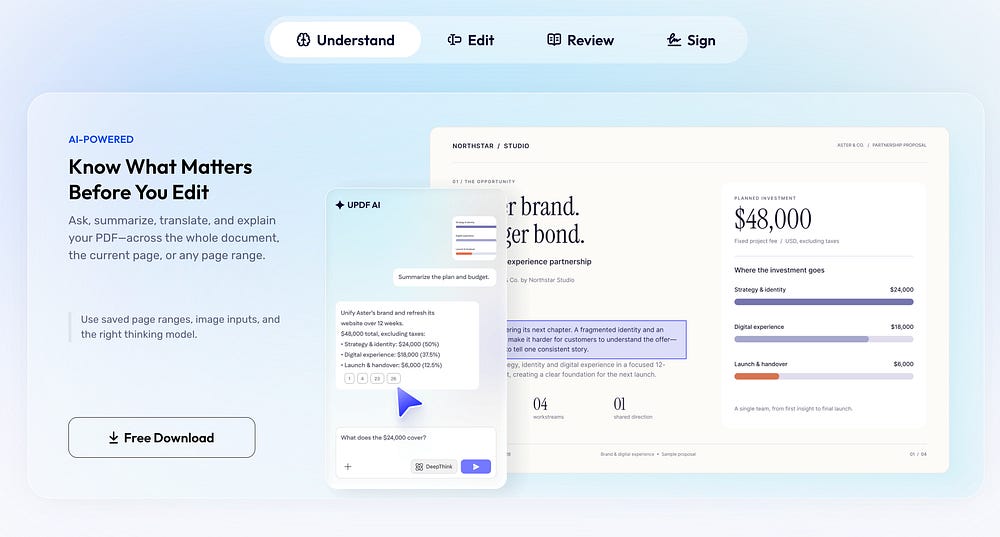
Version 3.0 is the first major release since version 2.5 introduced the AI agent tools back in March.
Here’s what’s included:
Scenario Assistants: Five AI assistants (General, Resume, Contract, Academic, and Financial), each with its own one-click quick actions. You can also create your own.
Request Sign: UPDF Sign is now part of the desktop app, so you can sign a document, invite other people to sign, and track who has signed.
Scoped questions: You can ask the AI about the entire document, the current page, or selected pages. Your chat history is also saved, so you can go back to an earlier conversation.
Batch tools: Translate and split PDFs in batches, and run several OCR jobs at the same time.
Customizable toolbar: Set up the toolbar with the tools you use most.
I’ll spend most of this article on the first two because they’re the ones that changed how I work.
If you already have UPDF installed, simply update to version 3.0 and sign in to your account. Take note that the AI Assistant has a separate license from the PDF editor.
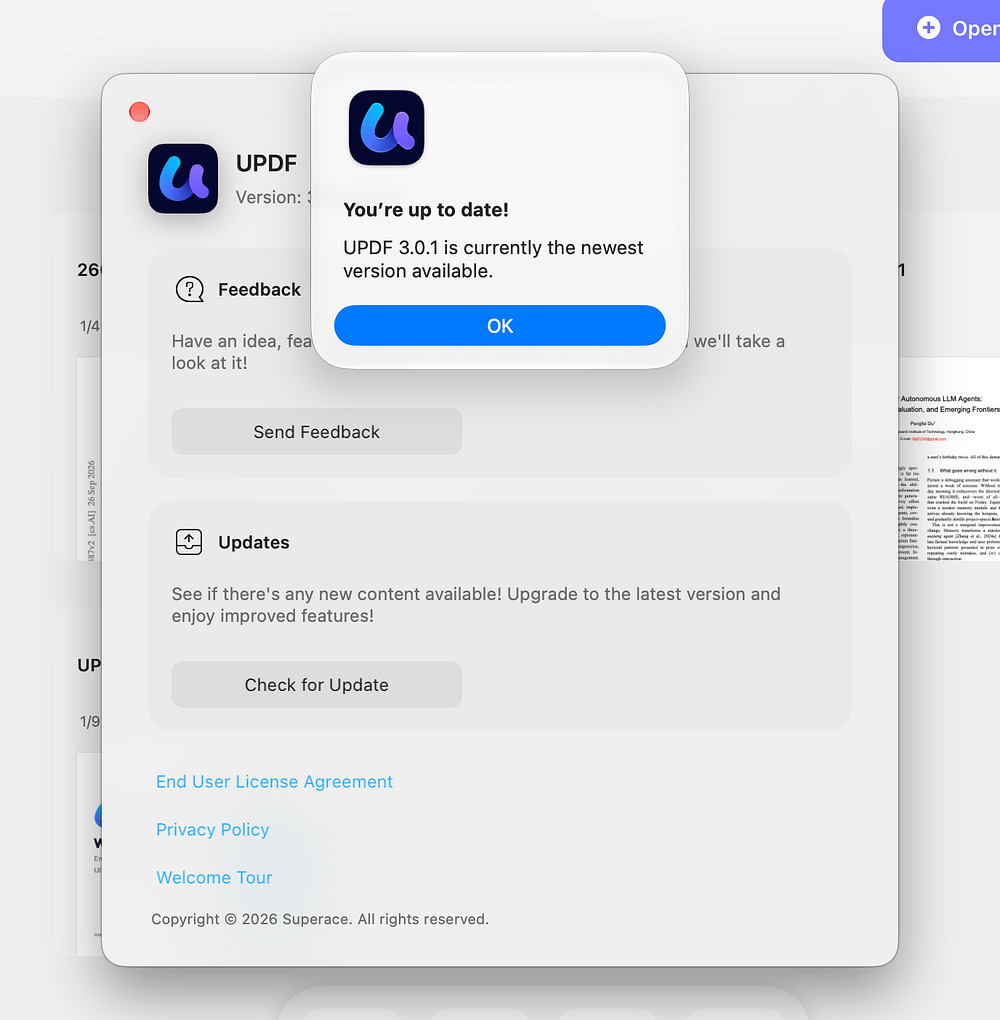
You can confirm your version under the UPDF screen and click on the Check for Update button.
There’s a free plan that lets you analyze five PDFs and ask 100 questions, and that’s more than enough to follow along with this guide.
Understand: Let the Contract Assistant Read It First
The first thing I want from any contract is a plain explanation of what I’m agreeing to.
Open the contract in UPDF and click the UPDF AI button in the upper-right corner. Choose Ask PDF, select your preferred response language, and click Chat with PDF. UPDF will read the file and write a summary of the entire document.
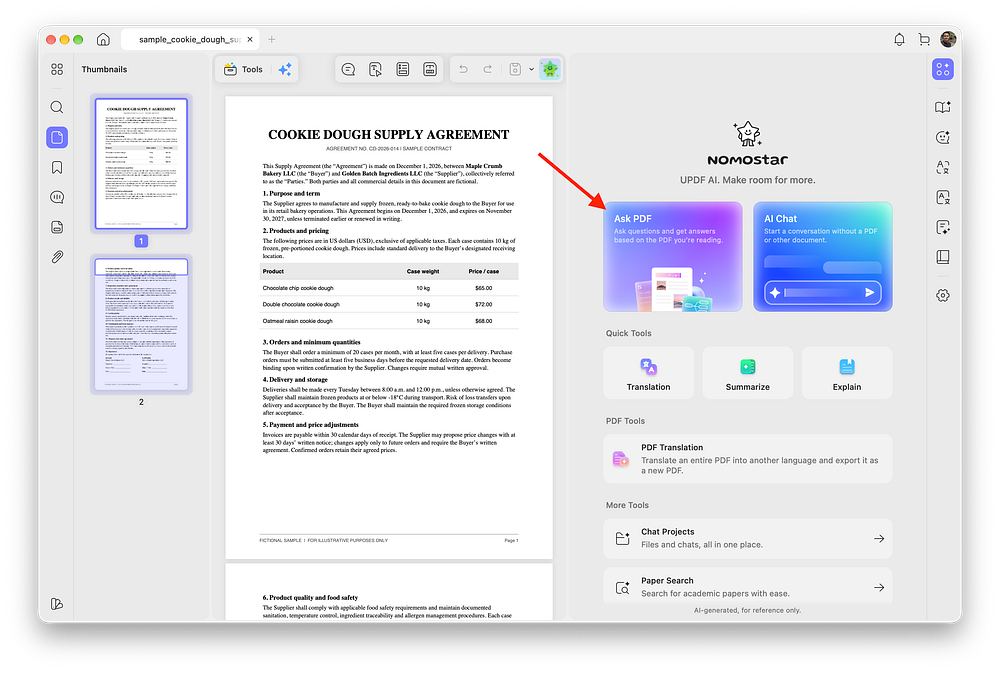
If you’ve used UPDF before, you already know this part. What’s different in version 3.0 is the small + button inside the chat box.
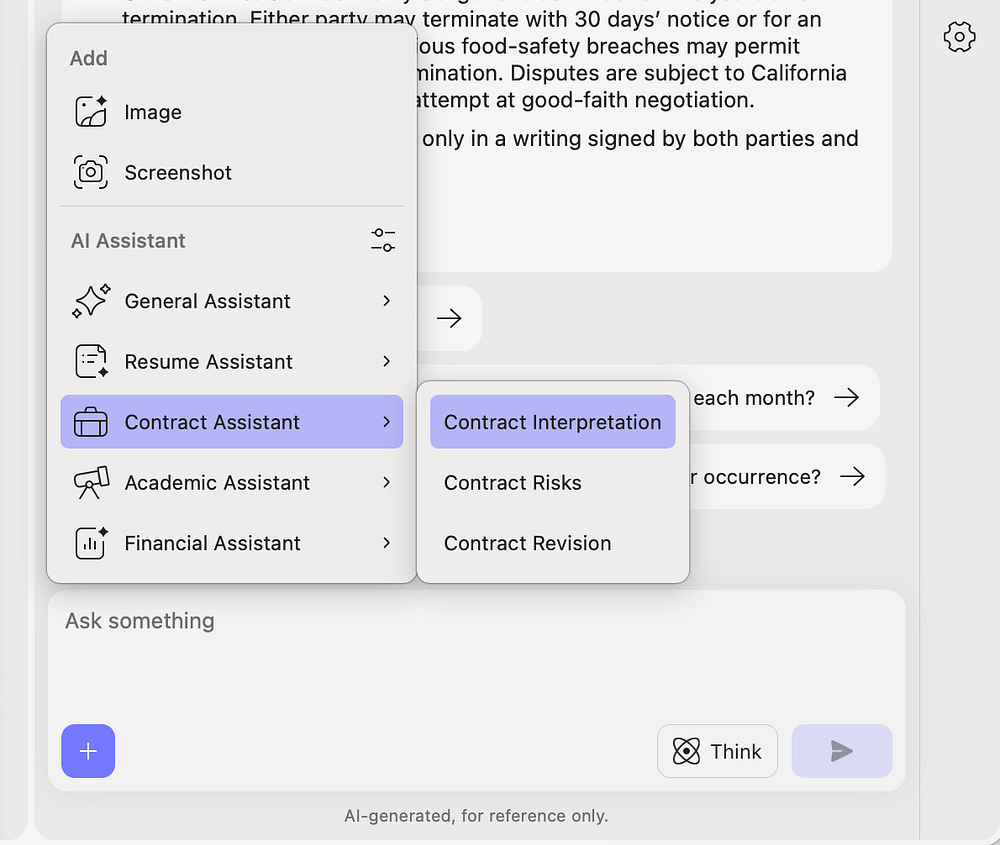
Clicking it opens an AI Assistant menu with five options:
General Assistant
Resume Assistant
Contract Assistant
Academic Assistant
Financial Assistant.
Each assistant has its own list of quick actions, which are basically pre-written instructions you can run with one click.
Since we’re working with a contract, select Contract Assistant, then Contract Interpretation.
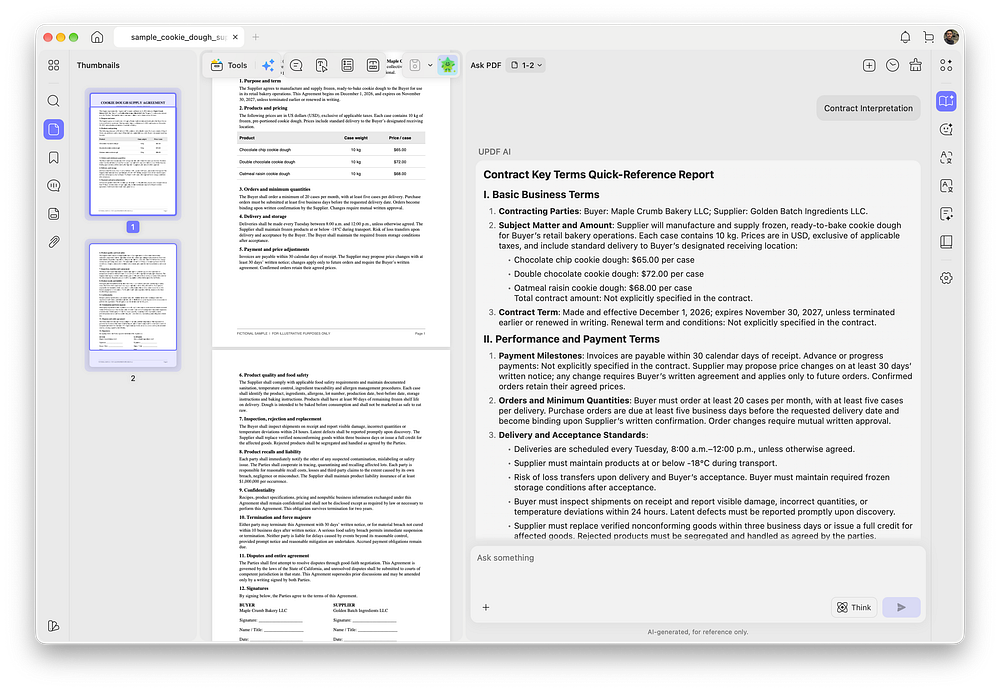
UPDF generates what it calls a Contract Key Terms Quick-Reference Report. It lists the contracting parties, the subject matter, the contract term, the payment arrangements, and the key obligations.
Here’s a snippet of the results:
Contract Key Terms Quick-Reference Report
I. Basic Business Terms
  1. Contracting Parties: Buyer: Maple Crumb Bakery LLC; Supplier: Golden Batch Ingredients LLC.
  2. Subject Matter and Amount: Supplier will manufacture and supply frozen, ready-to-bake cookie dough for Buyer’s retail bakery operations.
     Each case contains 10 kg. Prices are in USD, exclusive of applicable taxes, and include standard delivery to Buyer’s designated receiving location:
      • Chocolate chip cookie dough: $65.00 per case
      • Double chocolate cookie dough: $72.00 per case
      • Oatmeal raisin cookie dough: $68.00 per case Total contract amount: Not explicitly specified in the contract.
  3. Contract Term: Made and effective December 1, 2026; expires November 30, 2027, unless terminated earlier or renewed in writing. Renewal term and conditions: Not explicitly specified in the contract.
II. Performance and Payment Terms
  1. Payment Milestones: Invoices are payable within 30 calendar days of receipt. Advance or progress payments: Not explicitly specified in the contract.
    Supplier may propose price changes on at least 30 days’ written notice; any change requires Buyer’s written agreement and applies only to future orders.
    Confirmed orders retain their agreed prices.
  2. Orders and Minimum Quantities: Buyer must order at least 20 cases per month, with at least five cases per delivery.
    Purchase orders are due at least five business days before the requested delivery date and become binding upon Supplier’s written confirmation.
    Order changes require mutual written approval.
Now, you might be wondering how this is different from simply asking a chatbot to summarize the contract.
I’ve been writing prompts almost every day for years, and I can tell you that the quality of an AI answer depends heavily on how the question was written.
Whenever I asked for a contract breakdown in the past, my prompt would run an entire paragraph. I had to ask for the parties, the dates, the payment terms, and the obligations, and then paste the same prompt again for the next document.
Most people don’t write prompts that way, and I don’t blame them. They type “summarize this contract” and get a few generic paragraphs back.
With Scenario Assistants, the detailed instructions are already written and saved behind a button.
I also like that the report comes back in the same structure every time. When I’m comparing agreements from two different clients, I know exactly where to find the payment terms in each report.
Here’s what the other assistants offer:
Academic Assistant: Paper Analysis, Paper Contributions, and Paper Methodology. The reports end with numbered source references, and clicking one takes you to that page with the passage highlighted.
Financial Assistant: Financial Analysis, Financial Risks, and Financial Attribution, for annual reports and financial statements.
Resume Assistant: Resume Analysis, Resume Enhancement, and Interview Prediction.
General Assistant: Summarize, Translate, and Mind Map.
As someone who reads AI research papers every week, the Academic Assistant is the one I’ll probably use the most outside of contract work.
I usually had to write a new prompt for every paper just to get a clear explanation of its methodology, and now there’s a button for that. I also appreciate the source references, because I never cite a finding in my articles without checking the page it came from.
Review: Find the Clauses That Could Cost You
Now that I know what the contract says, the next question is whether I should sign it as it is.
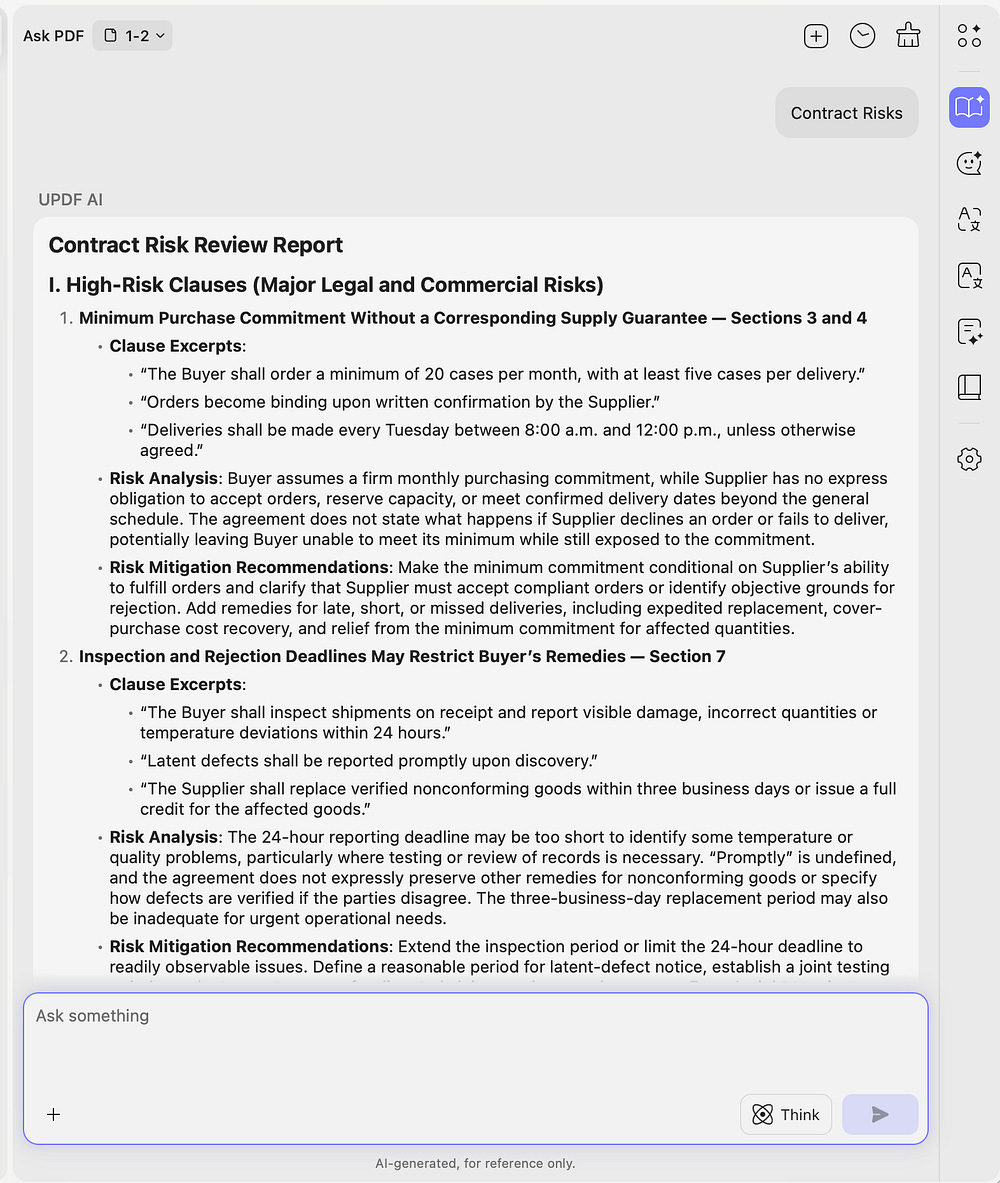
Go back to the Contract Assistant menu and select Contract Risks. UPDF produces a Contract Risk Review Report that identifies potentially risky clauses, quotes the relevant excerpt from the contract, and explains the legal and commercial concerns for each one.
After that, I run Contract Revision.
This generates a list of recommended revisions to key clauses, where each original excerpt is shown alongside a proposed rewrite. It also explains the legal basis and the negotiation rationale behind each suggested change.
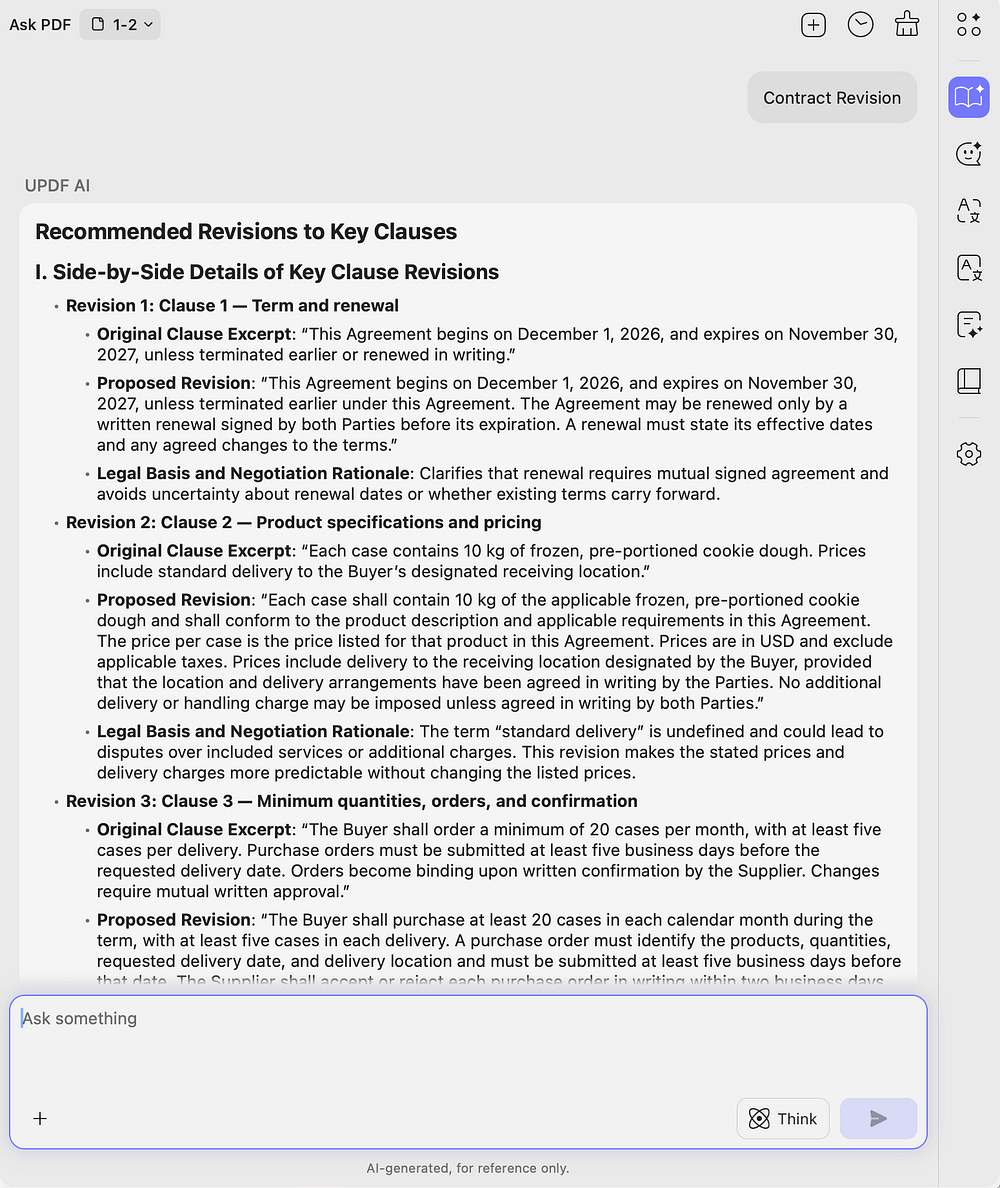
Personally, the negotiation rationale is my favorite part of the report. In my experience, the hard part of pushing back on a clause is explaining why without sounding difficult. Having a reason I can adapt for my email to the client is a lot more useful than replying with “I’m not comfortable with clause 8.”
Of course, I don’t accept these reports as they are, and there’s a good reason for that. For every clause the report flags, I search the PDF for the quoted excerpt and read the full clause myself. An excerpt can easily leave out the one sentence that limits it.
And if I have a follow-up question about a particular section, I ask about the current page or a few selected pages only, which is another new option in version 3.0. That way, the answer comes from the clause I’m looking at and not from the entire document.
Creating your own quick action
The three built-in contract actions are written for contracts in general. But as a software engineer who takes on client projects, and also a business owner, my concerns are more specific. I mostly care about who owns the code, when I get paid, and how either side can end the agreement.
The good news is that UPDF 3.0 lets you save your own instructions as a quick action.
Click the + button and then the settings icon next to AI Assistant to open the Manage AI Assistants window. Select Contract Assistant from the left panel and click + New Quick Action.
From there, choose an Assistant Category, enter a Quick Action Name, and write your instructions in the Prompt box. I named mine Service Provider Check, and here’s the prompt I used:
Prompt: Review this agreement from the service provider’s side. List every clause about intellectual property ownership, payment timing, late fees, termination notice, and liability limits. Quote each clause, give its page number, and explain in one sentence what it means for me. Then list anything a software services agreement normally includes that is missing here.
Turn on Enable, click Apply, and you’re done.
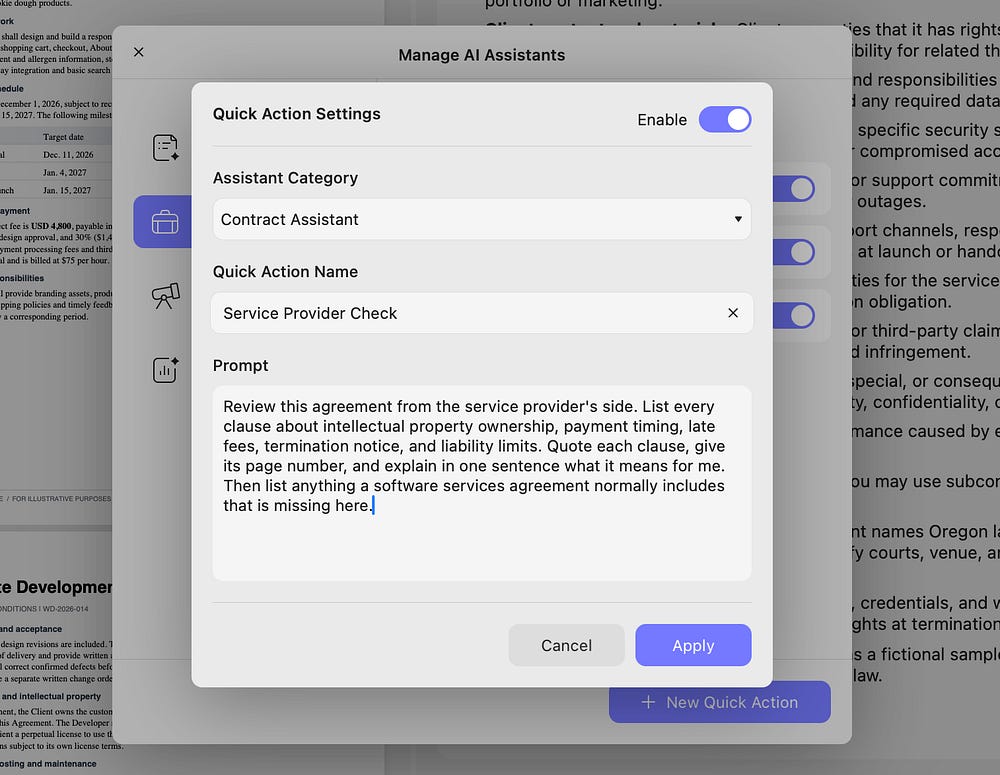
The new action now shows up in the Contract Assistant menu right beside the built-in ones, and I can run it on any contract I open in the future. You can also switch off the actions you don’t use, right-click an action to edit, copy, or delete it, and drag them into the order you prefer.
Here’s an example output using the new Service Provider Check.
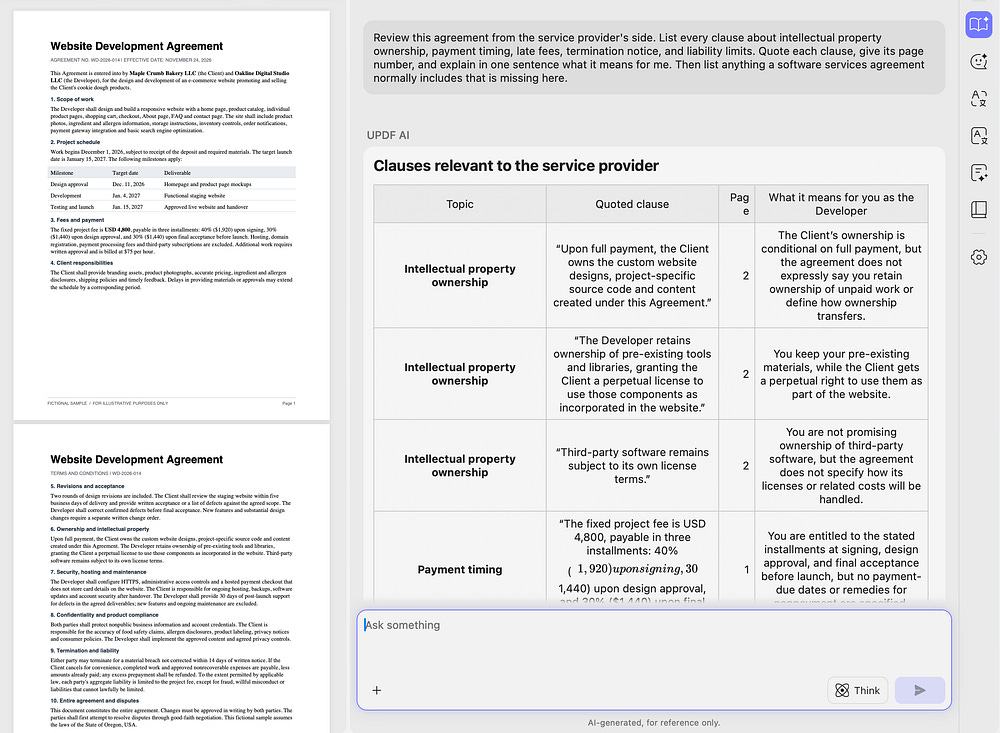
I think this is the most underrated feature in the entire update. A good prompt takes time to get right, and I don’t want to rewrite it every time I open a new document.
Before we move on, I want to be clear that none of this replaces a lawyer.
These reports are a first pass written by an AI model, and a model can miss a clause or misread one. For a small project agreement, they give me enough to ask the client the right questions. But for anything that involves a large amount of money or unusual terms, I still pay for legal advice. I just show up with a list of specific clauses to discuss, which makes that conversation a lot shorter.
Edit: Change the Wording in the PDF Itself
Let’s say the client agrees to reduce the payment cost from $4,00 to $3,500.
In most cases, this is where things slow down. Someone has to find the original Word file, make the change, export a new PDF, and send it to everyone again. And in my experience, nobody remembers where the original Word file is.
With UPDF, I can make the change directly in the PDF I already have open.
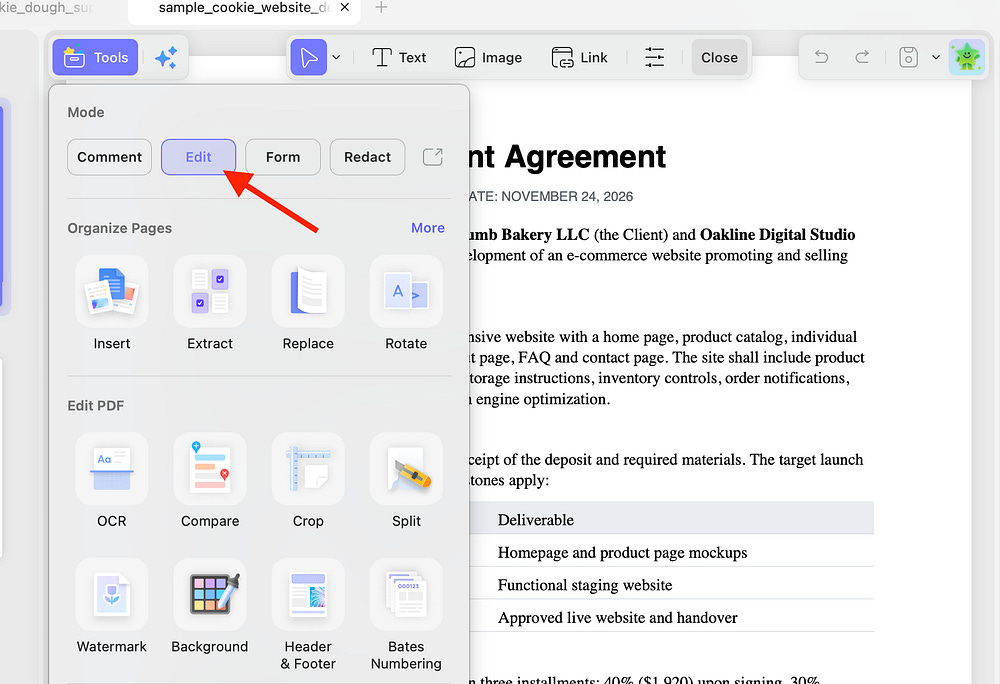
Go to Tools, select Edit, and highlight the text of the clause you want to change. A floating toolbar will appear above the text with an option called AI Edit.
Clicking it opens a prompt box along with a list of presets: AI Polish, AI Expand, AI Shorten, AI Proofread, and AI Tone. For the tone preset, you can choose between Professional, Casual, Concise, Confident, and Friendly.
These presets are great for a proposal or a report. For a contract, though, I’d stay away from Expand and Tone. The last thing I want is a legal clause that becomes longer or friendlier than the version both parties agreed on.
What I do is type the exact change into the prompt box.
Prompt: Reduce the rate from $4,800 to $3,500 and adjust the rest of the cost estimates. Keep every other condition and the same formal wording.
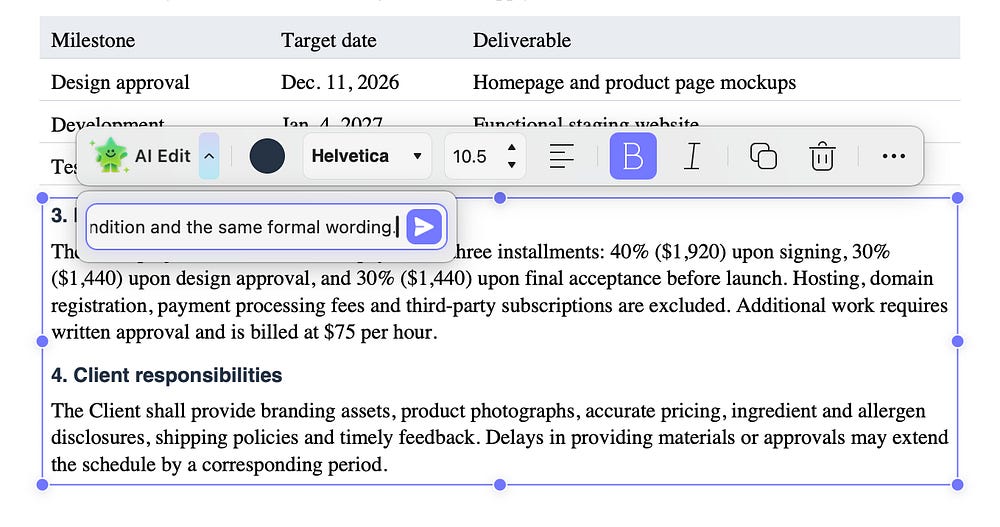
UPDF shows the rewritten clause in a separate response window, and the original text stays untouched until I click Replace.
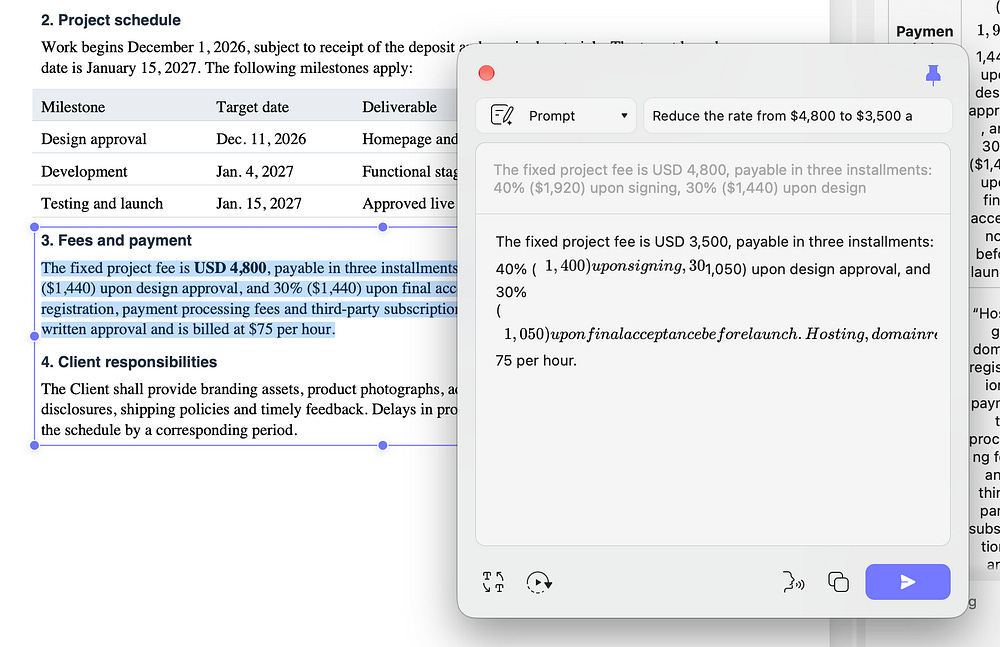
I really like this design because it gives me a chance to read the new version word for word before anything in the document changes. If the AI changed more than what I asked for, I simply type the correction by hand.
Once the change is in, I run AI Proofread on the paragraphs I touched to catch typos.
There’s one limitation I should mention. Unlike Word, a PDF edit doesn’t leave tracked changes, so the client has no easy way of seeing what I changed.
My workaround is to save the edited contract as a new file, open the tools menu, and run Compare PDFs on the old and new versions. UPDF marks the differences between the two files, so both of us can confirm that only the agreed clause was changed.
I use the same check in the other direction too. Whenever a client sends back a “final” version, I compare it with the last version I approved before signing anything. It only takes a minute, and I’d recommend it to anyone who signs contracts regularly.
Sign: Send the Contract for Signature From UPDF
We’ve finally reached the step where I used to leave my PDF editor.
Adding my own signature to a page has never been a problem. Most PDF apps can do that, including Preview. The problem is getting someone else’s signature, because that usually means uploading the file to a separate e-signature service and paying for another subscription.
In version 3.0, UPDF Sign is built into the desktop app. Here’s how to send a contract for signature:
On the UPDF home screen, click Sign, then click Initiate Signatures under Use New Document.
Upload the contract. If you’re the only person signing, turn on “Just need my signature” and skip the recipient steps.
Add each recipient’s first name, last name, and email. Then assign each one a role: Need to sign, Need to view, or Receive a copy.
Turn on Set signing order if people need to sign one after another. The second signer only gets the email after the first one finishes.
Confirm the document name, write an email message that mentions the signing deadline, and click Continue.
Choose a recipient and drag their fields onto the pages. The available fields are Signature, Initial, Date, Name, Email, Company, Title, and Text.
Click Preview to see the document the way each recipient will see it, both on desktop and on mobile. Then click Finish.
In the Send Document window, choose between Basic and Certificate-based eSignatures, then click Send.
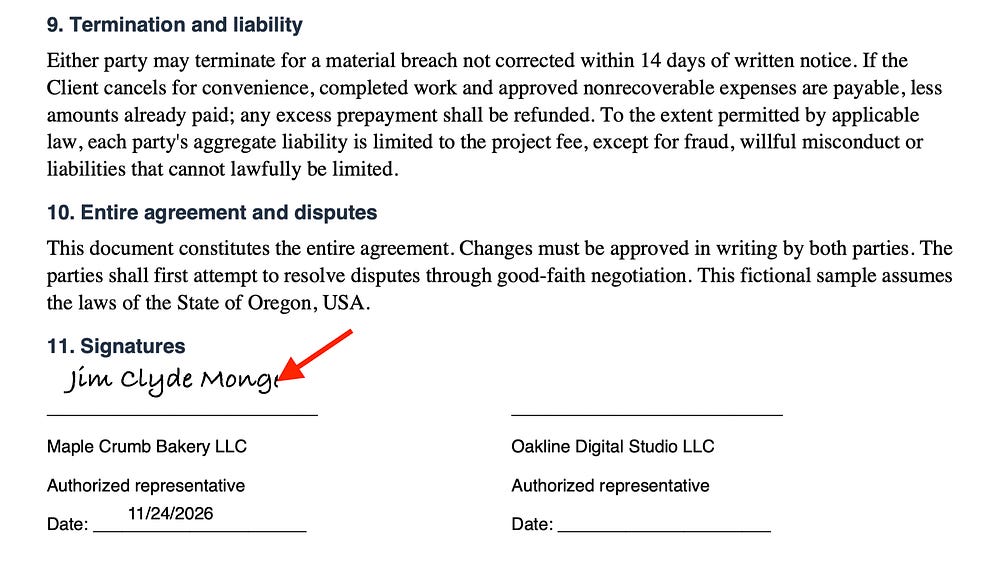
There are a couple of things I want to point out here.
The three-dot menu beside each recipient lets you add a password that the signer needs to open the document, or a private message that only that person can see. I find the password option useful for agreements that include my rates.
I also wouldn’t skip the mobile preview. A lot of people open a signing email on their phone, and a signature field that’s hard to tap on a small screen is an easy way to delay the whole thing.
Then there’s the choice between Basic and Certificate-based eSignatures in the last step, which I think deserves a quick explanation.
A basic e-signature is what most of us are used to. The signer opens the email, reviews the document, and adds their signature. In the United States, the ESIGN Act of 2000 gave electronic signatures the same legal standing as handwritten ones for most business agreements.
A certificate-based signature goes a step further. It attaches a digital certificate that ties the signature to the signer’s identity and shows whether the document was altered after signing.
For the kind of client agreements I sign, basic is enough. I’d only choose certificate-based if the other party or their industry requires stronger proof of identity. In that case, I’d ask them which standard they need before sending anything.
Once you click Send, each recipient receives an email from UPDF Sign with a Review Document button.
Tracking who has signed
What I like most about having this inside UPDF is that I no longer have to email the client just to ask if they’ve seen the contract.
The request appears under the Sent tab with a status of Waiting for others until everyone has signed. If it has been sitting there for a few days, I can click the Re-notify button to send the email again. That’s a lot less awkward than writing a follow-up message myself.
When the last person signs, the agreement moves to the Completed tab. UPDF Sign also sends me an email each time someone signs.
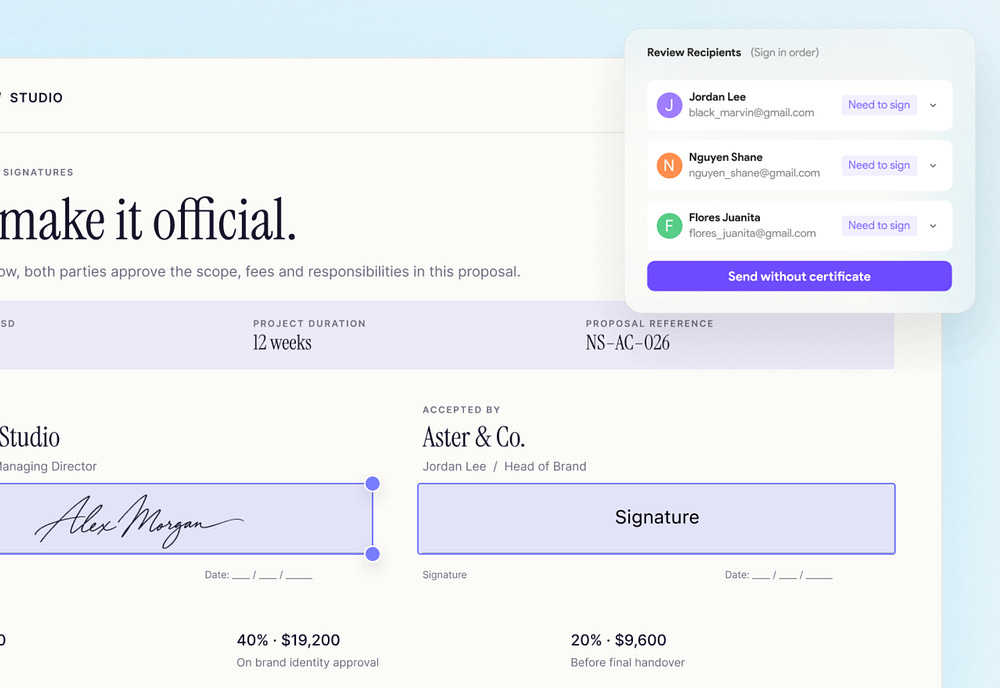
Now, one thing you should know is that the number of signature requests depends on your plan.
At the time of writing, the free plan includes five basic signature requests in total. UPDF Pro includes 20 requests per year on the yearly plan and 50 in total on the lifetime plan.
That’s enough for someone who signs one or two contracts a month. But if you send agreements every week, you’ll need the standalone UPDF Sign plan, so check the current pricing before you commit.
I think that’s a fair setup. Dedicated e-signature services charge a subscription even in the months when I don’t send a single contract. Having a small allowance included in the PDF editor I already use makes more sense for the number of contracts I handle.
Who Is UPDF 3.0 For?
I used a contract for this walkthrough because that’s what I deal with most often, but the same steps apply to other kinds of documents.
Here’s who I think will benefit the most from this update:
Freelancers and small business owners: Read a client agreement, check the risky clauses, apply the agreed changes, and collect signatures in one app.
Researchers and students: Run Paper Analysis and Paper Methodology on a study, then follow the source references back to the exact page.
Finance teams and investors: Use the Financial Assistant on an annual report to get a summary of revenue, earnings, and cash flow, followed by the risk report.
Job seekers and recruiters: Get a resume analysis, suggested rewrites for the experience and skills sections, and a list of likely interview questions.
Anyone who keeps reusing the same prompt: Save it once as a custom quick action and run it on every new document.
That said, I don’t think everyone needs this update.
If you only open PDFs a few times a month to read an invoice or add your own signature, Apple’s Preview or any free reader can already do that. The new features make the most sense when you regularly handle documents that need a decision from you and a signature from someone else.
Final Thoughts
That’s about it. We took a single contract from the first read all the way to the final signature using UPDF 3.0’s Contract Assistant, a custom quick action, AI Edit, Compare PDFs, and Request Sign.
If I had to pick one favorite, it would be the custom quick actions. I’ve spent years refining prompts, and being able to save a good one as a button that works on every contract, research paper, or financial report I open is something I’ve wanted from a PDF app for a long time.
Request Sign is a close second because it removes the last app I still had to open separately.
If you’re deciding whether version 3.0 fits your work, there are a few things I’d look at. Count how many signature requests you send in a year and compare that with what your plan includes.
Remember that the AI Assistant has a separate license from the editor. And most importantly, treat every AI report as a first pass. You still need to read the clauses yourself, and a contract with a lot at stake still needs a lawyer.
Thank you to the UPDF team for sponsoring this article. I appreciate that they keep adding features I can use in my own work, and I’m curious to see where they take the Scenario Assistants next.
Let me know your thoughts in the comments.
Hi there! Thanks for making it to the end of this post! If you enjoyed this content and would like to support my work, consider becoming a paid subscriber. Your support means a lot!