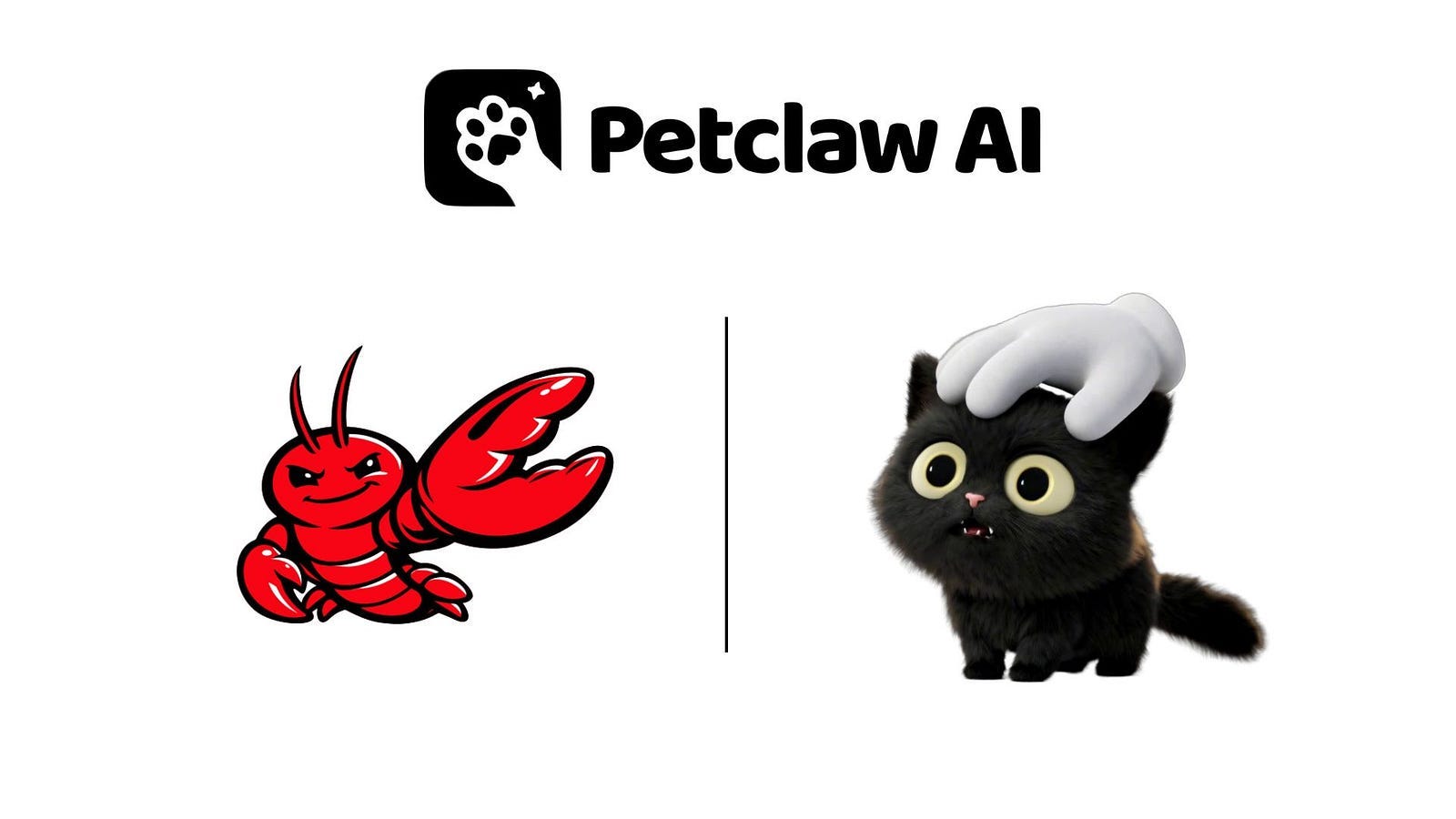
PetClaw: A One-Click Install AI Companion That Works 24/7
PetClaw AI is a local AI desktop pet that lives on your computer, built on the open-source Openclaw framework, but way easier to install.
There’s a reason OpenClaw became one of the fastest-growing open-source projects in history. Within 60 days of its January 2026 release, it gained over 250,000 GitHub stars, outpacing the growth of major projects like React and even Linux in a fraction of the time.
People became excited because this AI companion runs locally on your computer. It can access your files, connect to messaging apps like WhatsApp or Discord, and automate tasks directly from your desktop.
But there was a catch.
Despite the hype, setting up OpenClaw wasn’t that simple. Installation often required multiple dependencies, environment configuration, and technical knowledge that many users simply didn’t have. As a result, the majority of OpenClaw users ended up being developers or highly technical AI hobbyists.
To address this, several tools have recently emerged to simplify the experience. One of them is PetClaw AI, a local AI desktop pet built on the OpenClaw framework but designed with a much simpler, one-click installation.
In this article, we’ll explore what PetClaw AI is and how it makes running a personal AI companion easier than ever.
Setting up PetClaw AI
Head over to PetClaw.ai, create an account, and then download the correct installer file based on your OS.
During installation, you might encounter an error when opening the app. This is expected because the app is currently undergoing Apple notarization review. It will be resolved soon, so you don’t need to worry about it long term.

To bypass the error, run the following command in a terminal:
xattr -dr com.apple.quarantine “/Applications/PetClaw.app”Proceed with the rest of the installation steps.
Take note that in order for the app to work properly, you need to give it specific permissions like access to your network, access to your files, and access to control your computer.

Follow the on-screen instructions to finish the installation. Once everything is set up, you are now ready to use PetClaw AI. This is what you’re going to see on your dashboard:

PetClaw AI comes with built-in API keys and carefully curated, security-reviewed skills provided by the official team, which users can access directly for free. This is an important difference compared with OpenClaw and helps users get started much more easily.
That’s it! You can now start chatting with the AI agent and ask it to do things for you. For example, I asked it to clean up my messy desktop.
Prompt: Organize my desktop

In less than five seconds, it moved all my screenshot files to a folder. Here’s the before and after comparison.
Pretty cool, right? This could’ve taken me five minutes if I did it manually.
Exploring PetClaw AI’s Features
Aside from the effortless setup, PetClaw AI offers several features that make it feel like a really good AI companion rather than just a simple chat app or another assistant running in the background.
One of the most interesting features is voice interaction. Instead of typing commands, you can simply speak to PetClaw AI. It can respond to questions, hold conversations, and even execute tasks through voice commands. This makes interacting with the assistant feel more natural, especially when you are multitasking.
You can enable the Audio option under the Voice tab in the settings page.

Another highlight is its skill system. PetClaw AI can handle a wide range of tasks, such as managing schedules, drafting emails, conducting research, or even writing code. The platform also allows you to add new skills easily, which means the assistant can continue expanding its capabilities based on what you need.

PetClaw AI also includes long-term memory. The assistant can remember your preferences, ongoing projects, and other useful context over time. Because of this, interactions become more personalized the longer you use it.
Finally, PetClaw AI is designed to act as a persistent AI companion that runs continuously on your machine. In fact, even if you close the app, you can easily bring it up by clicking on this cute little black cat in the lower right corner of your desktop.

Since it operates locally, it can interact with your files, applications, and connected services to help automate different tasks throughout your workflow.
Connecting to a Messaging Channel
One of the reasons OpenClaw became popular is its ability to connect with messaging apps such as Telegram, Slack, or WhatsApp. Instead of sitting in front of your computer, you can send instructions from your phone, and the AI agent will execute them on your desktop.
PetClaw AI supports the same concept. You can connect a messaging channel and use it to control your local AI companion remotely.
To set this up with Telegram, you first need to create a custom bot. Open Telegram and search for BotFather, which is the official bot creation tool. Follow the instructions to create a new bot. Once the process is complete, BotFather will provide you with a bot token. Copy this token because you will need it in the next step.

Next, open PetClaw AI and navigate to the OpenClaw Channels tab. Select Telegram, paste the bot token, and save the configuration. After a short moment, the connection should become active.

Once connected, open your newly created Telegram bot. You should receive a pairing code that looks something like this: SSUXEDK3

To approve the connection, open a terminal and run the following command:
openclaw pairing approve telegram <pairing code>
After completing this step, the messaging channel is fully connected.
You can now send instructions to PetClaw AI directly from your phone. For example, you could ask:
Prompt: Can you list down the top 5 files on my downloads folder?

PetClaw AI will process the request on your computer and return the result through Telegram. From here, you can send all kinds of instructions. You can ask it to interact with local files, perform browser tasks, or even open tools like Cursor and start coding an application for you!
PetClaw AI Pricing
The platform offers several subscription tiers depending on how much you plan to use the AI companion. Each plan includes access to all supported AI models, fast voice interaction, long-term memory features, and productivity tools for learning and work tasks.

The entry plan starts at $20 per month, which includes 2,500 credits per month along with 100 credits that refresh daily. For heavier usage, higher tiers are available with 6,000 credits and 30,000 credits per month.
PetClaw AI also offers yearly billing with a 20% discount, which can be a better option if you plan to use the tool regularly.
Final Thoughts
Overall, I am very impressed with how easy PetClaw AI is to install. When I first tried setting up OpenClaw on my machine, the process was much more complicated. It required terminal commands, dependency installation, and several configuration steps. With PetClaw AI, the setup only takes a few clicks. There are no CLI commands and no technical instructions that users need to interpret.
Another thing I like about the app is the level of abstraction it provides. In OpenClaw, installing skills or configuring capabilities often requires thinking about commands and prompts. In PetClaw AI, skills are available directly in the interface and can be installed with a click, which makes experimenting with features much easier.
Setting up messaging channels such as Slack or Telegram was also a painful process when using OpenClaw. In PetClaw AI, the setup is still not completely straightforward, but it is much easier to complete.
I also like that the platform provides free credits so you can explore the features before committing to a subscription.
So far, I am very happy with the experience. I have not yet tested more advanced workflows such as complex scheduled automations, deep research tasks, or heavy browser and local file interactions. Since PetClaw AI is built on top of OpenClaw, I expect it to handle those use cases as well.
If you are interested in running a personal AI companion but do not want to deal with a complicated setup process, PetClaw AI is definitely worth checking out. Let me know what you think in the comments.
PetClaw AI is currently in beta testing. Users who are interested can visit the official website and join the Discord community to contact the team, receive testing credits, share feedback, and try advanced features that are not yet publicly available.
Hi there! Thanks for making it to the end of this post! My name is Jim, and I’m an AI enthusiast passionate about exploring the latest news, guides, and insights in the world of generative AI. If you’ve enjoyed this content and would like to support my work, consider becoming a paid subscriber. Your support means a lot!


