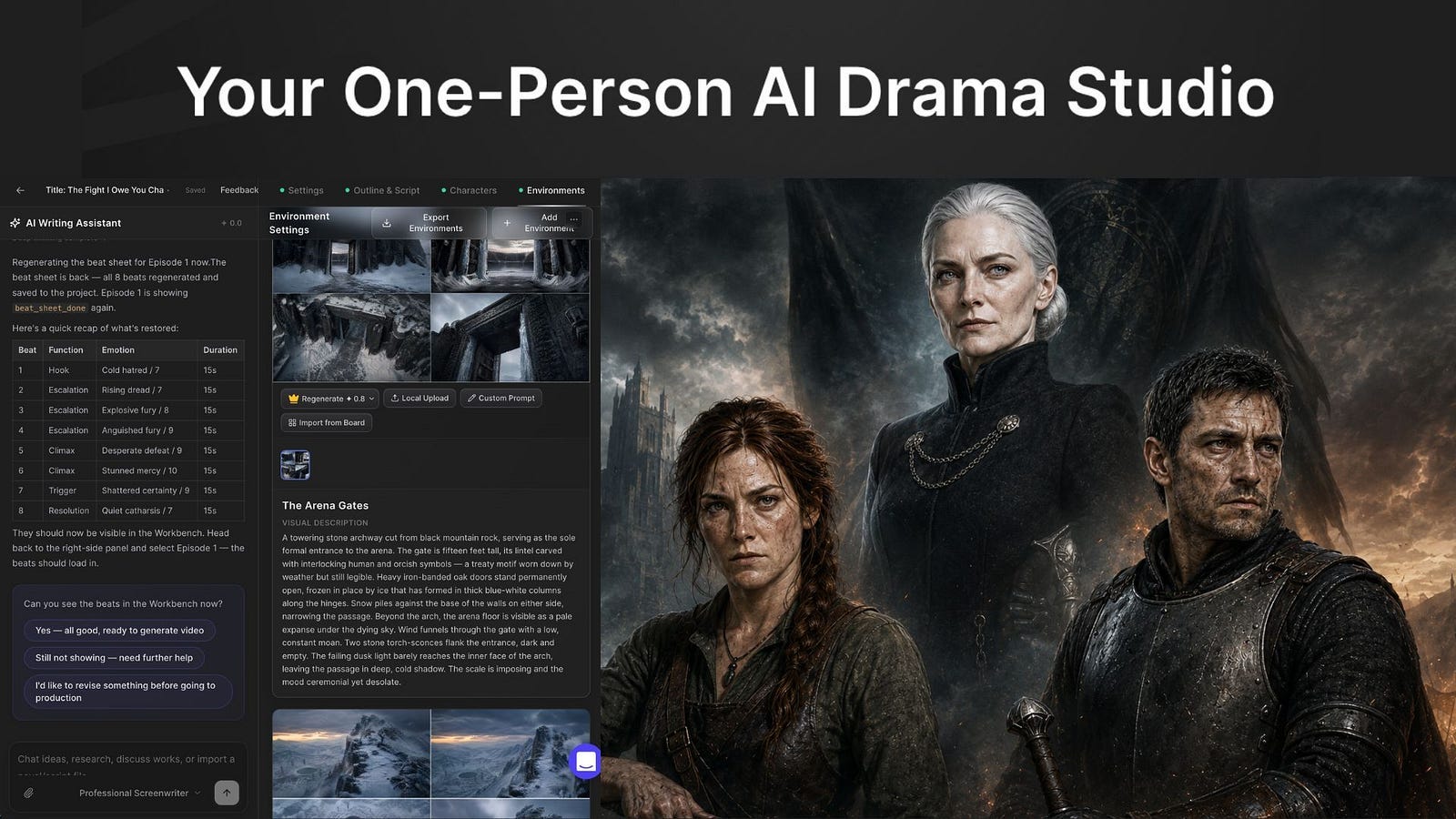
The Fastest Way to Create an AI Series with a One-Person Drama Studio
You don't need a crew, a camera, or a budget to make an episodic drama anymore. You need a story and an afternoon.
Yesterday, I watched a nine-year-old kid on YouTube create his own animated short film. He did brainstorm a story, settle on a theme, and design his own custom characters. Forty minutes later, he had a 15-minute video for episode one of his series.
He used AI throughout the whole workflow, of course. It’s crazy to see how much creativity these tools unlock in these kids. For years, “making a series” meant a script, a crew, a location, a camera package, weeks of editing, and a budget that ruled out almost everyone with a story in their head.
A single person can now sit down and produce an episodic drama with consistent characters and a real emotional arc, in an afternoon.
In this guide, I’ll walk through a tool called Drama Studio inside the Topview platform and show the detailed steps on how to use it in creating multi-video series with AI.
Let’s get started.
What Is Topview Drama Studio
Drama Studio is a workspace inside Topview built specifically for making drama scenes, either as a single episode or a full multi-episode series. You’ll see it on the left panel once you open the platform.

What I really like about this video generator tool is the level of creative control and flexibility it provides to creators.
Most AI video tools give you a prompt box and a render button, and everything else is your problem. Drama Studio gives you the writing, the casting, the storyboarding, and the rendering in one window, all aware of each other.
You can start with a one-line idea, a rough outline, a finished script, or a whole novel chapter. From there, the agent helps you build characters, write dialogue, plan shots, and turn all of it into video without ever opening a second app.
Check out this example, which is one of the cool scenes from a series titled “The Fight I Owe You.”
Pretty cool, right?
Drama Studio is powered by Seedance 2.5, so you can expect the quality to be really good.
Most tools do not fail because the video model is bad. They fail because everything is split across too many steps: writing in one place, images in another, voice somewhere else, and editing after that.
Drama Studio brings those steps into one flow. That is why a solo creator can actually finish a project here instead of giving up after three scenes.
How It Works
The flow runs in a straight line, and that linearity is why someone who has never touched a timeline can still reach the end.
You feed it a story. The agent expands that into a structured script split into scenes and beats. If you prefer to delegate the script writing to the AI, just describe the plot in the prompt field and select the type of writer from the dropdown below.
Here’s a sample plot:
Prompt: A vengeance-driven Human Paladin faces the Orc Warrior he has blamed for his brother’s death in a snow-covered arena at dusk, only to discover that the fight he waited ten years for ends not in blood but in an act of mercy that dismantles everything he believed.

Follow the on-screen instructions to guide the AI on how to write the outline and the script based on your prompt. In the end, you should have a very detailed storyline with multiple scenes and dialogues.

You also generate your characters, props, and locations as reusable references. There’s an option to upload your own characters and locations, or let the AI create them for you. You build each scene one shot at a time, attaching those references plus camera and audio direction.
Finally, you enter into the video production, stitch all the scenes, do all the necessary tweaks and adjustments, and export to a single video file.

This is what the final 2 minutes and 16 seconds-long episode looks like:
A handful of decisions separate this from a glorified prompt chain:
Character consistency is built in. Generate a character once, and the same face, hair, and outfit carry through every scene.
The script editor sits beside the video generator. Rewrite one line and regenerate that single shot, instead of rebuilding the whole episode.
Multi-episode mode remembers things. Your characters and sets persist between episodes, so you never start from zero.
Storyboards come before video. Preview each shot as a still, fix what looks wrong, then spend credits on motion.
Video eats far more credits than images do. Pinning your composition as a still before committing to motion is the difference between spending five credits and fifty on a shot that was never going to work.
The image generation runs on GPT-Image 2, which is why the character previews come out really good as they do. And again, the video render is powered by Seedance 2.5, ByteDance’s newest video model, currently at the top of Video Arena for both text-to-video and image-to-video.
Why I Prefer Drama Studio Over Other Tools
There are a lot of ways to make AI drama videos right now, and I do not think there is one perfect tool for everyone.
If you want maximum control, the best results still come from stitching together different tools. You can write the script in Claude or ChatGPT, generate videos in Topview, HiggsField, Veo, or Runway, then edit everything in FinalCut. That workflow can produce better-looking videos, especially if you know what you are doing.
The problem is that it also takes more work. You are managing characters, prompts, scenes, voices, subtitles, pacing, and edits across several apps. One small change can mean going back through the whole chain again.
That is where Drama Studio makes more sense for me.
It is not trying to be the most advanced tool in every single category. Instead, it gives you a cleaner workflow for making short drama videos from one place. You can move from script to characters, scenes, voice, and video without constantly jumping between tools.
I also like that it understands the episodic format better than a general video generator. A normal AI video tool is great for one impressive shot. Drama Studio is more useful when you are trying to build a small story with dialogue, character continuity, and multiple scenes.
That does not mean it replaces the pro stack. If I were making a high-budget trailer-style video, I would still consider using Kling, Veo, Runway, Seedance, ElevenLabs, and a proper editor. But for short-form drama content, especially the kind made for TikTok, Reels, and Shorts, I prefer having more of the workflow inside one tool.
It makes the process less annoying. This is incredibly helpful when you are not just making one clip, but trying to make episode after episode.
That does not mean it replaces the pro stack. If I were making a high-budget trailer-style video, I would still consider using Kling, Veo, Runway, Seedance, ElevenLabs, and a proper editor. But for short-form drama content, especially the kind made for TikTok, Reels, and Shorts, I prefer having more of the workflow inside one tool.
It makes the process less annoying. And honestly, that matters when you are not just making one clip, but trying to make episode after episode.
Let’s Talk About the Pricing
Topview is priced more like a video production tool than a simple AI editor, which makes sense once you start using Drama Studio.

The free plan is mainly for testing. You get limited video and image models, one task at a time, watermarked exports, and no commercial rights.
Pro is the real starting point at $29 per month. It gives you 80 credits a month, or roughly 20 Seedance 2.5 videos, plus access to all video models and four concurrent tasks. For solo creators making short drama videos, ads, or social clips, this is probably enough to start.
Business is $75 per month and gives you 250 credits, or around 62 Seedance 2.5 videos. This makes more sense if you are producing videos every week, testing more scripts, or working across multiple brands.
Ultra is $120 per month on the current offer, with 500 credits, or around 125 Seedance 2.5 videos. That is the plan for heavier production when Drama Studio becomes part of your regular content workflow.
The main thing to watch is credit usage. Video generation burns credits faster than images, especially when you rerun scenes, test scripts, or try different outputs. For most people, Pro is the safest starting point. Business is the better jump once you are making videos at volume.
Final Thoughts
After playing with Drama Studio, I can tell this tool rewards writers more than prompt engineers.
A good script with a simple prompt will beat a weak script with a clever prompt most of the time. Topview can help you build the scene, generate the characters, and turn the whole thing into a video. But it still needs something interesting to work with.
That is also why I liked the amount of control it gives you. You can rewrite a line, change an outfit, adjust a scene, or regenerate a shot without starting the whole thing from scratch. That makes it feel less like a random AI video toy and more like something you can actually use for a small production workflow.
It is not perfect yet. The lip syncing with the audio can still feel off sometimes, some high-speed movements do not look physically accurate, and some expressions do not always land the way you want. But for one person trying to make short drama videos or episodic content, this is one of the few tools I would keep coming back to.
A few years ago, making something like this meant hiring actors, editors, voice artists, and a small production team. Now the harder part is having a story people actually want to watch.
If you have tried Drama Studio or any other AI film tool, I’d like to hear how it went. What worked, what broke, and what surprised you?
Hi there! Thanks for making it to the end of this post! If you enjoyed this content and would like to support my work, consider becoming a paid subscriber. Your support means a lot!


