

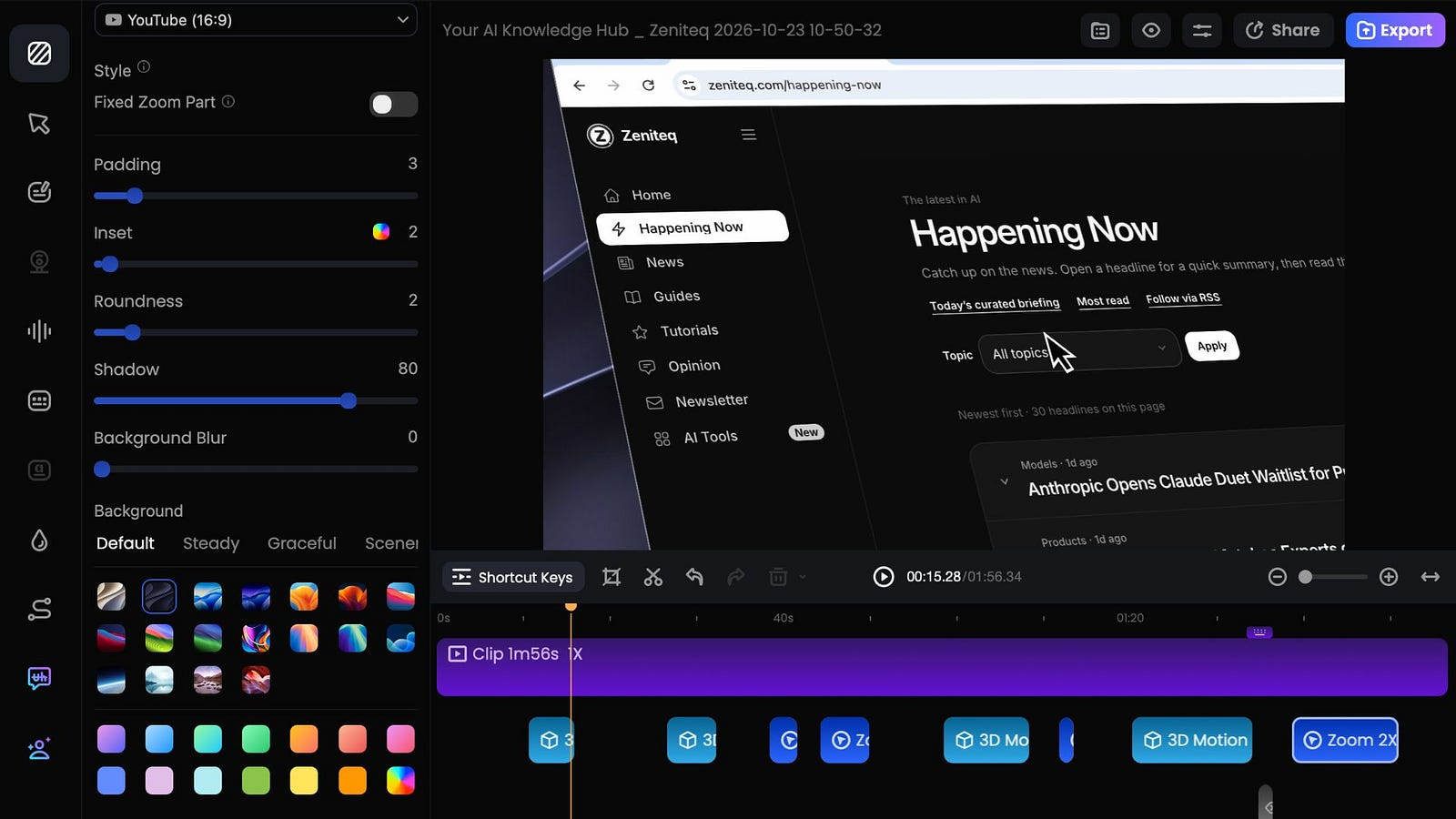
Today, I switched to FocuSee as my main screen recording app for product demos after years of using Screen Studio. As a software developer and business owner, I want all the product demos I share to be high quality and professionally made.
I use these videos to introduce my apps and show updates to my websites. So, aside from recording the screen, I also care about how the camera moves, how clearly viewers can follow my clicks, and what I can change afterward.
What made me decide to switch? Three things: control, price, and AI.
In this guide, I’ll show you how I used FocuSee to record a demo for Zeniteq, what I liked about the result, and which settings you can adjust for your own videos.
What’s New in FocuSee?
Before we start recording, let me show you a few things the app can do now.
FocuSee has added more editing features beyond its automatic zoom and cursor effects. There are now 3D camera motion, callouts, AI captions, audio enhancement, and background music inside the editor.
The recent updates also include more cursor settings, subtitle editing, and volume controls for individual clips. You can make more adjustments after recording without exporting the video to another app first.
The one I was most excited to try was 3D Motion. Instead of only zooming straight into the screen, it adds tilt and perspective as the camera moves. You’ll see how that looks in my Zeniteq recording below.
To install FocuSee, head to the official website and download the installer for Windows or Mac. Open the file and follow the installation instructions.
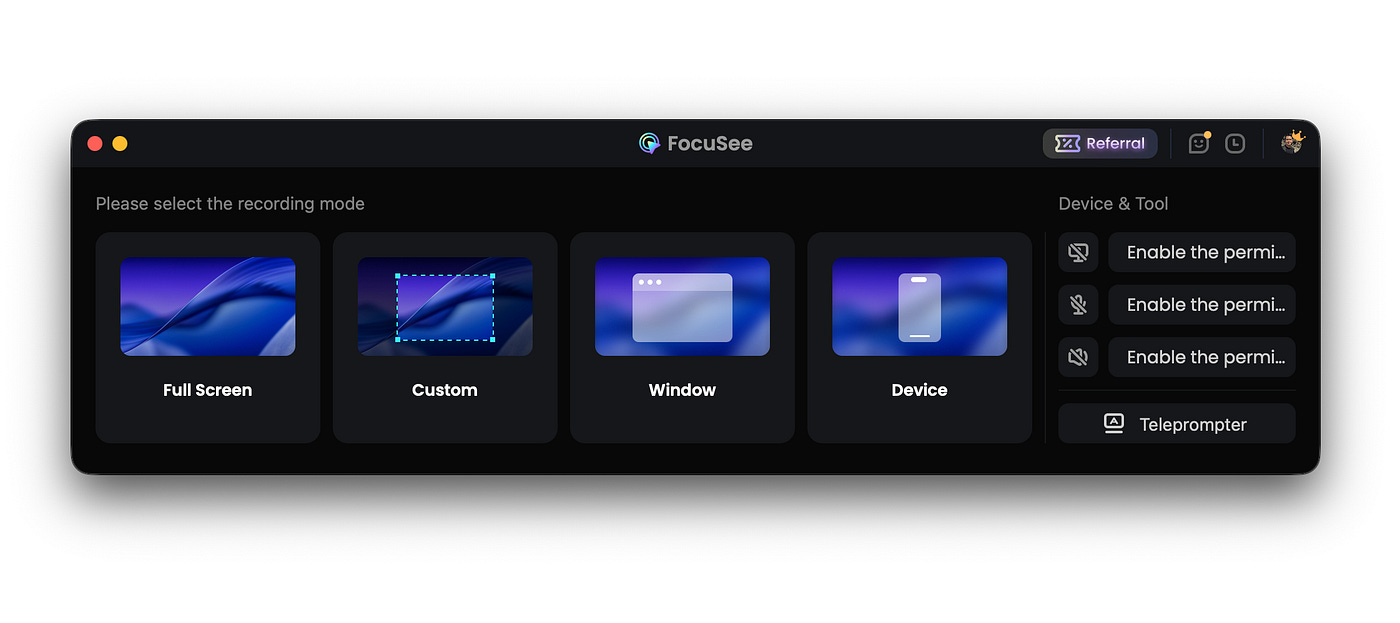
Once installed, you should see a floating window with the recording options. You can capture the entire screen, a selected area, or one window.
You can also download the Mac version from the App Store.
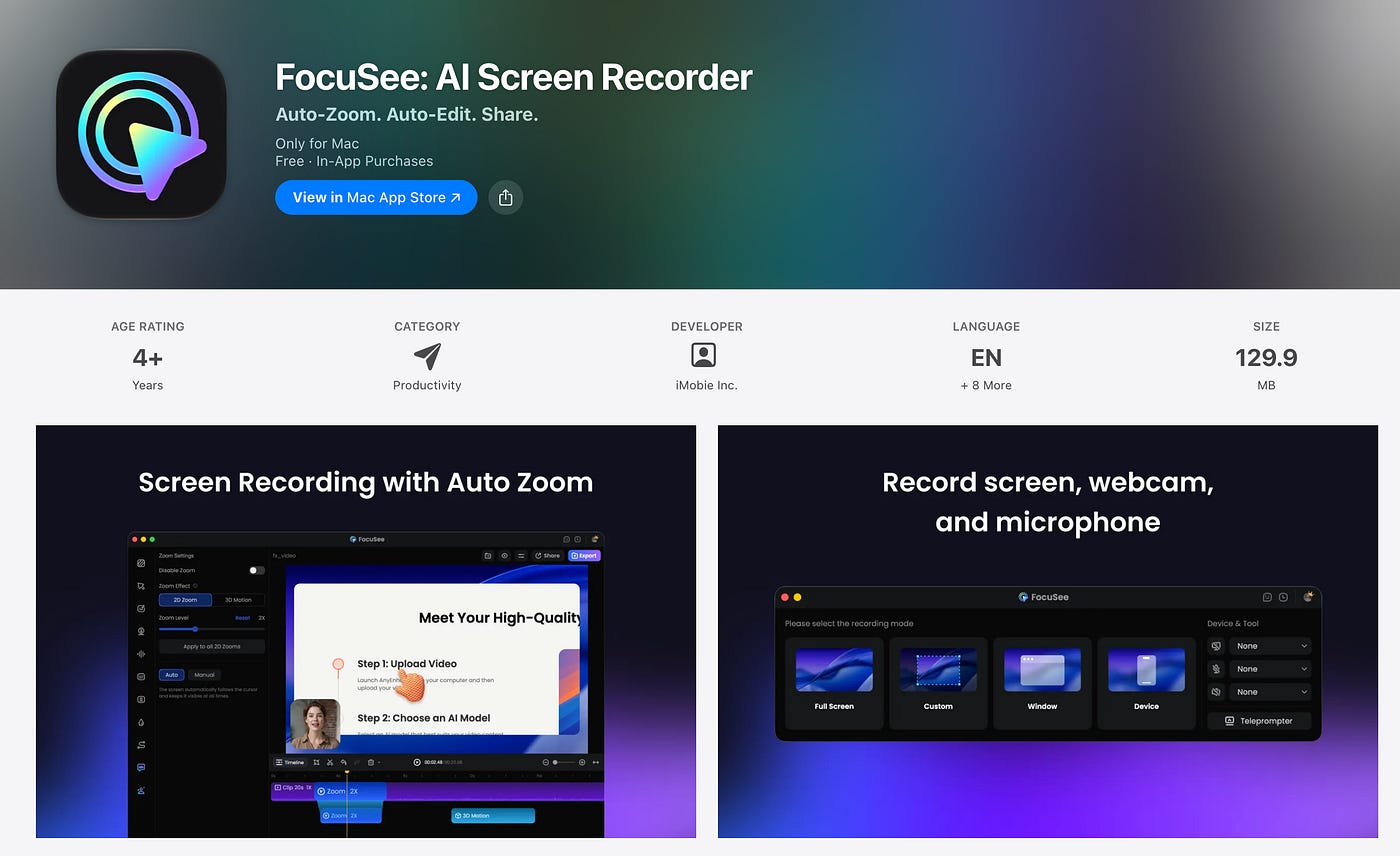
Take note that you’ll need to grant the app the system permissions for recording. On Mac, follow the prompts for screen capture, microphone, and camera access, depending on which inputs you use.
Before recording a complete demo, try a short clip and play it back. Check the selected window and audio sources so you know the setup is correct.
How I use FocuSee for Product Demos
For this demo, I’m sharing three new features on Zeniteq, my AI news website. I wanted a nice showcase video to post on LinkedIn and X so my readers could see the updates in action.
Here’s what I wanted to show:
Audio mode, which lets readers listen to articles.
AI Tools, where developers and startups can list their apps or websites and become part of Zeniteq’s knowledge base.
Happening Now, which shows recent AI news and updates on one page.
These features are already live, so I could record them directly on the website. For your own demo, prepare the pages or app screens you want to show before opening the recorder.
I opened FocuSee and selected Window mode to record the browser.
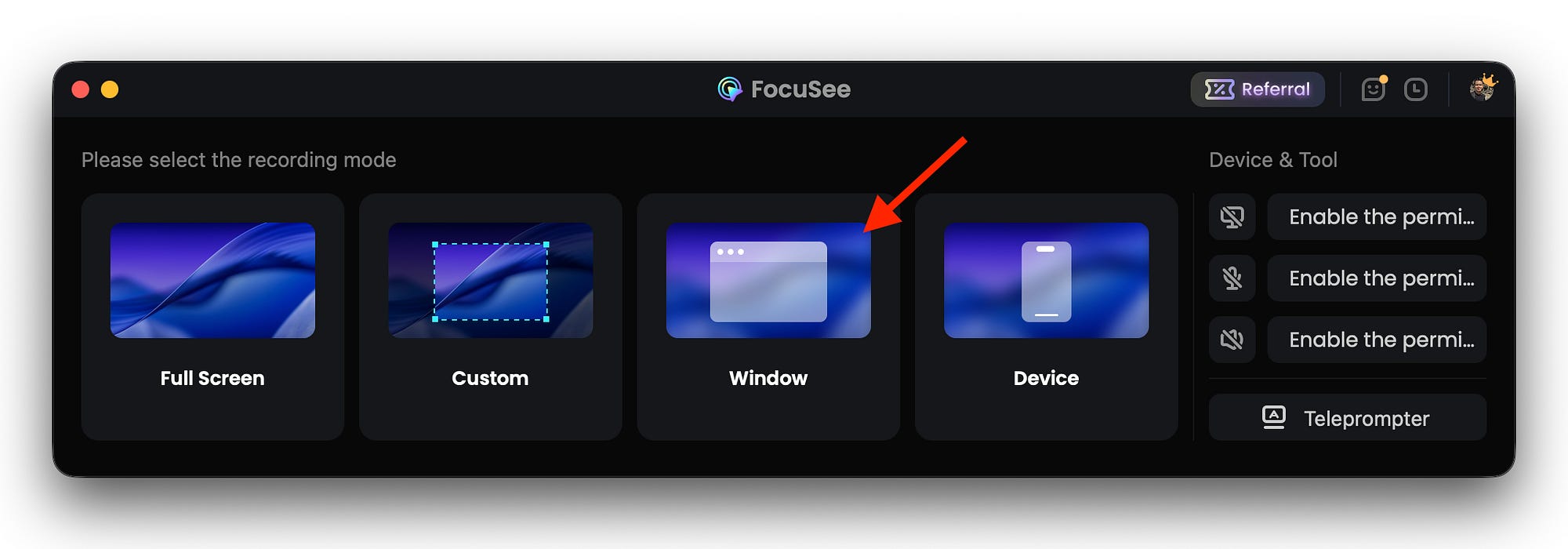
Before pressing Record, you can choose your camera, microphone, and system audio. These are separate controls, so you can record your voice without including a video of yourself.
The camera option is useful when you want to explain something while showing the screen. You can record both at once and adjust the camera layout in the editor.
For voiceover only, enable the microphone and turn the camera off. Enable system audio when you also want to capture sound from the app or website.
In my case, system audio is relevant because one of the features is article playback. Viewers should be able to hear what happens when the Play button is pressed.
FocuSee lets you adjust microphone and system audio separately after recording. That gives you control over the balance between your explanation and any sound coming from the product.
There’s also the 3D zoom option for a more dynamic camera movement. I wanted to try this because I’d mostly used the usual 2D zoom in other screen recorders.
Once everything was set, I started recording and walked through the three features. After I stopped, FocuSee opened the video editor with the recording.
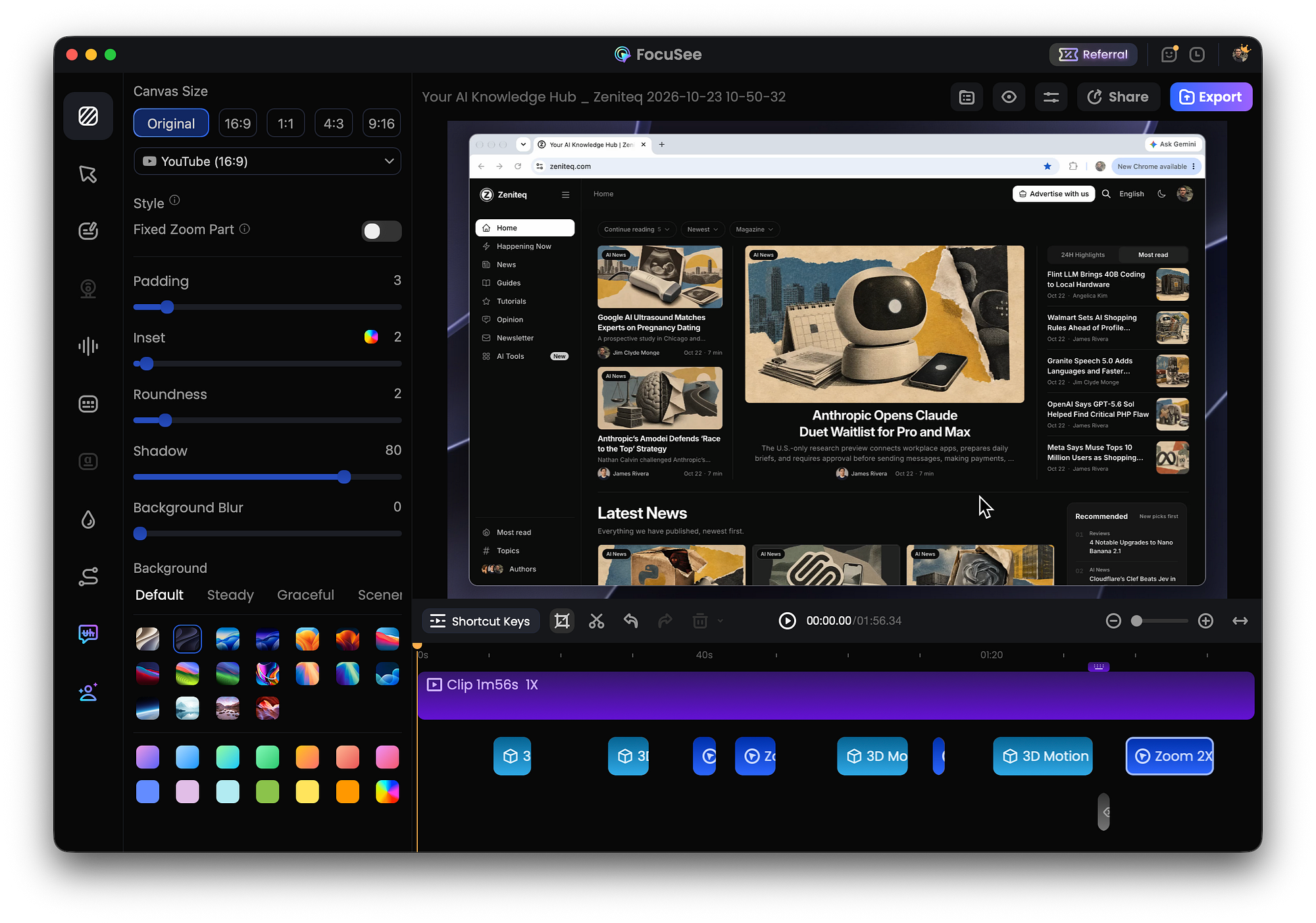
Here’s the initial result, with FocuSee’s automatic effects applied and before further manual editing:
I love how the 3D pan and zoom work here. The tilt gives the recording more movement than the 2D effect I’m used to, and I like how it looks when showing the different pages of my website.
I also like how FocuSee handles the timing of the zooms and pans. The recording already looked well made when I opened it in the editor. I didn’t have to create each camera movement manually.
The auto zoom feature follows recorded actions such as mouse clicks and generates the animations. You can then change the position and timing of those zooms in the editor.
For a product demo, this is useful because the viewer can follow what you’re clicking. A small button is easier to notice when the recording moves closer to it.
Of course, you still need to watch the result. A zoom that looks good during a quick feature announcement may be too close for a tutorial where the viewer needs to read the surrounding text.
For example, I’d want a close view of Zeniteq’s audio controls, but a wider view of Happening Now. Showing several news items together would explain that page better than zooming into one headline.
FocuSee also has typing recognition and speed-up tools. I’d use those for a long typing section, then return to normal speed when the result appears and needs explaining.
Making Your Own Adjustments
You can change the cuts and animations through the timeline and settings. The automatic result is something you can continue editing, so you don’t have to keep every zoom the app creates.
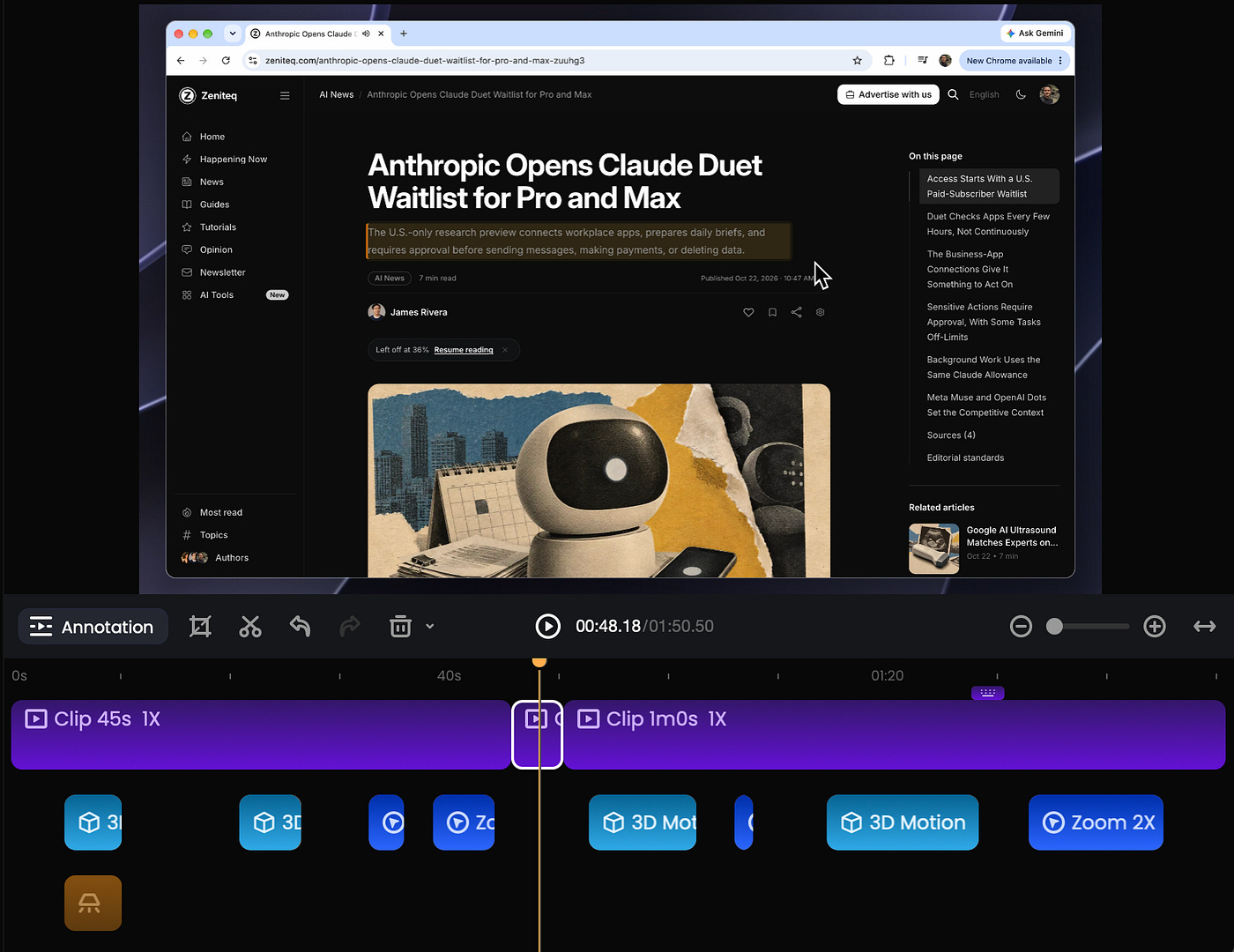
Use the zoom settings to change the position, zoom level, or duration. Give a page more time on screen when there’s something viewers need to read.
You can also change the cursor style, size, click effects, and sounds. For a website demo, I’d choose a cursor that’s easy to see without covering the button labels.
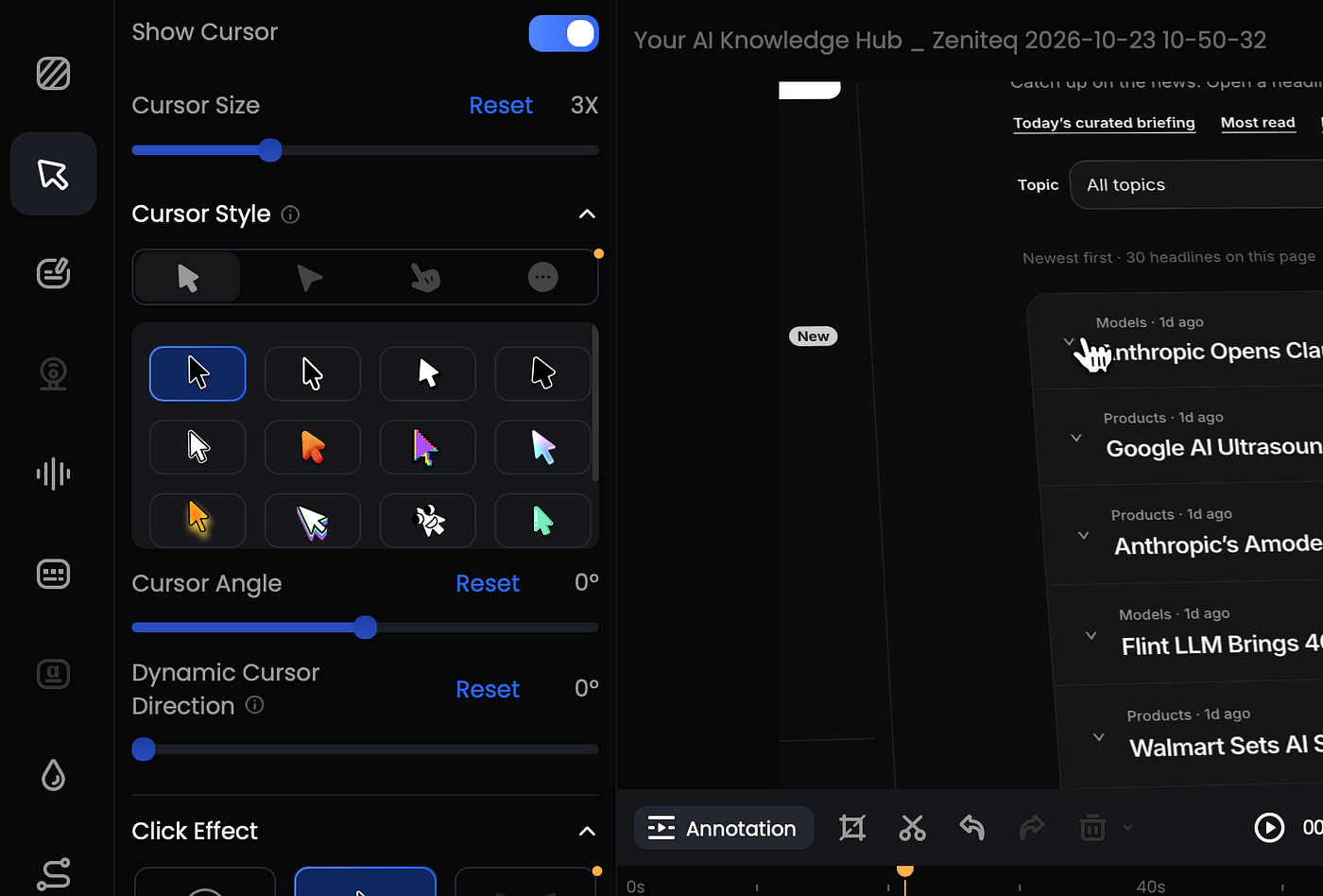
Click effects are useful for showing exactly when an action happens. I’d keep the click sounds low, especially in a video that also has narration or product audio.
For additional explanations, FocuSee has annotations, including text, arrows, shapes, callouts, spotlights, and blur effects. You can place them where they’re needed in the recording.
A short “Listen to this article” label could help explain Zeniteq’s audio control. A spotlight could draw attention to a small setting without zooming the entire frame.
I like the 3D movement for this feature showcase. For a longer tutorial, though, I’d use less movement and let viewers see each step clearly before continuing.
Trying the AI Editing Features
FocuSee also has AI features for recordings with narration. You choose these in the editor when you want to process the audio or generate captions.
One of them is Smart Cut, which detects silence and filler words such as “uh” and “um.” It can help clean up speech without making you find every pause manually.
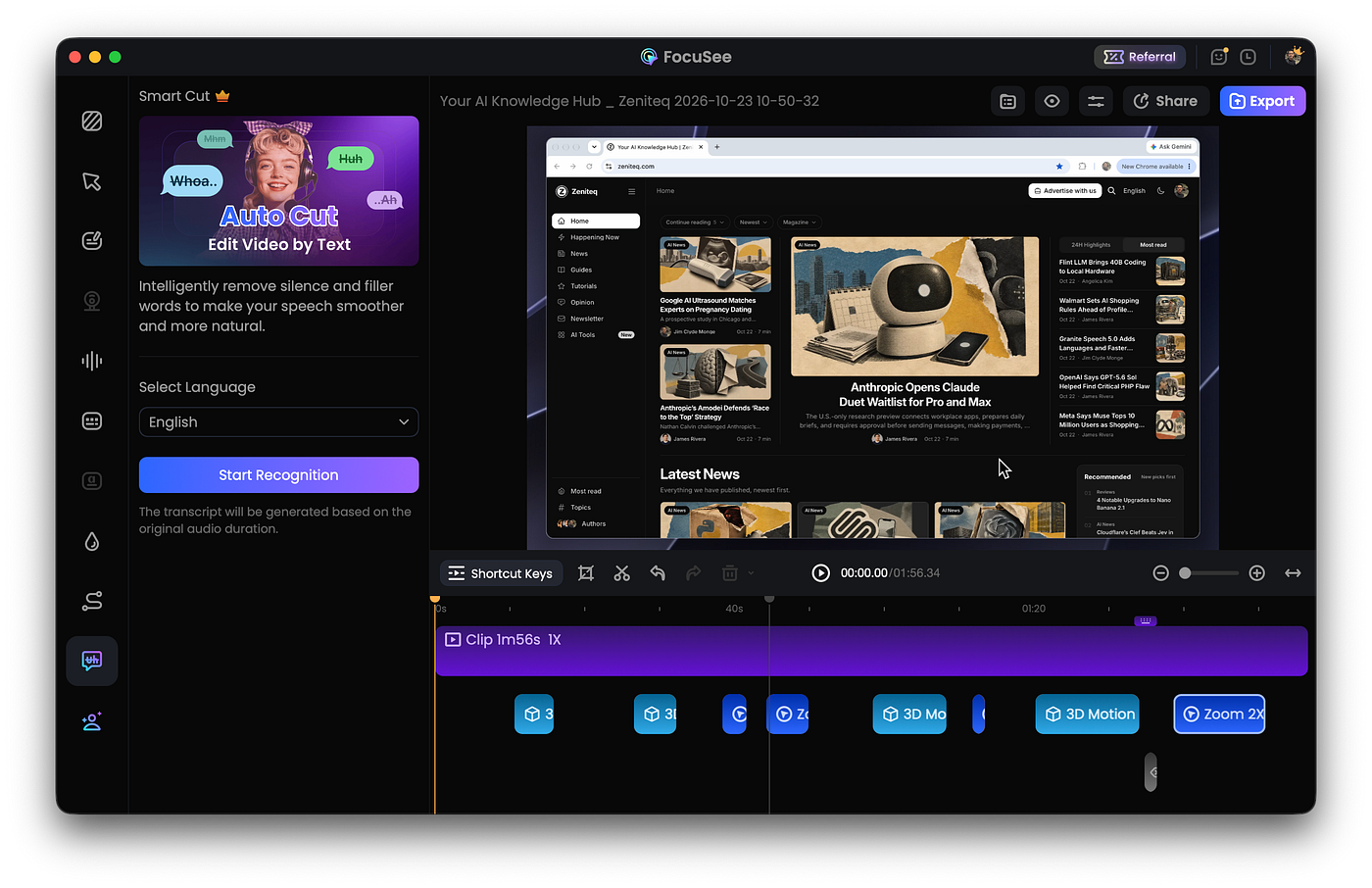
To use it, open Smart Cut, select the spoken language or use automatic detection, and click Start Recognition. FocuSee highlights the detected sections so you can review what to remove.
I usually check those suggestions before deleting everything. A pause while you’re thinking can be removed, but a pause while the viewer reads something may need to stay.
There’s also AI audio enhancement. Noise reduction helps reduce background sound, while Vocal Enhancement can improve voice clarity and balance.
For a narrated demo, I’d play a short section with the processing on and off. That would let me hear whether the voice sounds better before processing the full recording.
Another useful feature is AI subtitles, which supports more than 55 languages. Open Captions, choose the language spoken in the recording, and generate the text.
You can edit the captions afterward and change their appearance. For my website, I’d check that “Zeniteq,” “AI Tools,” and “Happening Now” are written correctly.
Caption placement is important too. I’d keep the text away from the playback controls or any other part of the interface I’m explaining.
There’s also an AI avatar feature that generates a virtual presenter using text or audio input. You can choose a persona and adjust its layout alongside the screen recording.
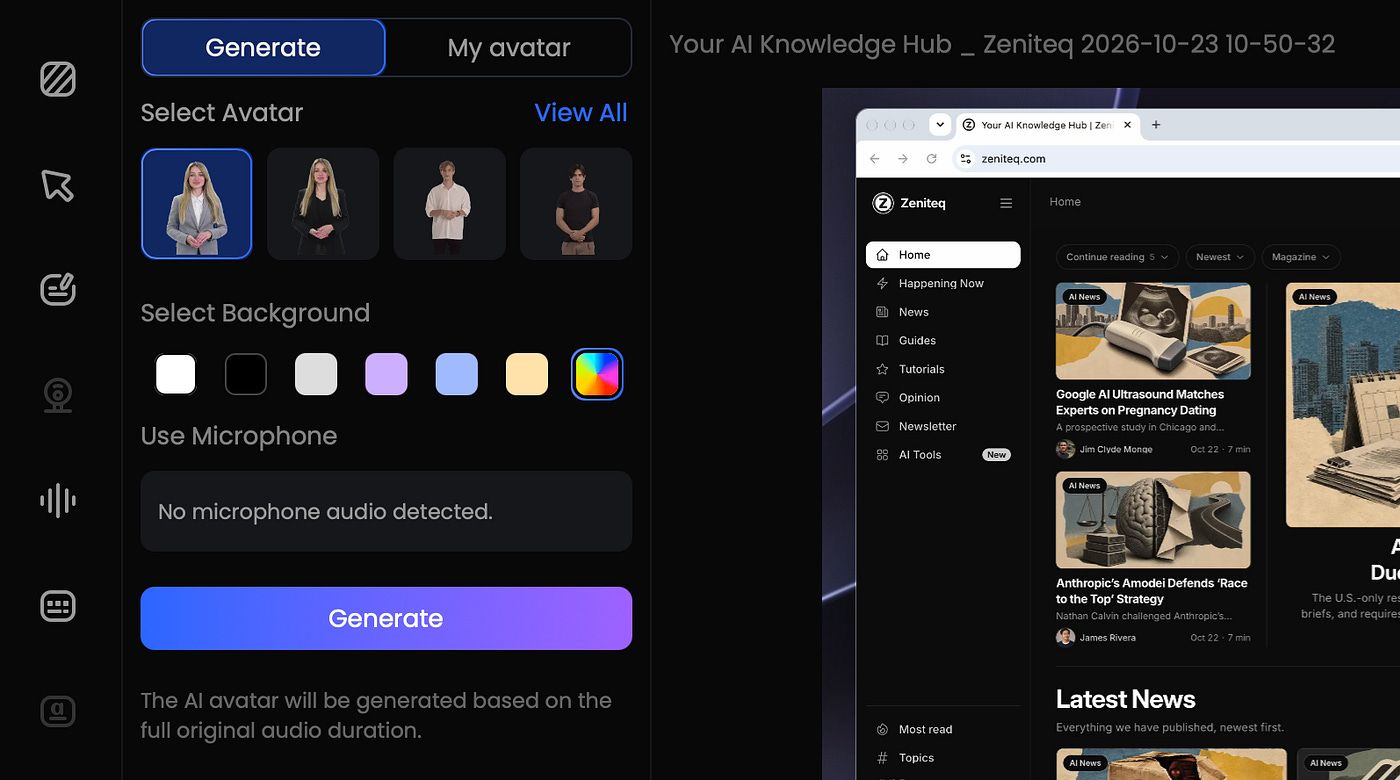
I’m not always comfortable in front of a camera, so I like having this option. I could use an avatar for a short introduction and keep the website as the main view during the demonstration.
You can also leave the presenter out completely. A screen recording with a voiceover is enough when the feature is easy to show.
Finishing and Exporting the Video
After reviewing the recording, you can customize the background, rounded corners, shadows, and watermark. I’d use similar settings across my Zeniteq videos so they have a consistent look.
FocuSee also lets you add background music, including preset tracks or your own audio. You can adjust its volume and choose where it plays.
For the article-audio demonstration, I’d turn the music down or remove it during playback. I want readers to hear the feature itself.
When the video is ready, choose Export. FocuSee supports MP4 and GIF, with video export options up to 4K and 60 fps.
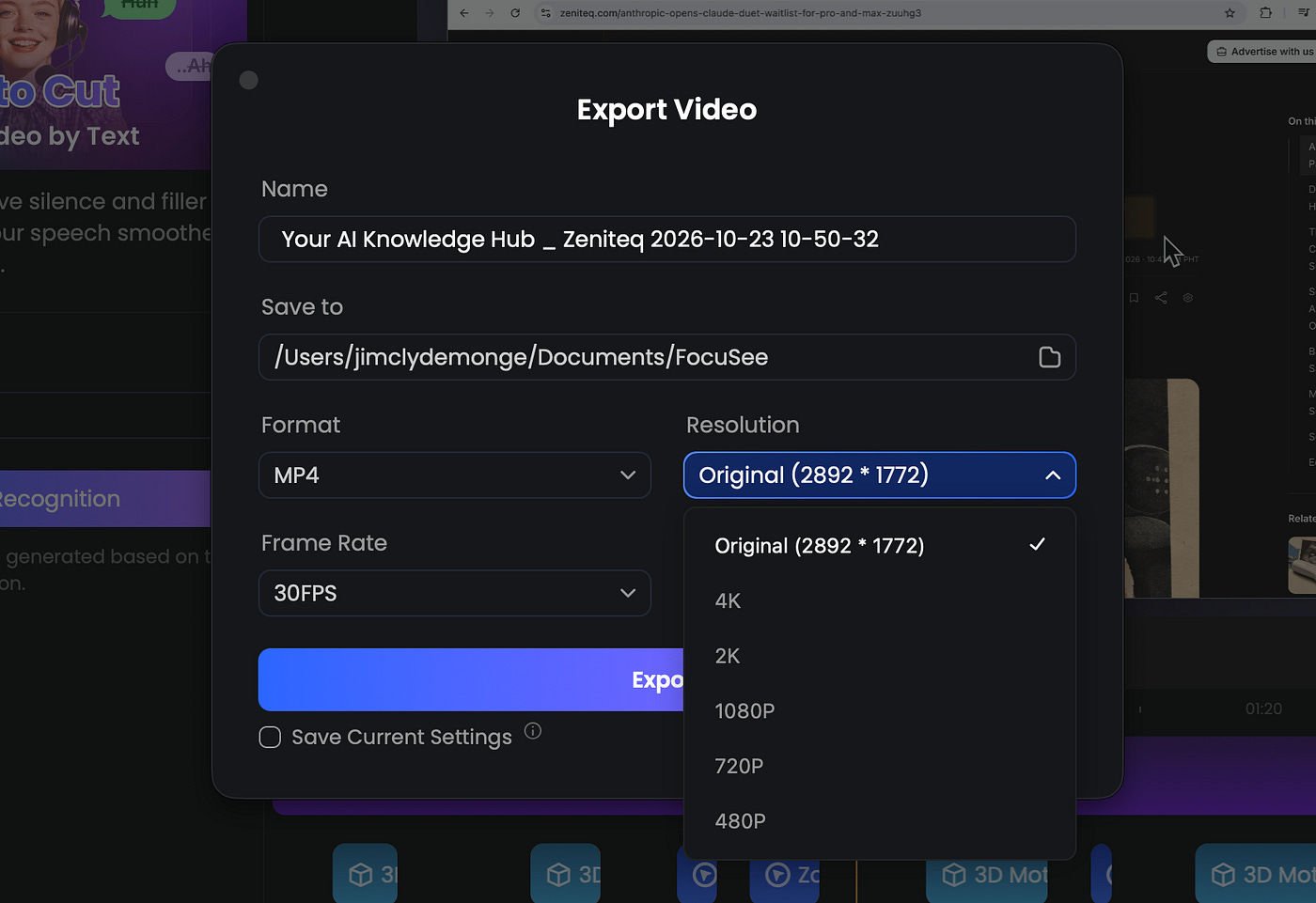
I usually use MP4 at 4K resolution for a demo with narration or system audio. A GIF would suit a short, silent loop showing one interaction.
You can also change the aspect ratio for different platforms. Check the framing after changing it, especially when converting a wide browser recording into a vertical video.
Small interface text can become difficult to read in the new layout. Adjust the view so the feature you’re showing is still clear.
Why Should You Care?
If you make product demos regularly, FocuSee can handle several editing steps in the same app. You record the feature, review the generated movement, and adjust the parts that need more attention.
In my Zeniteq recording, I liked the result of the automatic pan and zoom. That was the clearest benefit for me because I could see how the website looked with the effects applied straight after recording.
The AI tools add more options for narrated videos. Smart Cut can help with pauses, captions can transcribe the explanation, and audio enhancement can help improve the voice recording.
This could be useful for developers sharing feature updates, founders making launch videos, or creators recording software tutorials. The amount of editing will depend on how detailed the video needs to be.
Price was another reason for my switch. These are the advertised US-dollar prices on the FocuSee pricing page:
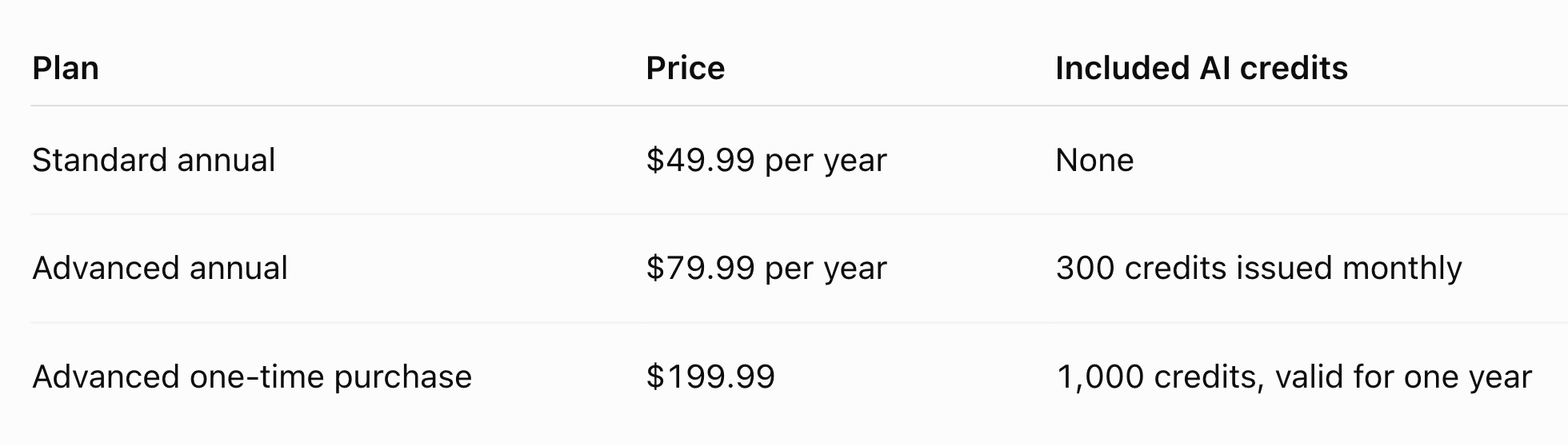
The one-time purchase covers FocuSee 2.x. AI tools such as avatars, Smart Cut, subtitle recognition, and vocal enhancement consume credits, so check the allowance for the features you plan to use.
Screen Studio currently lists its annual plan at $9 per month, or $108 per year. It also offers captions, transcript editing, and audio cleanup, so compare the specific features you need alongside the price.
FocuSee works on Windows and Mac, while Screen Studio is Mac-only. That’s another reason to consider it when you work across both systems.
For a complicated video with several scenes and extensive effects, I’d still consider a dedicated video editor. For a short walkthrough of an app or website, FocuSee already includes many of the tools you’d use.
Final Thoughts
I really like how the Zeniteq recording turned out with FocuSee’s automatic effects. The 3D pan and zoom were some of my most favorite parts, and I liked how the app handled the timing without requiring me to make any further changes.
After years of using Screen Studio, I find myself using FocuSee more often now for my product demos. It gives me way more control and there are AI tools available when I want captions or help with narration.
The more variable pricing also gives you a better option in terms cost. Other apps only has one subscription option is one of the biggest bummer. But thanks to the FocuSee team for making the app more accessible and affordable to its users.
What do you think of the 3D effect in my Zeniteq demo? I’d love to know whether you’d use it for your own product videos or prefer the usual 2D zoom. Let me know in the comments.
Hi there! Thanks for making it to the end of this post! If you enjoyed this content and would like to support my work, consider becoming a paid subscriber. Your support means a lot!